
How to Split a PDF Into Multiple Files: Free Ways on Any Device
Every guide to splitting a PDF into multiple files says to pick the pages and save, and few say that Preview and Chrome make only one file per round.
Every search for how to split a PDF into multiple files ends the same way: one big file has to become several smaller ones, by chapter, by page range or one page each.
I spent an afternoon with Adobe’s Split PDF page and Apple’s Preview guide, then lined the routes up by how many files each makes in one go.
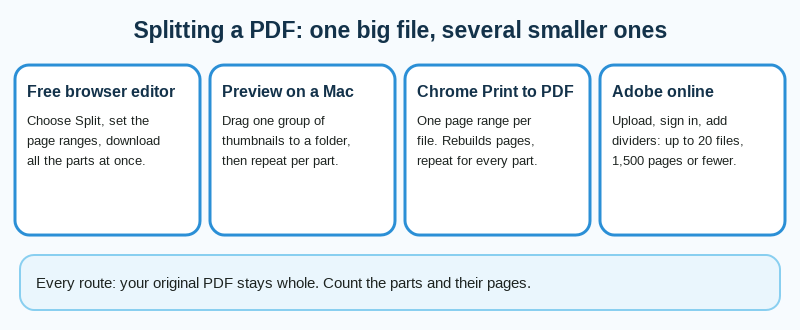
The pattern is short: Preview and Chrome make one slice per round, while a Split tool makes them all at once.
Short answer: To split a PDF into multiple files, open the free PDF Edit editor in any browser, choose Split, set where the file should divide and download the parts. On a Mac, drag groups of thumbnails from Preview’s sidebar into a folder. Chrome can print one page range at a time.
- Any device
- PDF Edit: choose Split, set the divides, download.
- Mac
- Preview: drag thumbnail groups into a folder.
- Chrome
- Print, Save as PDF, one page range per file.
- Adobe online
- Up to 1,500 pages, 20 files; sign-in needed.
How do you split a PDF into multiple files for free?
Open the free PDF Edit editor, load your file, choose Split, set where each part ends and download the new PDFs. No sign-up, no watermark, and your original file stays as it was.
- Open the editor and add your PDF.
- Choose Split and set the page ranges, such as 1-10, 11-25 and 26-40.
- Check the page counts of each part.
- Download the files and give each a clear name.
If you only want one part out of the file, extracting pages is the shorter job.
How do you split a PDF into multiple files on a Mac with Preview?
Show the thumbnails, select one group of pages and drag it to a folder; repeat for each part. Apple’s Preview guide says: You can also create a new PDF by dragging thumbnails from a PDF sidebar to the desktop.
- Open the PDF in Preview and choose View, Thumbnails.
- Select the first group (Shift-click for a run of pages).
- Drag it into a folder to make part one.
- Repeat with the next group, then open each file to check it.
Our guide to editing a PDF on Mac covers the rest of Preview.
Can Chrome split a PDF into multiple files?
Only one range at a time. Open the PDF in Chrome, press the Print icon, set Destination to Save as PDF, type a range such as 2-6 and save. Then repeat for every other part.
Print to PDF rebuilds the pages, so fillable form fields can turn into plain text and links can break, as our guide to deleting pages without Acrobat notes for the same trick.
How do you split a PDF into separate pages, one file per page?
Use a tool that splits every page, or in Preview select all thumbnails and drag them out together. Search-result summaries of Mac guides say Preview then creates one PDF per page; we did not run it, so open the folder and count.
The same count check works in any route: a 12-page PDF should give 12 files.
How does Adobe’s online tool split a PDF?
You upload the PDF, sign in, add divider lines to set each range, then save. Adobe’s page allows a PDF of 1,500 pages or fewer, up to 19 dividers (20 files), and a file size of 1GB or less.
Honestly, learning that Chrome’s print dialog has to be repeated for every part made me reach for a real Split tool.
Uploaded files are removed after processing unless you sign in and save them, and the split files are saved to your Adobe cloud storage. Desktop Acrobat’s Split command can also divide by number of pages, maximum file size or top-level bookmarks, according to Adobe’s page.
Does splitting a PDF change the original file?
No. Splitting copies page ranges into new files, so your original stays whole as the backup. Deleting pages is what changes the original; see how to delete pages for that.
After splitting, the parts can be put back in order with rearranging pages or joined again by a merge.
Which way to split a PDF fits a few chunks or many?
Split tools make every part at once; Preview and Chrome make one per round. Checked November 28, 2026.
| Route | Works on | Files per round | Catch | Source |
|---|---|---|---|---|
| PDF Edit (free) | Any browser | Many | None known; check the page counts | Our editor |
| Mac Preview | Mac | One group per drag | Repeat for each part | Apple |
| Chrome Print to PDF | Windows, Mac, Chromebook | One per print | Rebuilds pages; can drop form fields | Search summaries of Chrome guides |
| Adobe online | Any browser | Up to 20 | Sign-in; 1,500 pages, 1GB | Adobe |
In short: use a Split tool for many parts, Preview for two or three, and Chrome only when nothing needs to stay fillable.
Where do the sources differ?
- Adobe’s size limit: the online page lists 1GB, while the older extract page lists 100 MB for that other tool, so each Adobe tool has its own cap.
- Preview one-per-page: Apple’s guide describes dragging thumbnails to make a new PDF; the all-pages trick comes from third-party guides.
- Reddit: our search found no useful Reddit thread for this phrase, so we cite none.
How we researched this
- Read Adobe’s online Split PDF page, November 28, 2026.
- Read Apple’s Preview User Guide page on adding, deleting or moving PDF pages, November 28, 2026.
- Read search-result summaries of Chrome and Preview split guides, same day.
- Compared four routes by files per round and what each needs.
- We did not run Preview, Chrome’s print dialog or Acrobat ourselves and did not test every PDF.
Pick your ranges, split, check the page counts, and enjoy a set of PDFs that are exactly the size you needed.
Sources and further reading
Questions and answers
How do I split a PDF into multiple files?
Open the free PDF Edit editor in any browser, choose Split, set where each part ends and download the new PDFs. On a Mac, drag groups of thumbnails from Preview’s sidebar into a folder.
Can I split a PDF into multiple files for free?
Yes. PDF Edit is free with no sign-up or watermark, Mac Preview is built in, and Chrome’s Save as PDF is built into the browser.
How do I split a PDF into separate pages?
Choose a Split tool that makes one file per page, or in Preview select all thumbnails and drag them out. Count the files afterward: a 12-page PDF should give 12.
Does splitting a PDF change the original?
No. Splitting copies page ranges into new files and leaves the original whole. Deleting pages is what changes the original.
Does Adobe’s online Split tool need a sign-in?
Yes. Adobe’s page has you sign in to set dividers and save, allows up to 20 files from a PDF of 1,500 pages or fewer, and removes unsaved uploads.