
How to Rearrange Pages in a PDF Without Acrobat: Free Drag-and-Drop Ways
Every guide to rearranging PDF pages without Acrobat says to drag a thumbnail, and few mention that Preview saves over your original.
Every rearrange pages in a PDF without Acrobat
result I opened tells you to drag a thumbnail, and few mention what happens to your original file when you save.
I spent an afternoon with Apple’s Preview guide, Adobe’s free rearrange page and PDF Candy’s no-Acrobat roundup, then lined up the steps and the catches.
Dragging is the easy part. Saving a copy, not over the original, is the part worth knowing.
Short answer: To rearrange pages in a PDF without Acrobat, open the file in a free page editor, show the page thumbnails, drag each page to its new position, then download or save the result and check the order. On a Mac, Preview does this with its thumbnail sidebar. The free PDF Edit editor reorders pages with no sign-up.
- Steps
- Open the PDF, drag thumbnails, save, check.
- Mac
- Preview: View, Thumbnails, then drag.
- Free online
- PDF Edit: reorder pages, no sign-up.
How do you rearrange pages in a PDF without Acrobat?
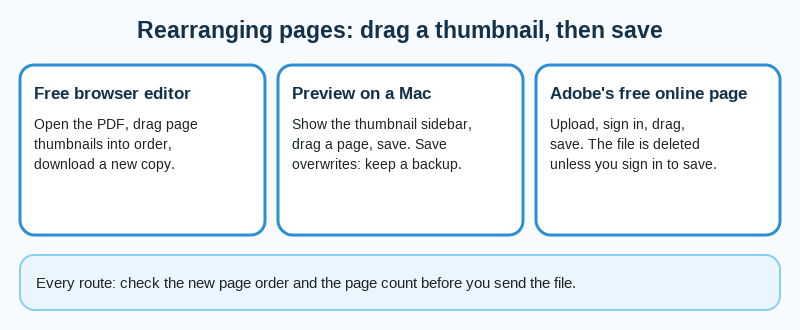
You rearrange pages by opening the PDF in any page editor that shows thumbnails, dragging a page to its new spot, and saving a new copy. Browser editors, Preview and Adobe’s free page all follow this shape.
- Open the free PDF Edit editor and add your PDF.
- Show the page thumbnails so every page is visible.
- Drag each page to its new position.
- Download the new file, then check the order and the page count.
How do you rearrange PDF pages on a Mac without Acrobat?
Open the PDF in Preview, choose View, then Thumbnails or Contact Sheet, and drag the pages. Apple’s guide says to drag the pages to their new location.
Here is the catch: PDF Candy’s guide says Preview overwrites the original file when you save, so copy the PDF first. Its shortcut for the sidebar is Option + Command + 2.
Does Adobe’s free rearrange page need a sign-in?
Yes, to save. Adobe’s page lists upload, sign in, drag, Save, and states that your file is deleted unless you sign in to save it.
It lists up to 1,500 pages and files under 100 MB. A no-sign-up editor is quicker for a single job.
Can you reorder PDF pages on Windows without a paid editor?
Yes. Windows has no built-in page reorder for PDFs that we found documented, so use a browser editor, or a desktop tool such as EaseUS PDF Editor, which PDF Candy describes: click Pages, drag each page, save with Ctrl + S.
A browser editor skips the install, and works the same on any computer.
How do you move a page from one PDF into another?
In Preview, open both PDFs in thumbnail view and drag a thumbnail from one sidebar to the other, per Apple’s guide. Online, merge the two files, then drag the pages into place.
Honestly, learning that Preview overwrites the file made me copy the PDF before dragging anything.
Our guides on adding a page online and deleting pages cover the neighbouring jobs.
Should you add page numbers before or after reordering?
After. Numbers are stamped on the page and do not follow it, so finish the order first. Adobe’s page-number tool says you must renumber once you change the order. See adding page numbers online.
Which way to rearrange PDF pages fits you?
Pick by whether you want a sign-in and whether you mind overwriting. Checked November 28, 2026.
| Route | How | Catch | Source |
|---|---|---|---|
| PDF Edit, browser | Drag thumbnails, download | Check the order after | Our editor |
| Preview on Mac | Thumbnails, drag, save | Save overwrites the original | Apple, PDF Candy |
| Adobe free online | Upload, sign in, drag, Save | Sign-in to save; 100 MB limit | Adobe |
| PDF Candy online | Drag thumbnails, apply | Saves a separate copy | PDF Candy |
| EaseUS PDF Editor (Windows) | Pages button, drag, Ctrl + S | Desktop install | PDF Candy |
In short: drag thumbnails in any editor, and save a copy so the original stays safe.
Where do the sources differ?
- Original file: PDF Candy says Preview overwrites it and its own online tool saves a separate copy.
- Sign-in: Adobe requires it to save; other tools we read advertise none.
- Reddit: our search returned no useful Reddit thread for this phrase, so we cite none.
How we researched this
- Read Apple’s Preview User Guide page on adding, deleting or moving PDF pages, November 28, 2026.
- Read Adobe’s free online rearrange-pages page and PDF Candy’s no-Acrobat guide, November 28, 2026.
- Compared five routes by sign-in, saving behaviour and install needs.
- We did not test every site, and we did not test Acrobat ourselves.
Drag the pages, save a copy, check the order, and enjoy a PDF that reads exactly the way you meant.
Sources and further reading
Questions and answers
How do I rearrange pages in a PDF without Acrobat?
Open the PDF in a free page editor, show the thumbnails, drag each page to its new position, then download or save and check the order. On a Mac, Preview does this.
Can I rearrange pages in a PDF for free?
Yes. The free PDF Edit editor reorders pages in your browser with no sign-up or watermark. Preview on a Mac is also free.
How do I rearrange PDF pages in Preview on a Mac?
Open the PDF, choose View, Thumbnails, and drag the pages to their new location. Saving overwrites the original, so keep a copy first.
Does Adobe’s free rearrange tool need a sign-in?
Yes, to save. Adobe’s page says your file is deleted unless you sign in to save it, and lists limits of 1,500 pages and 100 MB.
Will rearranging pages fix my page numbers?
No. Numbers are stamped on the pages and do not follow them, so reorder first and add or renumber page numbers last.