
How to Add a Page to a PDF Online: Blank Pages, Pages From Another PDF and Scans
Every guide to adding a page to a PDF online starts with an upload button, and few say whether you want a blank page, a second file or a scan.
Every add a page to a PDF online
guide I opened starts with an upload button, and most never say which of three different jobs you came for.
I spent an afternoon with Apple’s Preview guide, Adobe’s insert-blank-page help page and the iLovePDF and Smallpdf instructions, then sorted the steps by job.
Blank page, pages from another file, or a scan: each has its own short route.
Short answer: To add a page to a PDF online, open the PDF in an online page editor, insert a blank page after the page you choose, or merge a second PDF in and drag its pages into place, then download the new file. A photo or scan must become a PDF first. The free PDF Edit editor does this with no sign-up.
- Blank page
- Select the page before it, insert a blank page, download.
- Pages from another PDF
- Merge both files, reorder, download.
- Photo or scan
- Convert to PDF, then merge.
- Free online
- PDF Edit: blank, merge, reorder and extract pages.
How do you add a page to a PDF online, and which job is yours?
You add a page online by choosing the job first: a blank page, pages from a second PDF, or a picture. The three use different buttons, and mixing them up is why people hunt through menus.
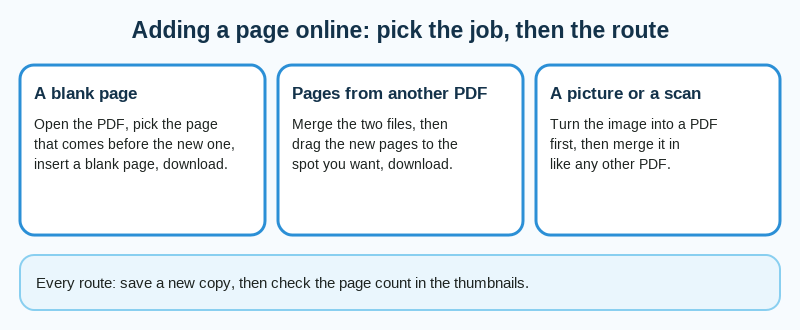
The picture’s three routes are written out in the sections below. All of them end the same way: download a new copy and check the page count.
How do you add a blank page to a PDF online?
Open the PDF in an online editor, select the page that should come before the new one, choose the insert-blank-page command and download the file. Online guides from Smallpdf describe choosing Before or After the selected page.
- Open the free PDF Edit editor and add your PDF.
- Select the page that comes before the spot you want.
- Insert a blank page and check it sits right after that page.
- Download the new file; your original stays as it was.
A blank page is useful for a signature sheet, a divider between sections, or room to write on a printout.
How do you add pages from another PDF to a PDF online?
Merge the two files into one, then drag the new pages to where they belong. iLovePDF’s guide describes the same idea: its Merge tool combines several PDFs, and its Organize tool has a plus button for adding files.
Here is the catch: a plain merge puts the second file at the end. If page 7 of the first PDF needs the new pages after it, reorder them afterwards.
- Merge the first PDF and the second PDF.
- Move the new thumbnails to the right place.
- Extract or delete any pages from the second file you did not want.
How do you add a photo or a scanned page to a PDF online?
Turn the image into a one-page PDF first, then merge it like any other PDF. A phone photo of a signed page works the same way, as a JPG or PNG converted to PDF.
The scan stays a picture, so its words cannot be edited. Our guide on editing a scanned PDF online covers that case.
Can you add a page to a PDF on a Mac without going online?
Yes. In Preview, select the page that should come before the new one, choose Edit, Insert, then Page from File or Blank Page. Apple’s guide says the new page is inserted after the current page.
Apple names a second route: View, Thumbnails, then the Add button at the bottom of the sidebar, with Insert from File or Insert Blank Page.
Does Adobe Acrobat charge to add a page to a PDF?
Adobe’s own page puts it under All tools, Organize pages, then Insert, Blank page, and describes it as part of Acrobat. Adobe’s help page for this feature is the one to read for your plan; we do not quote prices.
Honestly, learning that a plain merge drops the new file at the end explained why so many people ask where their page went.
For a single blank page, a free browser editor avoids the account. For a long document with forms and signatures, check your plan first.
What if the new page lands in the wrong place?
Drag its thumbnail to the right spot before you download, or delete it and insert again after the correct page. Most mistakes come from selecting the wrong page before inserting.
Count the pages afterwards: a 10-page PDF with one added page should show 11. Our guide to deleting pages without Acrobat covers the reverse job.
Which online way to add a page fits your PDF?
Pick by the job: a one-click blank page is simplest, a merge handles another file. Checked November 28, 2026.
| Route | Blank page | Pages from another PDF | Source |
|---|---|---|---|
| PDF Edit, browser | Yes | Merge, then reorder | Our editor |
| Smallpdf, Organize PDF | Yes, before or after a page | Merge PDF or Organize PDF | Smallpdf |
| iLovePDF, Organize PDF | Yes, plus icon on a page | Plus button or Merge tool | iLovePDF |
| Preview on Mac | Edit, Insert, Blank Page | Edit, Insert, Page from File | Apple |
| Adobe Acrobat | Organize pages, Insert, Blank page | Insert from file in the same tool | Adobe |
In short: use a blank-page command for empty pages and a merge for other files.
Where do the sources differ?
- Where the new page goes: Apple inserts it after the selected page; Smallpdf lets you choose before or after. Check where yours landed.
- Privacy: some sites say files stay in your browser, others upload them. Read each site’s own statement.
- Reddit: our search returned no useful Reddit thread for this phrase, so we cite none.
How we researched this
- Read Apple’s Preview User Guide page on adding, deleting or moving PDF pages, November 28, 2026.
- Read search-result summaries of the iLovePDF and Smallpdf add-pages guides and Adobe’s insert-blank-page help page, November 28, 2026.
- Compared five routes by blank-page and other-file support.
- We did not test every site, and we did not test Acrobat ourselves.
Pick your job, insert or merge, check the page count, and enjoy a PDF with exactly the pages it needs.
Sources and further reading
Questions and answers
How do I add a page to a PDF online?
Open the PDF in an online page editor, select the page before the new one, insert a blank page or merge in another PDF, then download the new file. Check the page count.
Can I add a page to a PDF online for free?
Yes. The free PDF Edit editor adds blank pages and merges PDFs in your browser with no sign-up or watermark.
How do I add pages from another PDF to my PDF?
Merge the two PDFs, then drag the new pages to the spot you want and download. A plain merge puts the second file at the end.
How do I add a scanned page or photo to a PDF?
Convert the image to a one-page PDF, then merge it into your document and move it into place. The scan stays a picture, so its text is not editable.
Will adding a page break a signed PDF?
Usually yes. Changing the document normally invalidates an existing signature, so ask the sender for a fresh signed copy.