How to Edit a Scanned PDF Online for Free: Cover and Retype, or Turn the Scan into Text
Hi there, and welcome to the guide for the scanned PDF where one word is wrong and clicking it does nothing at all.
Picture a scanned contract or form with one wrong date, and nothing happens when you click the word to fix it.
That is normal for a scan, because every page is a photo of paper with no typed letters inside.
You still have two free ways to fix it online, and the editor in the box above handles the first one right in your browser.
Short answer: To edit a scanned PDF online for free, open it in a browser editor such as PDF Edit, draw a Whiteout Box over the wrong words, add your new text on top and save a new PDF. To rewrite whole paragraphs, upload the scan to Google Drive and open it with Google Docs, which turns the picture into editable text.
- What a scan is
- Pictures of pages; you can’t select a word, says Adobe’s OCR page.
- Fix a word, free
- Whiteout Box plus Add Text in PDF Edit; no upload, no sign-in.
- Rewrite paragraphs, free
- Google Docs text recognition: 2 MB or smaller, text at least 10 pixels high (Google).
- Catch to know
- A white box only covers; Flatten removes the words underneath for good.
Why can’t you edit a scanned PDF like a normal one?
A scanned PDF holds a picture of each page, not typed letters, so a PDF editor has no words to change. Adobe’s test is simple: try to select or highlight a word. If nothing selects, the file is a scan.
To edit the words themselves, software first has to read the picture. That step is called OCR, optical character recognition. Adobe’s page says it converts scanned images of text into machine-readable text
that you can search, copy and edit (Adobe, OCR a PDF).
Here’s the part most guides skip: you don’t always need OCR. For one date, name or price, covering the old word and typing a new one is faster, and it works on a scan exactly as on any PDF.
What are the free ways to edit a scanned PDF online?
There are two free ways to edit a scanned PDF online: cover and retype the words in a browser editor, or run text recognition in Google Docs and edit the result. Adobe’s free online tools recognize text but keep editing it for paid Acrobat Pro.
| Tool | Changes words on a scan | Account or upload | Limits stated by the maker |
|---|---|---|---|
| PDF Edit (browser) | Cover and retype: Whiteout Box, then Add Text | No account; the file stays on your device | No text recognition; new text is Helvetica |
| Google Docs | Yes, in a new document after text recognition | Google account; upload to Drive | 2 MB or smaller; text 10 pixels high; lists, tables, columns, footnotes likely lost |
| Adobe Acrobat online OCR | No, free OCR makes it searchable; editing is Acrobat Pro | Free Adobe account to download; upload to Adobe | No size limit stated on the page |
| Adobe Acrobat online editor | No, free tier adds text, comments and drawings | Free Adobe account to download | No size limit stated on the page |
| Word (desktop) | Converts PDFs; the page doesn’t mention scans | Microsoft 365 or Word 2016 and later | Copier-style PDFs won’t be formatted well |
Adobe’s own editor FAQ draws the free line plainly: The free version of Adobe Acrobat’s online editor does not let you edit existing body text within a PDF.
Recognized text becomes editable with Acrobat Pro, which has a 7-day free trial.
Which free way fits your scanned PDF? Pick it here
Choose the change you need on your scan. The answer names the free way and its first steps; nothing is uploaded or saved.
How the chooser decides: each answer comes from the table above and the maker’s help page linked in each section below. It picks the free way with the fewest steps for that one change.
How do you edit text in a scanned PDF online without OCR?
You edit text in a scanned PDF without OCR by covering the old words with a white box and typing new ones on top. In PDF Edit this takes four steps, and the scan never leaves your computer or phone.
- Open pdfedit.xyz/editor in Chrome, Edge, Safari or Firefox and choose your scanned PDF.
- Set Tool to Whiteout Box (cover old text) and drag over the wrong word.
- Switch to Add Text, type the new word, set the font size (6 to 72), and click where it goes.
- Click Save as new PDF. Your original file stays untouched.
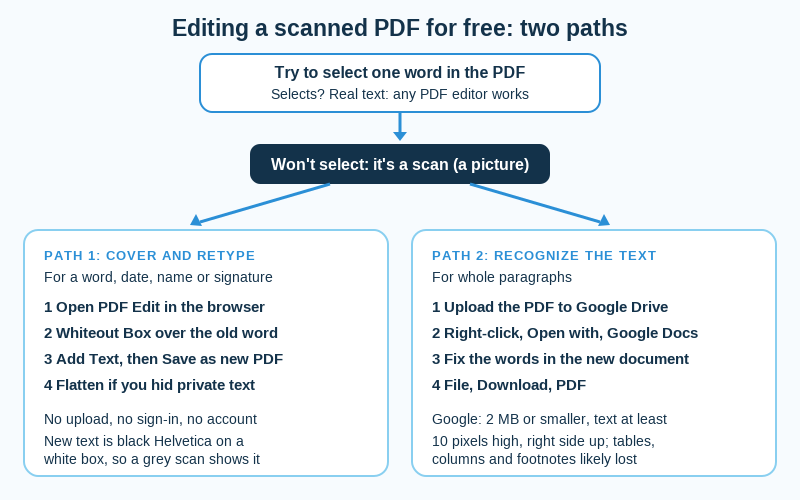
- First test: try to select one word. If it selects, the PDF has real text; if not, it’s a scan.
- Path 1, cover and retype (a word, date, name or signature): PDF Edit, Whiteout Box, Add Text, Save as new PDF, Flatten if you hid private text. No upload, no sign-in.
- Path 2, recognize the text (whole paragraphs): Google Drive, right-click, Open with, Google Docs, edit, File, Download, PDF. Google’s limits: 2 MB or smaller, text at least 10 pixels high, right side up.
Match the size, not the font. PDF Edit sets new text in Helvetica, so measure against a neighbouring word: if a typed 11 looks bigger than the scan, try 10. Our guide to editing PDF text without Adobe explains why editors swap fonts.
What if the white box shows on a grey or yellowed scan?
A white box shows on a grey, cream or yellowed scan because the page isn’t truly white. The cleanest fix is a fresh scan in a black-and-white or document mode, which turns the paper white so the box blends in.
This is a common complaint. In an Adobe Community thread from March 2022, text on grey stayed an image even in Acrobat. The advice there was to lighten the whites in the scanner software, without washing out the text.
- Phone: Apple’s Notes scanner has a Filters setting and
The document is saved as a PDF in the note.
- Office scanner: pick the black-and-white or text setting instead of photo.
- Can’t rescan? Cover the whole line or a full margin-to-margin strip, so the box reads as a tidy correction.
How do you turn a scanned PDF into editable text for free?
Google Docs turns a scanned PDF into editable text for free. Upload the PDF to Google Drive, right-click it, choose Open with, then Google Docs, per Google’s Convert PDF and photo files to text page.
Google is open about what survives: Bold, italics, font size, font type, and line breaks are likely to be retained.
And what doesn’t: Lists, tables, columns, footnotes, and endnotes are not likely to be detected.
- Size:
The file should be 2 MB or smaller.
- Orientation: documents must be right side up; rotate a sideways page first (PDF Edit’s Rotate page 90° does it).
- Fonts: common fonts such as Arial or Times New Roman read best.
- Language: detected automatically.
When the words read right, choose File, Download, PDF Document. You get a new PDF built from the text, not the original scan, so check the layout. Our Google Docs PDF guide covers what moves during conversion.
Will Google Docs read your scan? Check the 10-pixel rule
Google asks for text at least 10 pixels high
. A letter’s height in pixels is its point size times the scan’s dots per inch, divided by 72. Lowercase letters are about half that tall, so aim well above 10.
The calculator’s assumptions: 72 points to the inch, and lowercase letters about half the full letter height in common fonts such as Arial and Times New Roman. It’s a guide to the scan setting, not a promise of perfect recognition.
| Font size | 72 dpi | 150 dpi | 200 dpi | 300 dpi |
|---|---|---|---|---|
| 8 pt | 8.0 px | 16.7 px | 22.2 px | 33.3 px |
| 10 pt | 10.0 px | 20.8 px | 27.8 px | 41.7 px |
| 12 pt | 12.0 px | 25.0 px | 33.3 px | 50.0 px |
Read the table this way: at 72 dpi, lowercase letters in 8 to 12 point type are only 4 to 6 pixels tall, under Google’s line. At 300 dpi, even 8 point lowercase is about 17 pixels, which is why 300 dpi is the safe scan setting.
Can you edit a scanned PDF with Adobe for free?
Not the words themselves. Adobe’s free online OCR tool makes a scan searchable, so you can search, copy and highlight it, and you sign in with a free Adobe account to download it. Editing the recognized text is part of Acrobat Pro.
In paid Acrobat, Adobe’s Edit scanned PDFs help says that opening Edit PDF on a scan makes Acrobat apply OCR automatically and convert it to a fully editable copy of your PDF.
A Recognize text checkbox in the right pane turns that on or off.
The free Adobe online editor can still add new text boxes, comments and drawings on top of a scan. That’s the same cover-and-add idea, with an upload and a sign-in to download.
How do you copy text from a scanned PDF for free?
Your computer may already read scans. On a Mac, Live Text in Preview selects words in an image; on Windows 11, Snipping Tool’s Text actions copies the words from a screenshot. Paste them into any document and edit there.
Honestly, realizing a scan is just a photo of paper made the cover-and-retype trick feel obvious instead of like cheating.
- Mac: open a page image in Preview,
Drag to select text, Control-click your selection, then choose Copy Text.
If nothing selects, Apple says to choose Tools, Text Selection (Apple Preview guide). - Windows 11: press Windows + Shift + S over the scanned page, then select Text Actions. Microsoft says the tool
will highlight all the text it finds
(Microsoft). - Any computer: Google Docs, as in the section above, gives you the text of every page in one document.
How do you sign, fill in or fix the pages of a scanned PDF online?
Signing, filling blanks and page changes don’t need OCR at all, because they add to the scan or move whole pages. PDF Edit does all three in the browser for free.
- Fill a blank: Add Text, click on the line, type.
- Sign: Signature Image places a PNG or JPG of your signature. Sign on white paper and photograph it, then crop.
- Pages: Delete this page, Rotate page 90°, Move page earlier or later, Insert blank page after, Extract to new PDF, Split into single pages, and Merge to join scans.
- Extras: Add page numbers and Add watermark.
Where do guides about editing scanned PDFs disagree?
Most guides agree that a scan needs either OCR or a cover-up; three popular claims go further than the makers’ own pages say.
Adobe edits scans for free online.
Adobe’s OCR page lists editing recognized text under the Acrobat Pro trial, and its editor FAQ says the free version can’t edit existing body text.OCR keeps your layout.
Adobe’s OCR page says its tool retains layout and fonts; Google says lists, tables, columns and footnotes are not likely to be detected. Results depend on the tool.- “Word opens scans.” Microsoft’s Edit a PDF page doesn’t mention scanned files and warns that copier-style PDFs
won’t be formatted well in Word.
The gap none of the top guides cover is the grey page: a white cover box stands out on an off-white scan, and a cleaner rescan fixes it faster than any editor setting.
What should you check before you edit a scanned PDF?
One minute of checking picks the right free way for a scanned PDF.
- Can you select a word? If yes, it isn’t a scan, so any PDF editor works.
- One word or whole paragraphs? Cover and retype for words; Google Docs for paragraphs.
- Is the page truly white? If not, rescan in black-and-white for a clean cover box.
- Going to Google Docs? Under 2 MB, right side up, scanned at 300 dpi.
- Private text covered? Flatten before you send.
Most scanned PDF jobs are small: a date, a signature, one page the wrong way round. The free editor at the top does those right in your browser, with nothing uploaded.
For a full rewrite, Google Docs reads the scan for you, and the result downloads as a fresh PDF in a few clicks.
How we researched this
- Read Google Docs Editors Help, Convert PDF and photo files to text (size, text height, orientation, fonts, what is retained), November 28, 2026.
- Read Adobe’s OCR a PDF and Free Online PDF Editor pages and their FAQs, November 28, 2026. Adobe’s Edit scanned PDFs help page refused our research tools, so its two quoted lines come from Adobe’s published text as shown in search results.
- Read Microsoft’s Edit a PDF page and the Windows Learning Center Snipping Tool guide, Apple’s Preview Live Text page and the iPhone User Guide’s Scan text and documents page, November 28, 2026.
- Read one Adobe Community thread (March 8, 2022) on grey scan backgrounds; Reddit threads did not load for our research tools, so no Reddit posts are quoted.
- Calculated the letter-height table from points x dpi / 72. Checked the PDF Edit editor’s source: Whiteout Box (white), Add Text (black Helvetica, 6 to 72), Signature Image, page tools, Flatten; it has no text recognition. We did not test every scanner or file.
Cover it or let Google read it, save a fresh copy, and enjoy sending your scan off fixed.
Sources and further reading
- Google Docs Editors Help: Convert PDF and photo files to text
- Adobe: OCR a PDF (free online tool and FAQ)
- Adobe: Free Online PDF Editor (FAQ)
- Adobe Acrobat Help: Edit scanned PDFs
- Microsoft Support: Edit a PDF
- Microsoft Windows Learning Center: How to use Snipping Tool
- Apple Preview User Guide: Interact with text in a photo
- Apple iPhone User Guide: Scan text and documents in Notes
- Adobe Community: How to edit text in a scanned PDF where it is recognised as an image
Questions and answers
Can I edit a scanned PDF online for free?
Yes. For a word, date or name, cover it with a Whiteout Box and type the new text in PDF Edit, free and with nothing uploaded. For whole paragraphs, upload the scan to Google Drive and open it with Google Docs, which turns the picture into editable text.
Why can’t I edit the text in my scanned PDF?
A scanned PDF holds a picture of each page, not typed letters, so there are no words to select. Either cover and retype the words on top, or run text recognition (OCR), for example by opening the PDF with Google Docs.
How do I make a scanned PDF editable for free?
Upload the PDF to Google Drive, right-click it, choose Open with, then Google Docs. Google asks for files of 2 MB or smaller with text at least 10 pixels high, right side up. Lists, tables and columns may not come through.
Does Adobe let you edit a scanned PDF for free?
No. Adobe’s free online OCR tool makes a scan searchable and copyable after a free sign-in, but editing the recognized text needs Acrobat Pro, which has a 7-day free trial. The free online editor only adds text, comments and drawings.
How do I remove text from a scanned PDF?
Cover it with a Whiteout Box in PDF Edit, choose Save as new PDF, then Flatten pages. Flattening turns each page into one image, so the covered words are gone, not just hidden under a box.