How to Edit PDF Text Without Adobe: Change Words, Dates and Numbers for Free (and Keep the Font Looking Right)
Hi there, and welcome to the guide for the one stubborn line of text in an otherwise perfect PDF.
Picture a PDF that is perfect except for one line of text: a misspelled name, last year’s date, a price that changed.
You can fix that text without Adobe and without paying for anything.
The free editor in the box above swaps a word in your browser, and LibreOffice, Word and Google Docs can retype the real text.
Below are the steps for each, plus the reason a new word sometimes shows up in a different font, which surprises most people.
Short answer: To edit PDF text without Adobe, cover the old words with a whiteout box and type the new words on top in a free browser editor such as PDF Edit. To change the real text, open the PDF in LibreOffice Draw, Word or Google Docs, edit it, then save it as a new PDF.
Which free apps can edit PDF text without Adobe?
Three free apps change the existing words in a PDF: LibreOffice Draw, Microsoft Word and Google Docs. The PDF Edit editor and Mac Preview cover the old words and add new text on top, which is often quicker for one word.
| Free way | How it changes the text | Font of the new words | Best for | Where the file goes |
|---|---|---|---|---|
| PDF Edit editor (any browser) | Whiteout box over the old words, new text on top | Helvetica, black, size 6 to 72 | A date, a number, a name | Stays in your browser |
| LibreOffice Draw | Edits the real text, in boxes that are often one line each | The PDF’s font if it is installed, otherwise a substitute | Typos and short lines | Stays on your computer |
| Microsoft Word | Converts the whole PDF into a Word document | Word’s best guess at each font | Rewriting paragraphs | Your computer |
| Google Docs | Converts the PDF into a Google Doc (2 MB or smaller) | Google’s guess; fonts and sizes are likely kept | Plain text documents | Uploaded to Google Drive |
| Preview (Mac) | White shape over the old words, text box on top | Any font installed on your Mac | One line in a known font | Stays on your Mac |
The free Adobe Acrobat Reader is missing from the table on purpose: it cannot change existing text. The Acrobat Reader section below quotes Adobe on that.
How do you replace a word in a PDF for free?
The fastest free way to replace a word in a PDF is to cover it and type the new word over it. In the free PDF Edit editor that takes five steps, and the PDF is never uploaded.
- Open pdfedit.xyz/editor and choose your file under Load PDF.
- Set Tool to Whiteout Box (cover old text) and drag a rectangle over the old word.
- Switch Tool to Add Text, type the new word and set the Font size.
- Click where the new word goes, then drag it until it sits on the same line as its neighbours.
- Press Save as new PDF. The original file stays untouched.
Here’s the catch: the PDF Edit editor writes new text in black Helvetica. On a date, a number or a name in a plain document, that is hard to spot. On a paragraph set in a serif font such as Georgia or Times, retype the whole line so the new text matches itself.
How do you match the size of the old text?
Match the size of the old PDF text by comparison: the PDF Edit editor starts at 12, and the font size field accepts 6 to 72. Place the new word next to an untouched word on the same line and step the size up or down one point until the letters stand equally tall.
How do you edit the original text of a PDF in LibreOffice Draw?
LibreOffice Draw opens a PDF and lets you click into its real text and retype it, free, on Windows, Mac and Linux. It suits typos and short lines best, because Draw rebuilds the page with separate text boxes, often one per line.
- Download LibreOffice from libreoffice.org and open the PDF with File, Open. It opens in Draw.
- Double-click the line you want to change and type the correction.
- Check the font box in the toolbar: it shows which font Draw is using for that line.
- Choose File, Export as PDF to save a new PDF.
If the PDF’s font is not installed on your computer, Draw shows the words in a substitute font, and line lengths can shift. Installing the same font, or setting a closer replacement in Tools, Options, LibreOffice, Fonts, brings the look back.
One habit saves the next edit. In the PDF export options, LibreOffice’s Hybrid PDF (embed ODF file) setting keeps an editable copy inside the PDF. LibreOffice Help says such a file remains fully editable in LibreOffice
.
Why does new text in a PDF come out in a different font?
New text in a PDF comes out in a different font because most PDFs carry only the letters already printed on the page, not the whole font. Any editor, Adobe Acrobat included, needs the full font installed on your computer to type new letters in it.
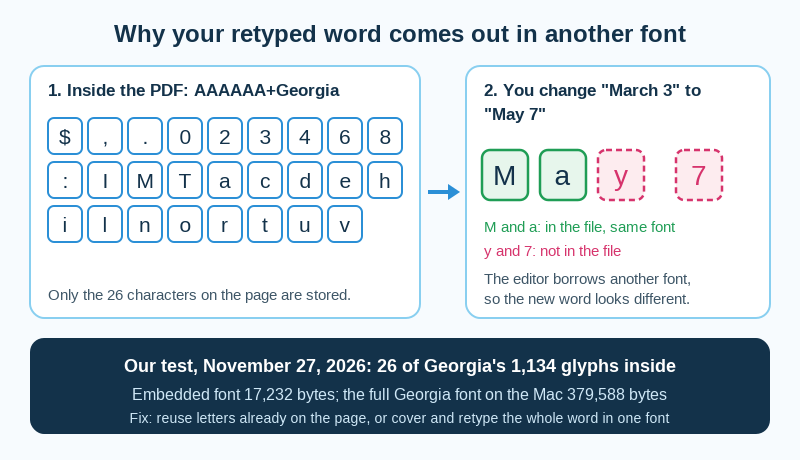
The PDF rules allow this on purpose. The ISO 32000-1:2008 standard, section 9.6.4 “Font Subsets”, says PDF documents may include subsets of Type 1 and TrueType fonts.
A subset’s name starts with six capital letters and a plus sign, such as AAAAAA+Georgia (Adobe’s free copy of the standard).
We checked one ourselves on November 27, 2026. We made a two-line invoice in Georgia (Invoice date: March 3, 2026
and “Total due: $480.00”) and printed it to PDF from Google Chrome, then read the font inside with the free fontTools library.
- Font inside the PDF
- AAAAAA+Georgia, an embedded subset
- Characters stored
- 26:
$ , . 0 2 3 4 6 8 : I M T a c d e h i l n o r t u v - Share of the full font
- 26 of the 1,134 glyphs in Georgia on our Mac
- Size
- 17,232 bytes embedded, against 379,588 bytes for the full Georgia font file
- The edit that breaks it
- Changing “March 3” to “May 7” needs a
yand a7, and neither one is in the file
That is why an editor has to borrow a font for the new letters. A former Adobe principal scientist, answering on the Adobe Community forum, put it plainly: to edit in the original font, you must have a copy of that font installed on your computer system, regardless of whether the font is embedded in the PDF file.
How do you find out which font a PDF uses?
The free Adobe Acrobat Reader shows a PDF’s fonts under File, Properties, on the Fonts tab, marked “Embedded Subset” when only some letters are inside. In LibreOffice Draw, click a line and read the font box in the toolbar.
Once you know the name, check whether that font is installed on your computer. Georgia, Arial and Times New Roman ship with Windows and macOS; a brand font from a designer usually does not, so expect a substitute for it.
How do you edit PDF text in Word or Google Docs?
To edit a lot of PDF text without Adobe, convert the PDF into a document in Word or Google Docs, edit it, and save it as a PDF again. Both are free ways to rewrite whole paragraphs, and both work best on PDFs that are mostly text.
In Microsoft Word: choose File, Open and pick the PDF; Word converts it into an editable document. When you are done, use File, Save As and choose PDF. Microsoft’s support page says The conversion works best with PDFs that are mostly text.
In Google Docs: upload the PDF to Google Drive, right-click it and choose Open with, Google Docs, then download it with File, Download, PDF Document (.pdf). Google Drive Help says The file should be 2 MB or smaller.
Both converters rebuild the page rather than open it, so tables, columns and footnotes can move. Our guide to editing a PDF without Adobe covers the rest of each app.
Can you edit PDF text on a Mac or iPhone without Adobe?
Not directly: Apple’s own guide begins with you can’t edit the text of a PDF in Preview
(Apple: Annotate a PDF in Preview). Preview can still cover the old words and type new ones, in any font on your Mac.
Honestly, finding out that a PDF only carries the letters it already shows made the whole wrong-font mystery click for me.
- Open the PDF in Preview, choose File, Duplicate to keep the original, and show the Markup toolbar.
- Draw a rectangle from Shapes over the old words, then set Fill Color and the border to white.
- Add a Text box, type the new words and use Text Style to pick the same font the PDF uses.
That last step is Preview’s advantage. Apple describes Text Style as the tool to Change the font or the font style and color
, so a Georgia document can get Georgia words. On an iPhone, the Files app’s Markup adds a text box but does not edit the existing words.
Can you edit text in Adobe Acrobat Reader for free?
No. The free Adobe Acrobat Reader fills, signs and comments on a PDF, but editing the existing text needs a paid Acrobat plan. Adobe says the same about its free online editor:
The free version of Adobe Acrobat’s online editor does not let you edit existing body text within a PDF.
Reader’s free text tools add comments and free-text notes on top of the page (Adobe: Acrobat Reader). For a real change, use one of the free ways above.
What if the text in the PDF can’t be selected?
If you can’t highlight the words in a PDF, the page is a picture, usually a scan, and there is no text to edit yet. Google Docs can turn it into text: Google Drive Help says it can convert PDFs (multipage documents) or photo files
into text.
Microsoft Word can convert a scan too: Microsoft’s Scan and edit a document page says to save the scan as a PDF and open it in Word, which turns it into an editable document. LibreOffice Draw has no text recognition.
The quicker fix for one figure on a scanned page is the same as on any page: cover it with a whiteout box in the PDF Edit editor and type the new figure on top.
Can any free tool keep the original font when you edit PDF text?
Only for letters that are already in the file. Some online editors advertise edits that keep “the original font”; that works when every letter you type already appears in the PDF’s embedded subset.
Our test shows the limit. The two-line invoice stored 26 characters, so “March 3” to “Match 3” could reuse stored letters, while “May 7” could not. No ranking guide we read explained this; the ISO standard and the Adobe Community answer above do.
Adobe’s community experts give the cleanest fix of all. On a thread about spacing that changed after an edit, one wrote: The solution is to go back to the original file used to create the PDF, edit it and then create a new PDF file.
(Adobe Community, April 2019)
What should you check before you edit PDF text?
Five quick questions pick the right free way and keep the original safe.
- Do you have the original Word, Google Docs or Pages file? Edit that and export a new PDF.
- Is it one word or a whole paragraph? Whiteout and text for a word; Word or Google Docs for paragraphs.
- Does the new text need letters the line doesn’t have? Expect a substitute font; retype the whole line.
- Can you highlight the words? If not, it is a scan: Google Docs or Word, or cover and retype.
- Are you hiding private words? A white box only covers them; press Flatten pages (true redaction) in PDF Edit before you share.
Most text fixes are one date, one name or one price. The free editor in the box at the top handles those without a sign-up, a watermark or an upload.
For anything longer, LibreOffice Draw, Word and Google Docs change the real words for free, as long as you save the result as a fresh PDF.
How we researched this
- Read Adobe’s free online PDF editor page and the Acrobat Reader page for what is free, November 27, 2026.
- Read section 9.6.4 “Font Subsets” of ISO 32000-1:2008 in Adobe’s free copy of the standard, November 27, 2026.
- Made a two-line Georgia invoice, printed it to PDF from Google Chrome (Skia/PDF), and counted the embedded font’s characters and bytes with fontTools, November 27, 2026; re-checked the counts November 28, 2026. One test file, one font: other apps may embed more or fewer letters.
- Read Apple’s Preview User Guide, Microsoft Support, Google Drive Help and LibreOffice Help (Hybrid PDF), November 27-28, 2026.
- Read two Adobe Community threads on font substitution and spacing after edits. Reddit and the Ask LibreOffice site did not load for our research tools, so neither is quoted.
- Checked the PDF Edit editor’s own source for its text tool: Helvetica, black, font size 6 to 72. We did not test every app on every device.
Cover it or retype it, save a fresh copy, and enjoy a PDF that finally says the right thing.
Sources and further reading
- Adobe: Acrobat online PDF editor
- Adobe: Acrobat Reader (what is free)
- ISO 32000-1:2008 PDF standard (Adobe’s free copy), section 9.6.4 Font Subsets
- Adobe Community: Fonts missing when editing
- Adobe Community: Font spacing changed after edit in Acrobat Pro DC
- Apple: Annotate a PDF in Preview on Mac
- Microsoft Support: Add a PDF to your Office file
- Microsoft Support: Scan and edit a document
- Google Drive Help: Convert PDF and photo files to text
- LibreOffice Help: PDF export, General (Hybrid PDF)
- LibreOffice: Download
Questions and answers
Can I edit PDF text for free without Adobe?
Yes. The free PDF Edit editor covers old words with a whiteout box and types new ones in your browser. LibreOffice Draw, Word and Google Docs change the real text for free, then save a new PDF.
Why does my edited PDF text look like a different font?
Most PDFs store only the letters already on the page. New letters need the full font installed on your computer; without it, every editor, Adobe Acrobat included, uses a substitute font.
Can I edit text in Adobe Acrobat Reader?
No. Acrobat Reader can fill forms, sign and add comments for free, but changing existing text needs a paid Acrobat plan. Adobe’s free online editor can’t edit existing body text either.
How do I change a date or number in a PDF?
Open the PDF in the free PDF Edit editor, draw a whiteout box over the old date, add the new date with Add Text at a matching size, and save it as a new PDF.
Does covering text with a white box delete it?
No. The old words stay in the file and can often be selected or copied. To remove them for good, press Flatten pages in PDF Edit, which turns each page into an image.