How to Edit a PDF Without Adobe: 6 Free Ways on Windows, Mac, iPhone and Online
Hi there, and welcome to the guide for the PDF that needs just one little change before it goes out.
Picture the PDF that needs one small change before you send it: a wrong date, a missing signature, an extra page.
You do not need an Adobe subscription for any of that.
The free editor in the box above runs in your browser, and the apps already on most computers and phones cover the rest.
Here is which free way fits which change, with the exact steps from each maker’s own help pages.
Short answer: To edit a PDF without Adobe, pick the free tool that fits the change. For a small fix, cover the old words with a whiteout box and type new text in a free browser editor such as PDF Edit. To rewrite paragraphs, open the PDF in Word or Google Docs, edit it, then save it as a PDF again.
What are the free ways to edit a PDF without Adobe?
There are six common free ways to edit a PDF without Adobe, and each one changes different things. Only Word, Google Docs and LibreOffice Draw edit the words already in the file; the others add text, signatures and page changes on top of it.
| Free way | Change existing text | Add text, fill, sign | Page changes | Where the file goes |
|---|---|---|---|---|
| PDF Edit editor (any browser) | Cover and retype (whiteout + text) | Yes: text, real form fields, signature image | Delete, rotate, reorder, insert blank, extract, split, merge, page numbers, watermark | Stays in your browser, never uploaded |
| Preview (Mac) | No, per Apple | Yes: text box, form fill, signature | Reorder and combine by dragging thumbnails | Stays on your Mac |
| Files Markup (iPhone) | No | Yes: Add Text Form Box, Add Signature | Not covered on Apple’s page | Stays on your iPhone |
| Microsoft Word | Yes, after Word converts it to a document | Yes, as a Word document | As a Word document | Your computer (Word for the web: online) |
| Google Docs | Yes, after conversion (files of 2 MB or smaller) | As a Google Doc | As a Google Doc | Uploaded to Google Drive |
| LibreOffice Draw | Yes, one text box per line | Yes | Yes, as Draw pages | Stays on your computer |
Adobe’s own free Acrobat Reader is not on the list because it cannot change the words in a PDF. It can still fill and sign, which the Adobe section below covers.
Which free way should you use for your change?
Choose by the change, not by the app. A one-word fix, a full rewrite, a signature and a page job each have a different fastest free tool.
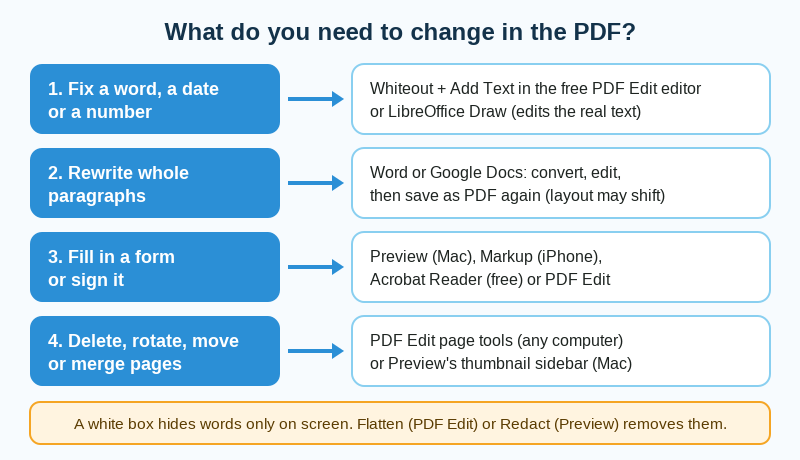
- Fix a word, a date or a number: Whiteout + Add Text in the free PDF Edit editor, or LibreOffice Draw, which edits the real text.
- Rewrite whole paragraphs: Word or Google Docs. Convert, edit, then save as PDF again; the layout may shift.
- Fill in a form or sign it: Preview on a Mac, Markup on an iPhone, the free Acrobat Reader, or PDF Edit.
- Delete, rotate, move or merge pages: the PDF Edit page tools on any computer, or Preview’s thumbnail sidebar on a Mac.
- Hide text for good: a white box hides words only on screen. Flatten in PDF Edit, or Redact in Preview, removes them.
How do you change a word or number in a PDF for free?
The quickest free way to change one word or number in a PDF is to cover it and type over it. In the free PDF Edit editor that takes five steps, and the file never leaves your computer.
- Open pdfedit.xyz/editor and choose your file under Load PDF.
- Set Tool to Whiteout Box (cover old text) and drag a rectangle over the old word.
- Switch Tool to Add Text, type the new word and set the font size (6 to 72).
- Click on the page where the new word goes. Drag it to line it up.
- Press Save as new PDF. Your original file stays untouched.
Here’s the catch: the new text is set in black Helvetica, not in the PDF’s own font. Match the size and nobody notices on a date or a price; on a long sentence in a fancy font, LibreOffice Draw or Word gives a closer match.
Can LibreOffice Draw edit the original text in a PDF?
Yes. LibreOffice Draw opens a PDF and lets you click into its real text and retype it, free, on Windows, Mac and Linux. On the Adobe Community forum, a community expert answering how do I edit a PDF without Acrobat
wrote: The best free PDF editor is LibreOffice Draw.
(thread)
LibreOffice Draw has two limits worth knowing first. It splits the text into separate boxes, often one per line, so fixing a typo is easy and rewriting a paragraph is fiddly. And if the PDF’s fonts are not installed on your computer, Draw swaps in a substitute font, which can shift spacing and line breaks.
Download LibreOffice from libreoffice.org, open the PDF from File, Open, edit, then use File, Export as PDF.
How do you rewrite a PDF in Word or Google Docs?
To rewrite whole paragraphs of a PDF without Adobe, convert it into a document, edit it, and save it as a PDF again. Word and Google Docs both do the conversion for free, and both work best on PDFs that are mostly plain text.
In Microsoft Word: choose File, Open and pick the PDF. Word shows a message that it will convert the PDF into an editable Word document (Microsoft Support). Edit, then use File, Save As and pick PDF.
Microsoft is clear about the trade-off. Its support page says the converted file may not look exactly like the original document
and that The conversion works best with PDFs that are mostly text.
In Google Docs: upload the PDF to Google Drive, right-click it, then choose Open with, Google Docs. When you are done, use File, Download, PDF Document (.pdf).
Google Drive Help sets the limits: The file should be 2 MB or smaller.
Bold, italics, font size, font type and line breaks are likely to be kept; lists, tables, columns, footnotes and endnotes are not likely to be detected.
How do you edit a PDF on a Mac or iPhone without Adobe?
A Mac and an iPhone already have free PDF editing built in: Preview on the Mac, and Markup in the Files app on the iPhone. Neither one changes the existing words, but both add text, fill forms and sign.
Preview on a Mac: open the PDF, click the Show Markup Toolbar button, then use the Text tool: Type your text, then drag the text box where you want.
Apple’s own page starts with the limit: you can’t edit the text of a PDF in Preview
(Apple: Annotate a PDF in Preview).
Preview also signs and fills forms (Apple: Fill out and sign PDF forms), with a signature captured on the trackpad, the camera or an iPhone. For pages, choose View, Thumbnails and drag thumbnails to reorder them or to move pages between two PDFs.
Preview saves changes as you go: Apple notes that Changes you make to a Preview document are saved automatically.
Choose File, Duplicate first if you want to keep the original (Apple: Add, delete or move PDF pages).
Files on an iPhone: open the PDF in the Files app and tap Markup. Tap the Add button, then Add Text Form Box to type anywhere, or Add Signature to sign with your finger (Apple iPhone User Guide).
What can the free Adobe tools do without a subscription?
Adobe’s free tools fill, sign and comment on a PDF, but they do not change its existing text. Adobe says so on its own online editor page:
Honestly, most PDF jobs are a date, a name or one page in the wrong spot, and those never needed a subscription.
The free version of Adobe Acrobat’s online editor does not let you edit existing body text within a PDF.
- Free in Acrobat Reader
- View, print, comments, highlights, sticky notes, free-text annotations, filling and saving forms, and signing (Adobe: Acrobat Reader).
- Free online, with a catch
- Text boxes, sticky notes, highlights and drawing; a free Adobe account is required to download or share the edited file.
- Paid
- Editing text and images needs Acrobat Pro or Acrobat Studio, per Adobe; Acrobat Pro has a 7-day free trial.
Does a white box really remove text from a PDF?
No. A white box, a text box or a black rectangle drawn on a PDF only hides the words on screen; the original text is still inside the file. Anyone who opens the file can often select it, search for it or copy it out.
Two free tools remove hidden text for good. In the PDF Edit editor, save your whiteout boxes, then press Flatten pages (true redaction): every page becomes an image, so covered text is gone and the rest is no longer selectable.
On a Mac, Preview’s Redaction Selection tool removes selected text, and Apple says once you close the document, the redaction becomes permanent.
How do you edit a scanned PDF without Adobe?
A scanned PDF is a picture of a page, so there are no words to edit until a tool turns the picture into text. Of the free ways above, Google Docs does that: Google Drive Help says it can convert PDFs (multipage documents) or photo files
into text.
For the best result from a scan, Google asks for pages that are right-side up, sharp, evenly lit, and with text at least 10 pixels high. Word and LibreOffice Draw have no built-in text recognition for scans.
Our PDF Edit editor has no text recognition either, but whiteout and Add Text work on a scan exactly as on any page: cover the old figure, type the new one, save.
Where do guides disagree about editing PDFs for free?
Most guides agree on the steps; three claims in popular roundups go further than the makers’ own pages.
Google Docs edits any PDF.
Google’s own help page limits the file to 2 MB and says lists, tables, columns, footnotes and endnotes are not likely to be detected. It is a converter for simple text, not a layout editor.Adobe’s free online editor edits text.
Some roundups list it as a free text editor; Adobe’s page says the free version does not edit existing body text and needs a free account to download the file.LibreOffice Draw is a full replacement.
It is the strongest free tool for real text edits, yet its import splits text into line-by-line boxes and swaps missing fonts, so it suits small fixes better than rewrites.
What should you check before you edit a PDF?
A minute of checking picks the right free way and keeps the original safe.
- Is there an original Word, Google Docs or Pages file? Edit that and export a new PDF.
- Is it one word or a whole paragraph? Whiteout + text for one word, Word or Google Docs for paragraphs.
- Is it a scan? Try Google Docs, or cover and retype.
- Is anything private covered up? Flatten or Redact before sharing.
- Keep a copy: save edits as a new PDF, not over the original.
Most PDF jobs are small ones: a date, a signature, a page in the wrong place. The free editor in the box at the top handles all three without a sign-up, a watermark or an upload.
For the bigger rewrites, Word or Google Docs does it for free, as long as you save the result as a fresh PDF.
How we researched this
- Read Adobe’s Acrobat Reader page and Adobe’s free online PDF editor page for what is free and what needs a subscription, November 27, 2026.
- Read Apple’s Preview User Guide (annotate; fill out and sign; add, delete or move pages) and the iPhone User Guide page on filling and signing, November 27, 2026.
- Read Microsoft Support (Add a PDF to your Office file; Scan and edit a document) and Google Drive Help (convert PDF and photo files to text), November 27, 2026.
- Read the Adobe Community thread
How do I edit a PDF without Acrobat
and Apache OpenOffice and Ask LibreOffice discussions on editing imported PDFs in Draw. Reddit could not be read by our research tools, so no Reddit threads are quoted. - Compared the makers’ pages with popular “free PDF editor” roundups to find where they disagree.
- Checked the PDF Edit editor’s own tools (whiteout, text, form fields, signature image, page tools, flatten) in its source. We did not test every app on every device.
Pick the free way that fits your change, keep a copy of the original, and enjoy sending it off fixed.
Sources and further reading
- Adobe: Acrobat Reader (what is free)
- Adobe: Acrobat online PDF editor
- Apple: Annotate a PDF in Preview on Mac
- Apple: Fill out and sign PDF forms in Preview on Mac
- Apple: Add, delete or move PDF pages in Preview on Mac
- Apple: Fill out forms, sign documents and create signatures on iPhone
- Microsoft Support: Add a PDF to your Office file
- Microsoft Support: Scan and edit a document
- Google Drive Help: Convert PDF and photo files to text
- LibreOffice: Download
- Adobe Community: How do I edit a PDF without Acrobat?
Questions and answers
Can I edit a PDF for free without Adobe?
Yes. The free PDF Edit editor adds text, covers old words, signs, fills forms and fixes pages in your browser. Word, Google Docs and LibreOffice Draw edit the existing text for free after converting the PDF.
Can I edit the text of a PDF in Adobe Acrobat Reader?
No. Adobe says editing text and images needs Acrobat Pro or Acrobat Studio. The free Reader can comment, highlight, add free-text annotations, fill forms and sign.
How do I edit a PDF on a Mac without Adobe?
Open it in Preview and show the Markup toolbar to add text, fill forms and sign. Preview cannot change the existing words; for that, use LibreOffice Draw or Word.
Will editing a PDF in Word change the layout?
It can. Microsoft says the converted file may not look exactly like the original and that conversion works best with PDFs that are mostly text.
Is it safe to edit a PDF online?
It depends on the tool. Google Docs and Adobe’s online editor upload the file to their servers. The PDF Edit editor runs in your browser and never uploads the PDF.