
How to Edit a PDF in Google Docs: Convert It, Fix It and Save It as a PDF Again (Free)
Hi there, and welcome to the guide for the PDF sitting in your Google Drive that needs more than a quick fix.
Picture a PDF in your Google Drive that needs a new paragraph, a fixed name and a corrected date before it goes back out.
Google Docs can do that for free, but it never edits the PDF itself.
It turns the PDF into a new Google Doc, you edit the Doc, and you save a fresh PDF at the end.
Here are the exact clicks from Google’s own help pages, what the conversion keeps, and when the free editor in the box above is the faster way.
Short answer: To edit a PDF in Google Docs, upload it to Google Drive, right-click it and choose Open with, Google Docs. Google makes an editable copy and keeps the PDF. Edit the text, then choose File, Download, PDF Document (.pdf). Google’s tip is a file of 2 MB or smaller; lists, tables and columns may not convert.
- Where the editing happens
- In a new Google Doc; the original PDF stays in Drive unchanged.
- What it costs
- Nothing: a free Google account is enough to convert and download.
- Google’s size tip
- 2 MB or smaller for the conversion (Google Drive Help).
- Best for
- Text-heavy PDFs: letters, reports, essays, simple contracts.
How do you edit a PDF in Google Docs?
You edit a PDF in Google Docs by converting it: Google Drive opens the PDF as a new Google Doc that you can type in. The steps below come from Google Drive Help and work on a computer in any browser.
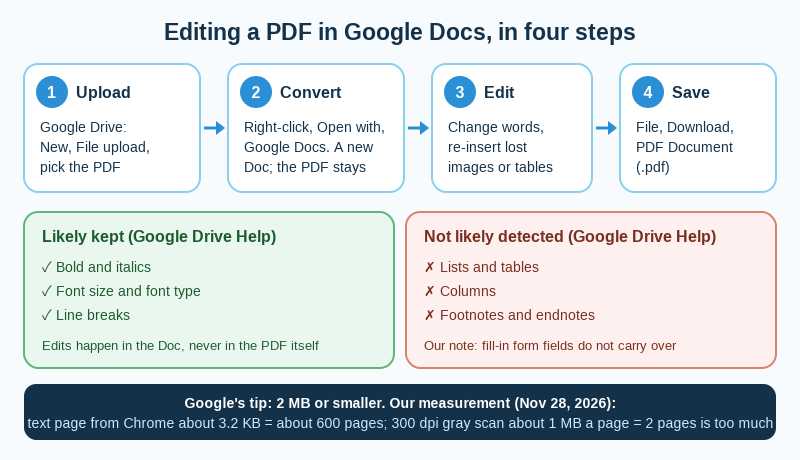
- Go to drive.google.com and click New, File upload. Pick your PDF.
- Right-click the PDF in Drive and click Open with, Google Docs.
- A new Google Doc opens with the PDF’s text. The PDF itself stays in Drive next to it.
- Edit the Doc like any document: retype words, add paragraphs, fix the date.
- Click File, Download, PDF Document (.pdf) to get your edited PDF.
Google Docs saves every change as you type, so there is no save button to press (Google Docs Editors Help). The converted Doc keeps working as a normal Google Doc, so you can share it, comment on it and see its version history.
How do you save the edited Google Doc as a PDF again?
In the Google Doc, click File, Download and choose PDF Document (.pdf); the edited PDF lands in your Downloads folder. Google lists this under Download a copy of a file
in Create, view, or download a file.
For a very long Doc, Google gives a second route in Chrome: File, Print, set Destination to Save as PDF, then click Save. Google calls this the way to download a large Google Docs file as a PDF.
What does Google Docs keep when it converts a PDF?
Google Docs keeps the words and simple text styling of a PDF, but not always its layout. Google’s help page puts it plainly: The image file is converted, but the format might not transfer
.
| Part of the PDF | Google Drive Help says | Workspace Updates, Nov 2020, says |
|---|---|---|
| Bold, italics, font size, font type | Likely to be retained | More fonts, underline, strikethrough, background color imported |
| Line breaks | Likely to be retained | Improved content ordering |
| Lists | Not likely to be detected | Not mentioned |
| Tables | Not likely to be detected | Tables with borders supported |
| Columns | Not likely to be detected | Multi-column layouts supported |
| Footnotes and endnotes | Not likely to be detected | Not mentioned |
| Images | Not covered | Better image imports and text wrapping |
| Page size | Not covered | Custom page sizes supported |
One more thing neither Google page covers: fillable form fields. A Google Doc has no fill-in PDF boxes, so a form converted to a Doc becomes plain text. To fill a PDF form, use a PDF tool such as the free PDF Edit editor instead of converting it.
What do you do when images or tables go missing in Google Docs?
Put them back by hand in the converted Google Doc. Click where the picture belongs, choose Insert, Image, Upload from computer, and pick the image file. For a table, use Insert, Table and paste the rows in.
Google’s November 30, 2020 update improved image imports, so many PDFs now come through with their pictures. A designed page with layered graphics, a brochure or a form still converts poorly.
For those, two other free ways work better. Edit the original file the PDF came from, or keep the PDF as it is and change only what you must with whiteout and new text in the PDF Edit editor.
How big a PDF can Google Docs convert?
Google’s conversion tip is a PDF of 2 MB or smaller. A finished Google Doc can be much bigger: Google’s storage page allows up to 1.02 million characters, and a text document converted to Google Docs format can be up to 50 MB (Files you can store in Google Drive).
So how much is 2 MB in pages? Google doesn’t say, so we measured it. The answer depends almost entirely on whether the PDF holds real text or pictures of pages.
| Kind of PDF | How we made it | Size | Pages in 2 MB |
|---|---|---|---|
| Text PDF | 12 pt Arial pages printed to PDF in Google Chrome | 1 page 33,221 bytes; 10 pages 65,883; 50 pages 193,256 (about 3.2 KB per extra page) | About 600 |
| Black-and-white scan | The same page as a 300 dpi 1-bit image, saved as PDF with Python Pillow | 78,443 bytes per page | About 25 |
| Grayscale scan | The same page as a 300 dpi grayscale JPEG (quality 85) in a PDF | 1,017,067 bytes per page | 1 |
| Color scan | The same page as a 300 dpi color JPEG (quality 85) in a PDF | 1,054,476 bytes per page | 1 |
Here’s the catch: a two-page grayscale scan, at about 2.03 MB, is already past Google’s tip, while a 600-page text PDF is not. Our pages were clean, computer-made images; a real phone scan with paper texture is usually larger, never smaller.
Will Google Docs convert my PDF? Check it here
Pick a PDF below to compare it with Google’s 2 MB tip. The check runs in your browser: the file is read on your computer and never uploaded.
How the check decides: it reads the file size (1 MB counted as 1,000,000 bytes) and counts the page and font entries inside the PDF. A PDF with no fonts is almost always a scan. Compressed PDFs can hide their page count, so a “?” there is normal.
Can Google Docs edit a scanned PDF?
Yes. Google Docs reads the words in a scanned PDF with text recognition, so the converted Doc holds typed text you can edit. Google Drive Help says Drive can convert PDFs (multipage documents) or photo files (.jpeg, .png and .gif)
to text.
Google’s tips for a clean result from a scan:
- Text at least 10 pixels high.
- Pages right-side up; rotate a sideways scan before you upload it.
- Common fonts, such as Arial or Times New Roman.
- Sharp images with even lighting and clear contrast.
Google Drive detects the scan’s language by itself, and its help page lists more than 200 supported languages, from Afrikaans to Zulu. Text recognition can misread a 1 as an l or a 0 as an O, so read every number in the Doc before you download it.
If you only need to change one figure on a scan, skip the conversion. Cover the old number with a whiteout box and type the new one in the PDF Edit editor; the rest of the scanned page stays exactly as it was.
Can you edit a PDF in Google Drive without converting it?
Only a little. Without converting, Google Drive lets you view a PDF, comment on it on the web, and fill in a PDF form in the Drive app on Android. It cannot change the PDF’s words, delete pages or add a text box on a computer.
Honestly, learning that Google Docs edits a copy and never the PDF itself made the missing-table surprises make sense to me.
| Job | Google Drive or Docs | Free PDF Edit editor |
|---|---|---|
| Fill in a PDF form | Drive app on Android: Edit, Form Filling (Google) | Yes, in any browser |
| Sign a PDF | eSignature on paid Workspace plans only | Yes, a signature image |
| Add text anywhere on the page | No, convert to a Doc first | Yes: Add Text, size 6 to 72 |
| Cover or remove old words | No, convert to a Doc first | Whiteout, then Flatten for true redaction |
| Delete, rotate, reorder or merge pages | No | Yes, plus split, extract, blank pages, page numbers, watermark |
| Where the file goes | Uploaded to Google Drive | Stays in your browser, never uploaded |
The PDF Edit editor works directly on the PDF, so its layout, fonts and pictures stay exactly as they were. What it can’t do is retype the PDF’s existing words in their own font; that job needs a conversion in Google Docs, Word or LibreOffice Draw, as our guide on editing PDF text without Adobe explains.
How do you sign a PDF in Google Docs or Drive?
Google’s eSignature tool signs PDFs stored in Drive, but only on paid plans. Open the PDF in Drive, then click Menu, eSignature at the top right, per Google Docs Editors Help.
- Plans with eSignature
- Workspace Individual, and Business Standard and Plus, Enterprise Starter, Standard and Plus, Enterprise Essentials and Essentials Plus, and Education Plus once an administrator turns it on.
- Fields you can add
- Signature, Initials, Name, Text field, Date signed.
- Limits
- Up to 10 signers per request and 200 fields per document, per Google.
A free personal Google account doesn’t get eSignature. To sign your own PDF for free, add a signature image in the PDF Edit editor, or use Preview on a Mac or Markup on an iPhone, as our guide on editing a PDF without Adobe shows.
Where do Google’s own pages disagree about PDF conversion?
Google’s two main sources on converting a PDF to Google Docs don’t match on layout. The help page still warns about tables and columns:
Lists, tables, columns, footnotes, and endnotes are not likely to be detected.
Yet Google’s own Workspace Updates post from November 2020 announced support for multi-column layouts, custom page sizes, tables with borders, and improved content ordering
, on by default for everyone.
Google’s Edit PDFs feature page goes further, saying Docs intelligently transforms text, images, and layouts
. The fair reading: simple bordered tables and two-column text often convert now, while lists, footnotes and complex layouts still need a check.
Two gaps no Google page answers: what happens to a PDF over the 2 MB tip, and what happens to fillable form fields. Our measurement above and the form note in the “what survives” table cover both.
Should you use Google Docs or a PDF editor?
Use Google Docs when the words need rewriting; use a PDF editor when the page needs small changes and must look exactly the same.
- Rewrite paragraphs, fix many typos: Google Docs. Convert, edit, download as PDF.
- Change one date, name or price: PDF editor. Whiteout plus Add Text keeps the rest untouched.
- Fill a form or sign: PDF editor; Google Docs turns the form into plain text.
- Delete, rotate or merge pages: PDF editor; Google Docs has no PDF page tools.
- Scanned page, lots of new text: Google Docs, then read every number twice.
- A private file: PDF Edit keeps it in your browser; Google Docs uploads it to Drive.
Most PDF fixes are small ones, and for those the free editor in the box at the top is quicker than a conversion, with no sign-in and no upload.
When the text itself needs real rewriting, Google Docs does it for free: convert, edit, and download a fresh PDF.
How we researched this
- Read Google Drive Help
Convert PDF and photo files to text
(steps, 2 MB tip, what is retained, languages) andFiles you can store in Google Drive
(1.02 million characters, 50 MB), November 28, 2026. - Read Google Docs Editors Help
Create, view, or download a file
(download as PDF, Print to Save as PDF) andSend signature requests and sign documents with eSignature
(plans, 10 signers, 200 fields), November 28, 2026. - Read Google Drive Help
Fill out PDF forms in Google Drive
(Android), the Google Workspace Updates post of November 2020 on imported PDFs, and Google’s Edit PDFs feature page, November 28, 2026. - Measured PDF sizes ourselves: 1, 10 and 50 pages of 12 pt Arial printed to PDF in Google Chrome, and the same page saved as a 300 dpi image PDF with Python Pillow in black-and-white, grayscale and color, November 28, 2026. Computer-made pages only; real scans vary.
- Read Adobe’s how-to hub page on editing a PDF in Google Drive, which warns that heavy formatting (multiple tables, charts and diagrams) doesn’t always convert properly. Reddit and the Google Docs Editors Community threads did not load for our research tools, so no forum posts are quoted.
- Checked the PDF Edit editor’s own tools in its source. We did not run the Google Docs conversion in a Google account for this guide; the conversion steps and limits are Google’s own.
Convert it, fix it, download a fresh PDF, and enjoy having the words exactly the way you want them.
Sources and further reading
- Google Drive Help: Convert PDF and photo files to text
- Google Drive Help: Files you can store in Google Drive
- Google Docs Editors Help: Create, view, or download a file
- Google Drive Help: Fill out PDF forms in Google Drive
- Google Docs Editors Help: Send signature requests and sign documents with eSignature
- Google Drive Help: Request access to the eSignature feature
- Google Workspace Updates: Improvements to PDFs imported to Google Docs (November 2020)
- Google Workspace: Edit PDFs in Google Docs
- Adobe: Edit a PDF in Google Drive (how-to hub)
Questions and answers
Can I edit a PDF in Google Docs for free?
Yes. Upload the PDF to Google Drive, right-click it and choose Open with, Google Docs. A free Google account converts it into an editable Doc, and File, Download, PDF Document saves your edited copy.
Why does my PDF look different after converting it in Google Docs?
Google Docs rebuilds the PDF as a document. Google says bold, italics, fonts and line breaks are likely kept, while lists, tables, columns, footnotes and endnotes are not likely to be detected.
Can Google Docs edit a scanned PDF?
Yes. Google Drive reads the scan with text recognition when you choose Open with, Google Docs. For best results Google asks for text at least 10 pixels high, upright pages and a file of 2 MB or smaller.
Can I edit a PDF in Google Drive without converting it?
Only a little. Drive lets you comment on a PDF on the web and fill PDF forms in the Android app. Changing text or pages needs a conversion or a PDF editor such as PDF Edit.
How do I save a Google Doc as a PDF?
In the Doc, click File, Download, PDF Document (.pdf). For a very large Doc in Chrome, Google suggests File, Print, then Destination: Save as PDF, then Save.