
How to Delete Pages From a PDF Without Acrobat: Four Free Ways
Every guide to deleting PDF pages without Acrobat sends you to a sign-in page, and the job is one page long.
Every delete pages from a PDF
search ends on a page that wants a sign-in or an Acrobat subscription, and the job is only one page long.
I spent an afternoon with Apple’s Preview guide, a Microsoft Tech Community thread and our own editor’s page tools to sort the free routes by what they keep.
The answer that matters: deleting is easy, but Print to PDF rebuilds the file, so pick the route by what your PDF contains.
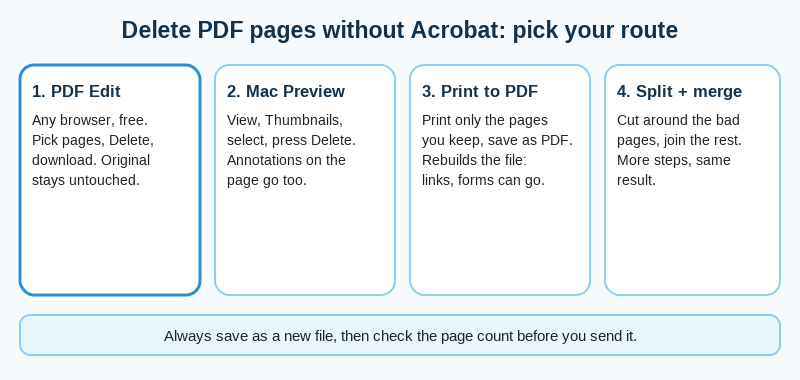
Short answer: To delete pages from a PDF without Acrobat, open the free PDF Edit editor in any browser, pick the pages, choose Delete and download the new file. On a Mac, Preview does it with View, Thumbnails, select and the Delete key. Windows users can print only the pages they keep.
- Any device
- PDF Edit: select pages, Delete, download.
- Mac
- Preview: View, Thumbnails, select, Delete key.
- Windows
- Microsoft Print to PDF: print the pages you keep.
- Catch
- Print to PDF can omit bookmarks, links and forms.
How do you delete pages from a PDF for free in your browser?
Open the free PDF Edit editor, load your file, select the pages you do not want, delete them and download the result. No sign-up, no watermark, and your original file stays as it was.
- Open the editor and add your PDF.
- Select the page thumbnails you want gone.
- Choose Delete and check the page count.
- Download the new PDF and keep the old one as a backup.
Need to keep only some pages instead? Our editor also extracts and splits pages, so you can pull out the ones you want.
How do you delete pages from a PDF on a Mac without Acrobat?
Use Preview. Apple’s Preview guide has you show the thumbnails, select the page or pages, then press Delete or choose Edit, Delete.
- Open the PDF in Preview.
- Choose View, Thumbnails (or Contact Sheet).
- Select the pages to delete.
- Press Delete or choose Edit, Delete.
Apple notes that all the annotations on the page are removed as well.
Our guide to editing a PDF on Mac covers the rest of Preview.
Does Microsoft Print to PDF delete pages without Acrobat?
Yes, in a roundabout way: you print only the pages you keep into a new PDF. It works on any Windows PC, but it recreates the pages instead of removing them from the original.
A summary of a Microsoft Tech Community discussion says that approach can omit bookmarks, links, forms, comments, accessibility information and layers. For a plain text document that rarely matters. For a form or a long report with a clickable contents page, it does.
Can you split and merge to remove pages?
Yes. Split the file around the pages you do not want, keep the parts you do, then merge those parts into one PDF. It takes more steps than Delete but gives the same finished file.
PDF Edit has split and merge built in. The same Microsoft thread also names PDFgear as a free tool that removes pages directly; we did not test it.
Which way to delete PDF pages keeps your links and forms?
The editors that delete pages keep the rest of the file; Print to PDF rebuilds it. Checked November 28, 2026.
Honestly, learning that Print to PDF rebuilds the file and can drop links made me stop treating it as the easy answer.
| Route | Works on | Rebuilds the file? | Source |
|---|---|---|---|
| PDF Edit (free) | Any browser | Pages removed, rest kept | Our editor |
| Mac Preview | Mac | Pages and their annotations removed | Apple |
| Microsoft Print to PDF | Windows | Yes, can drop bookmarks, links, forms | Microsoft Tech Community |
| Split and merge | PDF Edit | Parts joined again | Our editor |
In short: use an editor first and Print to PDF only when nothing in the file needs to stay clickable.
What happens to a signed PDF when you delete pages?
The signature will usually stop being valid. The Microsoft Tech Community summary says deleting pages or printing a replacement file changes the document and will usually invalidate an existing signature.
If the file is a signed contract, ask the sender for a new copy instead of deleting pages yourself.
Where do the sources differ?
- Adobe’s free route: Adobe offers an online page remover, but a search summary says you upload the file and sign in. That is Adobe without the desktop app, not a route away from Adobe.
- Print to PDF: one thread calls it a quick free workaround; the same thread warns it loses structure. Both are true.
- Reddit: our search found no useful Reddit thread for this phrase, so we cite none.
How we researched this
- Read Apple’s Preview User Guide page on adding, deleting or moving PDF pages, November 28, 2026.
- Read search-result summaries of a Microsoft Tech Community discussion on deleting PDF pages and of Adobe’s page-removal guides, November 28, 2026. Adobe’s help page returned an error to our reader, and the Microsoft page asked for a sign-in, so we quote neither directly.
- Compared four routes by whether they rebuild the file and what they drop.
- We did not run Preview, Print to PDF or Acrobat ourselves and did not test every PDF.
Pick your route, save a new copy, check the page count, and enjoy a PDF that is exactly as long as it should be.
Sources and further reading
Questions and answers
How do I delete pages from a PDF without Acrobat?
Open the free PDF Edit editor in any browser, select the pages, choose Delete and download the new PDF. On a Mac, Preview does it with View, Thumbnails and the Delete key.
Can I delete pages from a PDF for free?
Yes. PDF Edit is free with no sign-up or watermark, Mac Preview is built in, and Microsoft Print to PDF is built into Windows.
How do I delete a page from a PDF on a Mac?
Open it in Preview, choose View, Thumbnails, select the page and press Delete. Apple says the annotations on that page are removed too.
Does Microsoft Print to PDF remove pages properly?
It works, but it recreates the pages and can omit bookmarks, links, forms, comments and layers, according to a Microsoft Tech Community summary. Use an editor when those matter.
Will deleting pages break a signed PDF?
Usually yes. Changing the document or printing a replacement normally invalidates an existing signature, so ask the sender for a fresh signed copy.