How to Edit a PDF on Mac for Free: Preview, Word, LibreOffice and a Browser Editor (macOS 27)
Hi there, and welcome to the guide for the PDF sitting on your Mac that needs a signature, a date or one page fixed.
Picture a PDF open on your Mac that needs a signature, a corrected date or one page taken out before it goes back by email.
Your Mac already has a free PDF editor built in, called Preview.
It adds text, signs, fills forms and moves pages, but it cannot change the words already printed in the file.
For that part, the free editor in the box above or a converter such as Word finishes the job.
Short answer: To edit a PDF on a Mac, open it in Preview and click the Show Markup Toolbar button. Use Text to add words, Sign to sign and Form Fill to complete fields. Preview can’t change existing text, so cover and retype it in a free browser editor such as PDF Edit, or convert the PDF in Word.
- Built-in app
- Preview, on every Mac; Apple’s guide covers macOS 27 Golden Gate back to macOS High Sierra.
- What Preview can’t do
- Change the text already in a PDF, per Apple.
- Free way to change words
- Whiteout plus Add Text in PDF Edit, or LibreOffice Draw (macOS 11 or newer).
- Catch to know
- Preview saves changes automatically, so duplicate the file first.
What free apps can edit a PDF on a Mac?
Five free tools edit a PDF on a Mac: Preview, the PDF Edit browser editor, LibreOffice Draw, Adobe Acrobat Reader and, if you already pay for Microsoft 365, Word. Only Word and LibreOffice Draw change the original words; the others add text, signatures and page changes on top.
| Tool on a Mac | Change existing words | Add text, fill, sign | Pages | Remove text for good |
|---|---|---|---|---|
| Preview (built in) | No, per Apple | Text tool, Form Fill, Sign (trackpad, camera or iPhone) | Insert, delete, move, rotate, combine | Redaction Selection, permanent once closed |
| PDF Edit (Safari or Chrome) | Cover and retype (whiteout + text) | Add Text, real form fields, signature image | Delete, rotate, reorder, blank page, extract, split, merge | Flatten pages |
| LibreOffice Draw (free download) | Yes, one text box per line | Yes | Yes, as Draw pages | Delete the words, export a new PDF |
| Word for Mac (Microsoft 365) | Yes, after Word converts a copy | As a Word document | As a Word document | Delete the words, save as PDF |
| Adobe Acrobat Reader (free) | No, editing text needs Acrobat Pro, per Adobe | Comments, free text, fill and sign | No | No |
Apple’s Pages app is missing on purpose. Apple’s own Pages User Guide says plainly: You can’t open PDFs in Pages.
Which Mac app fits your change? Pick it here
Choose the change you need on your PDF. The answer names the free Mac tool and its first click; nothing is uploaded or saved.
How the chooser decides: each answer comes from the table above and from the maker’s help page linked in each section below. It picks the free tool with the fewest steps for that one change.
How do you edit a PDF on a Mac with Preview?
You edit a PDF on a Mac with Preview by adding things on top of the page: open the PDF, click the Show Markup Toolbar button, then pick a tool. Apple’s guide puts the limit first:
Although you can’t edit the text of a PDF in Preview, you can use the markup tools to provide feedback or write down something you want to remember.
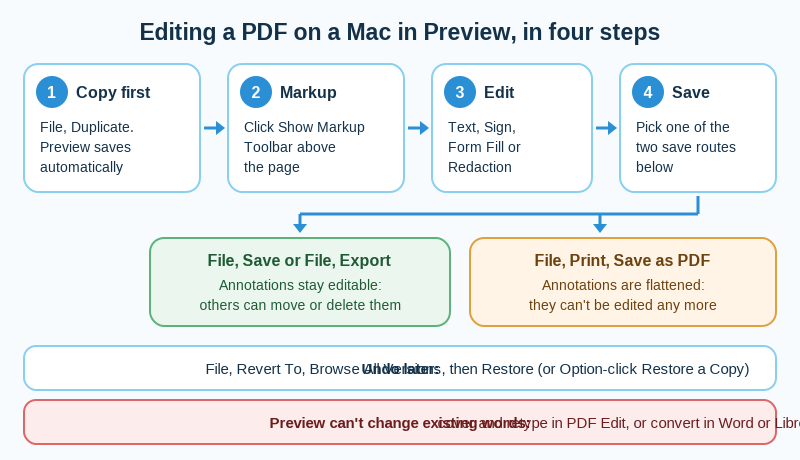
- Choose File, Duplicate so the original stays untouched (Preview saves automatically).
- Click the Show Markup Toolbar button above the page.
- Choose Text:
Type your text, then drag the text box where you want.
Text Style changes the font, style and color. - Save with File, Save or File, Export to keep your additions editable. File, Print, Save as PDF flattens them so they can’t be edited.
Preview’s Markup toolbar also holds Highlight Selection, Shapes, Note, Sketch, Crop and Rotate. These marks all sit in a layer above the page, which is why the original words underneath never change.
Can you edit existing text in a PDF on a Mac?
Yes, but not in Preview. To change the words already in a PDF on a Mac for free, cover them and type new ones in a browser editor such as PDF Edit, or let LibreOffice Draw or Word turn the PDF into editable text.
Cover and retype in PDF Edit (best for a date, a name or a price):
- Open pdfedit.xyz/editor in Safari or Chrome and load your PDF. It stays on your Mac; nothing is uploaded.
- Set Tool to Whiteout Box (cover old text) and drag over the old word.
- Switch to Add Text, type the new word, pick the size, and click where it goes.
- Press Save as new PDF.
Here’s the catch: the new word is set in Helvetica, not the PDF’s own font. On a date or a number nobody notices; for a long sentence in a special font, LibreOffice Draw or Word gets closer. Our guide to editing PDF text without Adobe explains why the font changes.
Retype the real text in LibreOffice Draw: download it from libreoffice.org (it needs macOS 11 or newer, per its system requirements). Open the PDF with File, Open, click into a line, retype, then File, Export as PDF.
Adobe Acrobat Pro also edits the original text on a Mac, but it is a paid subscription with a 7-day free trial. Adobe’s free online editor says its free version does not let you edit existing body text within a PDF.
How do you delete text from a PDF on a Mac?
To delete text from a PDF on a Mac for good, use Preview’s Redaction Selection tool, then close the file. Apple says once you close the document, the redaction becomes permanent.
A white box or shape only hides the words on screen.
Apple adds one small exception: if the PDF has a table of contents, entries that link to redacted text aren’t removed. Check the sidebar after you redact.
The free PDF Edit editor removes covered text a different way. Draw your whiteout boxes, save, then press Flatten pages (true redaction): every page becomes an image, so the covered words are gone and the rest of the text is no longer selectable.
How do you fill out and sign a PDF on a Mac?
To fill out a PDF form on a Mac, open it in Preview, click a field and type. To sign it, click Sign in the Markup toolbar and create a signature with the trackpad, the built-in camera, or your iPhone or iPad (Apple: Fill out and sign PDF forms).
- Form won’t take typing? Apple’s answer:
If a PDF won’t allow you to type directly into the form, you can add a text box instead.
- AutoFill: the AutoFill Form button fills names and addresses from your card in Contacts. Apple notes that not all PDFs support it.
- Trackpad signature: click Trackpad, sign with your finger, press any key, then Done.
- Camera signature: sign on white paper and hold it level with the blue line.
- Everywhere: with iCloud Drive on, your saved signatures appear on your other Macs.
A form that came by email can go straight back from Preview. Fill it and sign it, then choose File, Save and pick Reply to [Sender]; Mail opens with the PDF attached.
How do you delete, move or rotate pages in a PDF on a Mac?
Preview handles pages from its sidebar: choose View, Thumbnails, then select pages to delete, drag them to reorder, or drag in pages from another PDF. The steps come from Apple’s Add, delete, or move PDF pages page.
| Job | Clicks in Preview |
|---|---|
| Delete a page | View, Thumbnails; select the page; press Delete (or Edit, Delete). Its annotations go too. |
| Add a blank page | Select the page before it; Edit, Insert, Blank Page. |
| Add a page from another file | Edit, Insert, Page from File. |
| Move a page | Drag its thumbnail to the new spot. |
| Rotate pages | Select thumbnails, click Rotate Left; hold Option for right (Apple). |
| Combine two PDFs | Drag the second PDF’s icon from the Finder into the first one’s sidebar (Apple). |
| Make a new PDF from some pages | Drag thumbnails from the sidebar to the desktop. |
The PDF Edit page tools do the same jobs in a browser, plus Split into single pages, Add page numbers and Add watermark, which Preview’s guide does not list.
How do you keep the original PDF when Preview saves automatically?
Preview saves your edits into the file as you work, so make a copy first with File, Duplicate. Apple’s Combine PDFs page warns: Changes you make to a Preview document are saved automatically.
Honestly, learning that Preview quietly saves over the file made File, Duplicate the first click I reach for every time.
Forgot to duplicate? Preview keeps versions. Choose File, Revert To, Browse All Versions, find the old one on the timeline, then click Restore, or hold Option and click Restore a Copy to keep both (Apple: Revert changes).
How do you edit a PDF on a Mac in Word or LibreOffice?
To rewrite whole paragraphs of a PDF on a Mac, open it in Word or LibreOffice Draw, edit it, and save a new PDF. In Word, choose File, Open and pick the PDF; Word makes an editable copy and leaves the original PDF alone.
Microsoft sets the limits on its Edit a PDF page: it works best with PDFs that are mostly text.
Book chapters, or pages that look like a copier scan, won’t be formatted well in Word.
Microsoft’s Opening PDFs in Word page lists what tends to break:
- Tables with cell spacing, page colors and page borders.
- Footnotes that span more than one page, and endnotes.
- PDF bookmarks, tags and comments.
- Pages made mostly of charts, which can arrive as one image you can’t edit.
When you’re done in Word for Mac, use File, Save As and choose PDF. In LibreOffice Draw, use File, Export as PDF. Draw splits text into separate boxes, often one per line, so it suits fixes better than full rewrites.
How do you make an edited PDF smaller on a Mac?
Preview shrinks a PDF on a Mac with one menu: File, Export, then the Quartz Filter pop-up, Reduce File Size, then Save under a new name. Apple warns the compressed PDF may be of lower quality than the original
(Apple: Reduce the size of a PDF).
The same Export window has three finer options: Create Linearized PDF for fast loading in browsers, Optimize images for screen, and Save images as JPEG. Our PDF Edit editor has no compression tool, so Preview is the free way on a Mac.
Is editing a PDF different on a MacBook Air, MacBook Pro or MacBook Neo?
No. Preview comes with macOS on every Mac, so editing a PDF on a MacBook Air, MacBook Pro, MacBook Neo, iMac or Mac mini uses the same menus and steps. Only two tools depend on the hardware.
- Draw tool: Apple says it
appears only on computers with a Force Touch trackpad.
Press harder for a darker line. - Trackpad signature: works on any MacBook trackpad. On an iMac or Mac mini without one, sign with the camera or your iPhone instead.
A downloaded PDF works the same way. If it opens in Safari or Chrome instead of Preview, Control-click the file in Downloads, choose Open With, Preview, then duplicate it before you edit.
Where do guides about editing PDFs on a Mac disagree?
Most guides agree on Preview’s steps; four claims in popular roundups go further than the makers’ own pages.
Pages can open and edit a PDF.
Apple’s Pages User Guide saysYou can’t open PDFs in Pages.
Pages exports to PDF; it does not import one.Word for Mac edits PDFs, says Microsoft.
Microsoft’s 2019 Word for Mac announcement now redirects to its general Edit a PDF page, whose Applies To list names Word for Microsoft 365, Word 2016 to 2024 and Office for iPhone, but no Mac edition by name.Adobe’s free online editor changes text.
Adobe’s page says the free version does not edit existing body text.Save as PDF locks your edits.
Only File, Print, Save as PDF flattens annotations; Apple says File, Save, Export and Export to PDF keep them editable.
What should you check before you edit a PDF on a Mac?
One minute of checking picks the right free tool and keeps the original safe.
- Do you still have the Word, Pages or Google Docs file the PDF came from? Edit that and export a fresh PDF.
- Adding something or changing something? Preview adds; PDF Edit, LibreOffice Draw or Word change.
- Did you choose File, Duplicate first? Preview saves over the file as you go.
- Anything private covered up? Redact in Preview or Flatten in PDF Edit before sharing.
- Sending it to someone else? File, Print, Save as PDF keeps them from moving your text boxes.
Most PDF jobs on a Mac are small: a signature, a date, a page out of place. Preview and the free editor in the box at the top cover them without a subscription or an upload.
For a full rewrite, Word or LibreOffice Draw does it for free, as long as you check the layout and save a fresh PDF.
How we researched this
- Read Apple’s Preview User Guide for macOS 27 Golden Gate: Annotate a PDF; Fill out and sign PDF forms; Add, delete, or move PDF pages; Combine PDFs; Crop or rotate a PDF; Reduce the size of a PDF; Revert changes; Copy PDFs; Select and copy text, November 28, 2026.
- Read Apple’s Pages User Guide (Open or close a document), Microsoft Support (Edit a PDF; Opening PDFs in Word), LibreOffice’s system requirements and Adobe’s Acrobat Reader and online editor pages, November 28, 2026.
- Pulled Google and Bing autocomplete for
how to edit a pdf on mac
and close variants (MacBook Air, Pro and Neo, Preview, for free, existing text, delete text, downloaded PDF) to choose the sections, November 28, 2026. - Compared the makers’ pages with popular
edit PDF on Mac
guides to find the four claims that disagree. Apple Community and Reddit threads did not load for our research tools, so no forum posts are quoted. - Checked the PDF Edit editor’s tools (whiteout, Add Text, form fields, signature image, page tools, flatten) in its source; it has no compression or text recognition. We did not test every app on every Mac model.
Duplicate it, make your change, save a fresh copy, and enjoy sending your PDF off exactly right.
Sources and further reading
- Apple: Annotate a PDF in Preview on Mac
- Apple: Fill out and sign PDF forms in Preview on Mac
- Apple: Add, delete, or move PDF pages in Preview on Mac
- Apple: Combine PDFs in Preview on Mac
- Apple: Crop or rotate a PDF in Preview on Mac
- Apple: Reduce the size of a PDF in Preview on Mac
- Apple: Revert changes to PDFs and images in Preview on Mac
- Apple: Open or close a document in Pages on Mac
- Microsoft Support: Edit a PDF
- Microsoft Support: Opening PDFs in Word
- LibreOffice: System requirements
- Adobe: Acrobat Reader
- Adobe: Acrobat online PDF editor
Questions and answers
Can I edit a PDF on a Mac for free?
Yes. Preview, built into every Mac, adds text, fills forms, signs and moves pages for free. To change existing words for free, use whiteout and Add Text in the PDF Edit browser editor, or LibreOffice Draw.
Can Preview edit the text in a PDF?
No. Apple says you can’t edit the text of a PDF in Preview. Preview adds text boxes, notes, shapes and signatures on top of the page, and its Redaction Selection tool removes text permanently.
How do I edit a downloaded PDF on my MacBook?
Control-click the PDF in Downloads, choose Open With, Preview, then File, Duplicate. Click Show Markup Toolbar and use Text, Sign or Form Fill. The steps are the same on a MacBook Air, Pro or Neo.
Why can’t I type in a PDF form on my Mac?
Some PDFs have no real form fields. Apple’s fix in Preview is to add a text box instead: click Show Markup Toolbar, choose Text, type, and drag the box onto the line.
Can I undo edits after Preview saved the PDF?
Yes. In Preview choose File, Revert To, Browse All Versions, pick an earlier version on the timeline and click Restore, or hold Option and click Restore a Copy to keep both files.