How to Extract Pages From a PDF to Create a New PDF: Free Ways on Any Device
Every guide to extracting pages from a PDF says to pick the pages and save, and few say which route copies them and which rebuilds them.
Every search for how to extract pages from a PDF ends the same way: someone has a 60-page file and needs pages 12 to 15 as their own PDF.
I spent an afternoon with Apple’s Preview guide and Adobe’s Extract page, then matched each route to what it does to your original and to links and forms.
The pattern is short: extracting copies pages out, deleting removes them, and Print to PDF rebuilds them.
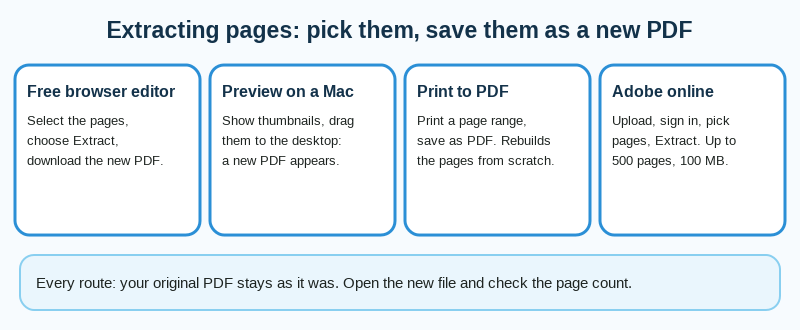
Short answer: To extract pages from a PDF to create a new PDF, open the free PDF Edit editor in any browser, select the pages, choose Extract and download the new file. On a Mac, drag thumbnails from Preview’s sidebar to the desktop. Windows users can print a page range to PDF.
- Any device
- PDF Edit: select pages, Extract, download.
- Mac
- Preview: drag thumbnails to the desktop.
- Print route
- Print only a page range and save as PDF.
- Adobe online
- Up to 500 pages and 100 MB; sign-in after upload.
How do you extract pages from a PDF to create a new PDF for free?
Open the free PDF Edit editor, load your file, select the pages you want, choose Extract and download the new PDF. No sign-up, no watermark, and your original file stays as it was.
- Open the editor and add your PDF.
- Select the page thumbnails you want in the new file.
- Choose Extract and check the page count.
- Download the new PDF and give it a clear name.
The same editor also splits a file into parts, which suits you when you want every chapter as its own PDF.
How do you extract pages from a PDF on a Mac with Preview?
Show the thumbnails, select the pages and drag them to the desktop. Apple’s Preview guide says: You can also create a new PDF by dragging thumbnails from a PDF sidebar to the desktop.
- Open the PDF in Preview.
- Choose View, Thumbnails.
- Select the pages (Command-click for separate pages, Shift-click for a run).
- Drag them to the desktop and open the new PDF to check it.
Our guide to editing a PDF on Mac covers the rest of Preview.
Can you create a new PDF from selected pages by printing?
Yes. Open the PDF, choose Print, set the page range you want such as 12-15, and pick Save as PDF (Chrome and Microsoft Print to PDF both offer it). It works anywhere, but it rebuilds the pages instead of copying them.
That means bookmarks, links and form fields can be lost, as our guide to deleting pages without Acrobat notes for the same trick.
How does Adobe’s online tool extract PDF pages?
You upload the PDF, sign in, select the pages and click Extract. Adobe’s page allows one PDF of up to 500 pages and 100 MB, and says the file is deleted unless you sign in to save it.
In desktop Acrobat Pro, a search summary of Adobe’s tutorial lists Organize Pages, Extract, with options to delete the pages from the original or save each page as its own file. Those steps do not apply to the free Acrobat Reader.
What is the difference between extracting and deleting PDF pages?
Extracting makes a new PDF and leaves the original whole; deleting removes pages from the file you have. If you want a smaller copy and a full backup, extract. If you want the pages gone, see how to delete pages.
Honestly, learning that Preview makes a new PDF just by dragging thumbnails to the desktop saved me the whole menu hunt.
Extra pages can also be reordered once they are in the new file: rearranging pages takes one drag per page.
Can you extract pages from a locked or signed PDF?
Often not. A search summary of Adobe’s tutorial says you cannot extract pages from PDFs with security restrictions. A signed PDF also changes once pages are copied out, so the new file will not carry the signature.
If the file is a contract, ask the sender for the pages you need instead.
Which way to extract PDF pages keeps your links and forms?
Editors and Preview copy pages; Print to PDF rebuilds them. Checked November 28, 2026.
| Route | Works on | Catch | Source |
|---|---|---|---|
| PDF Edit (free) | Any browser | None known; check the page count | Our editor |
| Mac Preview | Mac | Drag-out, then open to check | Apple |
| Print to PDF | Windows, Mac, Chrome | Rebuilds pages; can drop links and forms | Our checks of the print dialog |
| Adobe online | Any browser | Sign-in; 500 pages, 100 MB | Adobe |
In short: use an editor or Preview first and Print to PDF only when nothing needs to stay clickable.
Where do the sources differ?
- Sign-in: Adobe’s page lists sign-in after upload; its download rule is not spelled out, only that the file is deleted unless you sign in to save it.
- Print to PDF: often called a quick workaround; it recreates the pages, so it is the lossiest route.
- Reddit: our search found no useful Reddit thread for this phrase, so we cite none.
How we researched this
- Read Apple’s Preview User Guide page on adding, deleting or moving PDF pages, November 28, 2026.
- Read Adobe’s online Extract PDF pages page, November 28, 2026, and a search summary of Adobe’s desktop extract tutorial.
- Compared four routes by what they need and what they keep.
- We did not run Preview, Print to PDF or Acrobat ourselves and did not test every PDF.
Pick the pages, extract them, check the page count, and enjoy a new PDF with exactly what you needed.
Sources and further reading
Questions and answers
How do I extract pages from a PDF to create a new PDF?
Open the free PDF Edit editor in any browser, select the pages, choose Extract and download the new PDF. On a Mac, drag the thumbnails from Preview’s sidebar to the desktop.
Can I extract pages from a PDF for free?
Yes. PDF Edit is free with no sign-up or watermark, Mac Preview is built in, and Print to PDF is built into Windows and Chrome.
How do I extract pages from a PDF on a Mac?
Open it in Preview, choose View, Thumbnails, select the pages and drag them to the desktop. Apple says this creates a new PDF.
Does extracting pages change my original PDF?
No, not when you extract. The original stays whole and you get a second file. Deleting pages is what changes the original.
Does Adobe’s online Extract tool need a sign-in?
Adobe’s page has you sign in after upload and says the file is deleted unless you sign in to save it. It allows up to 500 pages and 100 MB.