
How to Remove Text from a PDF and Add New Text: Cover, Retype and Save a Clean Copy
Every replace text in a PDF
guide shows a tidy before and after, and none mention what is still hiding under the new words.
Every replace text in a PDF
guide shows a tidy before and after, and none of them mention what is still hiding under the new words.
I spent an afternoon with Adobe’s editing page, an Acrobat community thread and two replace-text guides, then ran the job through our own whiteout, text and flatten tools.
The split that matters: some tools rewrite the real text, and some only paint over it. The result looks the same until someone presses Select All.
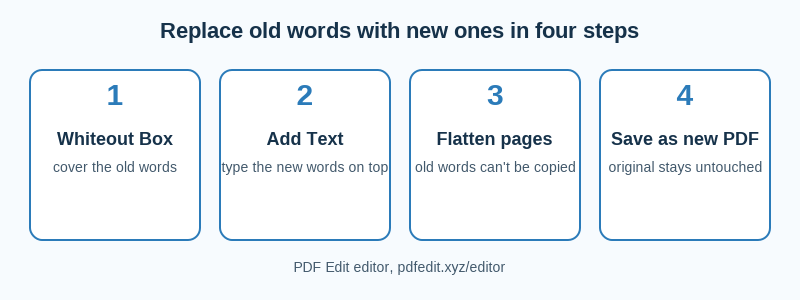
Short answer: To remove text from a PDF and add new text, cover the old words with a Whiteout Box, type the new words on top with Add Text, flatten the pages and save a copy. In PDF Edit this is free and runs in your browser. It also works on scans. Acrobat edits the real text instead.
- Quickest
- Whiteout Box, then Add Text in PDF Edit.
- Old words must be gone
- Add Flatten pages before saving.
- Rewrite real text
- Acrobat’s Edit mode or another editor with text deletion.
- Cost
- $0, no sign-up, nothing uploaded in PDF Edit.
How do you remove text from a PDF and add new text?
You either cover the old words and type new ones above them, or you edit the text inside the file. Covering works on every PDF; editing needs a PDF with real text and an editor that can delete it.
| Route | Works on a scan | Old words still in the file | Free |
|---|---|---|---|
| Whiteout Box + Add Text | Yes | Yes, until you flatten | Yes (PDF Edit) |
| Whiteout + Add Text + Flatten | Yes | No, the page becomes a picture | Yes (PDF Edit) |
| Edit real text (Acrobat, others) | No, needs real text | No, the text is replaced | Mostly paid |
In short: cover and retype for any PDF, edit the text itself only when the PDF has real, editable words.
How do you replace text in a PDF for free?
Open pdfedit.xyz/editor, load the PDF, draw a Whiteout Box over the old words, click Add Text and type the new ones, then Save as new PDF. Nothing is uploaded.
- Load the PDF from your computer or phone.
- Pick Whiteout Box and drag it over the old words, a little bigger than the text.
- Pick Add Text, click on the box and type the new words, such as the corrected date or price.
- Flatten pages if the old words were private.
- Save as new PDF and keep the original untouched.
Here’s the catch: flattening turns the page into a picture, so that page loses copy and search. Skip it for a long document you still need to search, if nothing private sat under the box.
How do you make the new text match the old?
Match size first, then colour, then font. Zoom in, set the new text to about the height of its neighbours, and keep the box the same colour as the page. A Whiteout Box is white, so it looks right only on white paper.
- Size: compare the capital letters of the new and old lines at high zoom.
- Coloured page: our guide to removing PDF text without removing the background covers four routes.
- Font: an exact match is rare when you type on top. Adobe says a font that is not installed limits you to colour and size changes when editing real text, so a close font is normal.
How do you replace text in a scanned PDF?
Cover and retype. A scan is a photo of paper, so there is no real text to delete; a whiteout box and a text box on top is the whole job. Editors that offer Replace on a scan run OCR first and guess.
Test it: drag across a line. If nothing highlights, the page is a picture. Our guide to editing scanned PDF text goes deeper.
How does Acrobat replace text in a PDF?
In Acrobat, open Edit, select the words, and type over them or press Delete and type again. Adobe notes a font must be installed to edit text in it, and a 2023 update changed how typing over text works.
Honestly, learning that Acrobat 23.0 moved typing over text into a Replace Text menu explained a thread full of confused people.
A user on the Adobe community reported that after Acrobat 23.0 you highlight text, right-click and choose Replace Text, instead of typing straight over it. A reply said to choose Disable New Acrobat; a later reply said that no longer worked.
See Adobe’s edit text page, and our guide to editing PDF text without Adobe.
How do you make sure the old text is really gone?
Flatten the pages, then check. A white box only hides the old words, so someone can select, copy or search them. Press Select All on the saved copy and paste into a notes app: only the new words should appear.
Our guide to removing text from a PDF online for free explains cover, delete and flatten in more detail.
Which tools replace text in a PDF for free?
PDF Edit covers and retypes for free on any PDF. Sejda and Smallpdf search and replace on real text, according to EaseUS. Acrobat Pro and EaseUS PDF Editor do it in desktop apps.
| Tool | How it replaces text | Source |
|---|---|---|
| PDF Edit | Whiteout Box, Add Text, optional Flatten | Our editor |
| Sejda | Find & Replace under More | EaseUS |
| Smallpdf | Search, then replace each match by hand; no batch replace | EaseUS |
| Acrobat Pro | Edit, Ctrl+F, Find and Replace with | EaseUS |
None of these pages says whether the old words stay inside the file; flatten, then test.
Where do replace-text guides disagree?
- “Replace” means two things. Adobe’s page describes editing real text; DoceasePDF-style guides blank the area with a white box and type over it. The look is the same, the file is not.
- Scans. EaseUS says its editor can make a scanned file editable and searchable; Adobe’s edit page assumes real text. Neither promises that the new words match the scan’s font.
- Typing straight over text. Older Acrobat did it; per the community thread, Acrobat 23.0 moved it to Replace Text.
How we researched this
- Read Adobe’s help page on editing text in PDFs and an Adobe community thread on Replace Text, November 28, 2026. Adobe’s page was not reachable again for a quote, so we only repeat the font rule as already read.
- Read the EaseUS replace-text guide and a DoceasePDF page on erasing and replacing text, November 28, 2026.
- A search for Reddit threads on this question returned no Reddit pages, so no forum posts are quoted.
- Checked the PDF Edit editor’s Whiteout Box, Add Text and Flatten pages tools. We did not run the other tools ourselves and did not test every PDF.
Cover it, retype it, flatten it, and enjoy a PDF that says exactly what you meant.
Sources and further reading
Questions and answers
How do I remove text from a PDF and add new text?
Cover the old words with a Whiteout Box in a free editor such as PDF Edit, type the new words on top with Add Text, then save a new copy. Add Flatten pages if the old words are private.
Can I replace text in a PDF for free?
Yes. PDF Edit is free, needs no sign-up and runs in your browser. Some online editors also replace real text for free, though they may need an upload and limit file size.
Why does the old text still show when I copy the page?
A white box only hides text. The words stay in the file until you flatten the pages or use true redaction. Press Select All on the saved copy to check.
How do I replace text in a scanned PDF?
Cover the old words with a whiteout box and type the new ones on top. A scan is a picture, so there is no real text to delete.
Why can’t I type over text in Acrobat anymore?
A community thread reports that since Acrobat 23.0 you highlight the text, right-click and choose Replace Text instead of typing straight over it.