
How to Remove Text from a PDF Without Removing the Background: Four Routes That Keep the Page Looking Right
Every thread about taking words off a coloured PDF page ends with the same complaint: the text is gone, and now there is a white box where it used to be.
Every thread about taking words off a coloured PDF page ends with the same complaint: the text is gone, and now there is a white box where it used to be.
I spent an afternoon reading an Adobe Community thread on exactly that, a PDF24 support thread, and the help pages of Adobe and PDFgear, then read how our own editor draws its cover box.
The one that decides everything: is the text a separate object on top of the background, or is it painted into it?
Short answer: To remove text from a PDF without removing the background, delete the text object itself with an editor’s Edit Text and Images tool, which paints no box. That only works when the PDF has real text. If it is a scan, or you have the source file, fix it there; otherwise cover the words with a box in the page’s own colour.
- Cleanest
- Remove the words in the original file (Word, Canva, InDesign) and export a new PDF.
- Real-text PDF
- Edit PDF, select the text, Delete. The background is not touched.
- Scan or photo page
- A matching-colour box, or image editing.
- White paper only
- The free PDF Edit Whiteout Box is white, so it fits white pages.
How do you remove text from a PDF without removing the background?
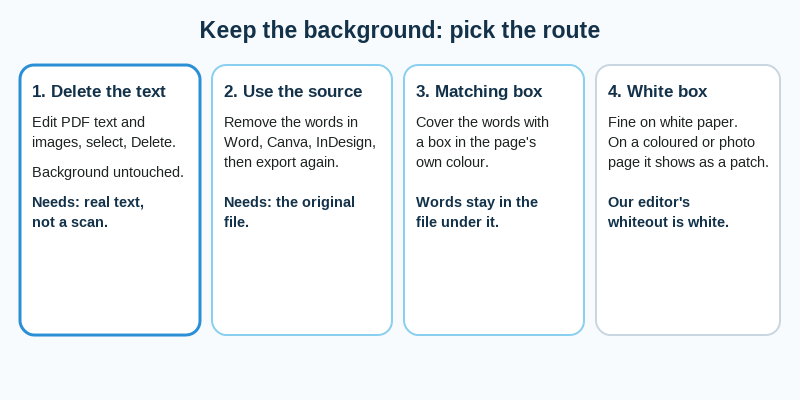
Four routes exist, and the right one depends on what the PDF is made of. Deleting the text object or editing the source file keeps the background untouched; a matching-colour box keeps the look; a white box only works on white paper.
| Route | Background kept | Needs | Words still in file |
|---|---|---|---|
| Delete the text object | Yes, nothing is drawn | Real text, a paid or free editor with object editing | No |
| Edit the source, export again | Yes | The original Word, Canva or InDesign file | No |
| Box in the page’s colour | Looks like it | A tool with a custom colour | Yes, unless flattened |
| White box | No, a patch shows on colour | Any whiteout tool, including PDF Edit | Yes, under the box |
In short: delete the object if it is real text, and cover with the page’s own colour if it is not.
Why does removing PDF text leave a white box on a coloured page?
A whiteout tool draws a white rectangle over the words; it does not remove them. On white paper the rectangle disappears into the page. On a tinted, patterned or photo background it shows as a clean white patch.
- The words are still there. The box hides them; PDF24’s support says a white rectangle added in Edit PDF
only covers the content
and the content stays in the PDF. - The box is not the background. It paints over it, so the colour underneath cannot show through.
- Redaction behaves differently, as the next section shows.
How do you delete PDF text so the background is not touched?
Use the editor’s object tool: in Acrobat, Edit PDF, click the text block and press Delete; in PDFgear, Edit Object on Windows or Edit Text and Image on Mac. Deleting the text object paints nothing, so the background stays as it was.
- Open Edit mode. Adobe’s own erase-words page says to click the Edit PDF tool, select a text block and erase the words with your keyboard.
- Select only the text. Click once on the words; if a picture highlights instead, the words are part of the picture.
- Delete and save a copy. Keep the original in case the layout shifts.
Here’s the catch: Acrobat says this is less secure than Redact, so deleted words are not guaranteed gone from every layer; check with Select All on the saved copy.
Why does Redact in Acrobat still show white on a coloured page?
Redaction does not paint white; it removes everything inside the area, so what shows is the paper behind the page. An Adobe Community poster in 2018 who redacted footers on a 257-page file found the “no colour” fill still gave a white box on coloured pages.
- Adobe Community answers in that thread said Acrobat has no truly transparent fill, and that the Edit Text and Images tool removes text without a box.
- The same thread says Acrobat’s Redact rasterizes the page content, so it is the wrong tool for plain footers.
- Use Redact only when the words must be gone for good and a matching patch is acceptable.
Can I cover PDF text with a box in the page’s own colour?
Yes, if the background is one flat colour. PDF24’s Redact PDF lets you choose White or Custom colour in its toolbar, then you draw the box and save. PDF24 notes that pages with a box are saved as 150 dpi images.
Honestly, learning that Redact shows the paper behind the page and not a painted white box finally explained a thread that had puzzled people since 2018.
- Flat colour: a custom-colour box is nearly invisible.
- Gradient, texture or photo: one flat box will show; use the object route or the source file.
- Side effect: PDF24 says bookmarks, metadata and attachments are removed, so keep the original.
What if the text is part of the background image?
Then no PDF text tool can delete it. In a scanned PDF the words and the background are one picture, so removing them takes image editing and background repair, or covering them in a matching colour.
- Test it: drag across a line. No highlight means the words are pixels.
- Image route: export the page as an image, retouch it in an image editor, and put it back in a PDF.
- Related: our guide to editing scanned PDF text covers retyping on top.
Can the free PDF Edit editor remove text and keep the background?
On a white page, yes: draw a Whiteout Box, then Save as new PDF. On a coloured page, no: its whiteout box is white and has no colour picker, so a patch will show. We checked the editor’s own source on November 28, 2026.
| Page | Whiteout Box | Result |
|---|---|---|
| White paper | White rectangle | Blends in |
| Coloured or photo page | White rectangle | White patch visible |
| Private words on white | Box + Flatten pages | Words gone, page becomes a picture |
For a coloured page, use the source file or an object editor, then come back to our tool for page tasks such as covering and flattening text.
Where does the advice on keeping the background disagree?
Redact removes it cleanly.
One Adobe Community poster said the area still ended up white on coloured pages; another explained the white is the paper behind.Add a coloured rectangle.
PDF24’s forum first suggested it, then its support corrected that the contentstays in the PDF.
Edit text and images is enough.
Adobe’s help page does not mention backgrounds; the community says it is less secure than Redact.
None of the pages I read covers a gradient background; that case needs the source file.
How we researched this
- Read Adobe’s erase-words page and the Adobe Community thread on transparent redaction, November 28, 2026.
- Read the PDF24 forum thread on erase and white out, and the PDFgear remove-text page, November 28, 2026.
- A search for Reddit threads returned none, so no Reddit posts are quoted; the Adobe and PDF24 threads are the user voices used.
- Read PDF Edit’s editor source to confirm the whiteout box is white. We did not run Acrobat, PDF24 or PDFgear ourselves and did not test every PDF.
Try to select the words first, delete the object if you can, and enjoy a page that still looks like itself.
Sources and further reading
Questions and answers
How do I remove text from a PDF without removing the background?
Delete the text object in an editor’s Edit Text and Images mode, which paints no box. If the PDF is a scan, use the source file or cover the words with a box in the page’s own colour.
Why does removing text leave a white box?
A whiteout tool paints a white rectangle over the words. On a coloured or photo page that rectangle shows. Redaction removes the area instead, so the paper behind shows through as white.
Can I remove text from a PDF for free and keep the background?
On a white page, yes: the free PDF Edit whiteout box blends in. On a coloured page it leaves a white patch, so use a free tool with a custom colour or the source file.
Can I remove text from a scanned PDF and keep the background?
Only with image editing or a matching-colour cover. In a scan the words and background are one picture, so no PDF text tool can delete only the words.
Does covering text with a box remove it from the PDF?
No. The words stay in the file under the box unless the page is flattened or redacted. Press Select All on the saved copy to check.