How to Edit Scanned PDF Text: Turn the Picture into Real Words, Then Match the Font
Hi there, and welcome to the guide for the one misspelled word on a scanned page that refuses to be clicked.
Picture a scanned letter where one name is misspelled, and every click on that word selects the whole page instead.
That happens because a scan holds a photo of each page, so there are no letters inside the file to edit yet.
The fix is to have the words read first, or to skip reading and retype the one word you need, and the free editor above does the second right in your browser.
Short answer: To edit scanned PDF text, first turn the picture into real words with text recognition (OCR). Acrobat Pro does it when you open Edit PDF; Google Docs (free) and Word turn the scan into a new document you can rewrite. For one word, skip OCR: cover it with a white box in PDF Edit and type the new word over it.
- Why it won’t edit
- A scan is a picture; OCR
converts scanned images of text into machine-readable text
(Adobe). - Edit inside the PDF
- Acrobat Pro’s Edit PDF tool, which runs OCR by itself (Adobe help).
- Edit for free
- Google Docs: files 2 MB or smaller, text at least 10 pixels high (Google).
- Fix one word, free
- Whiteout Box plus Add Text in PDF Edit; nothing uploaded.
- Size that matches
- Capital letter height in mm x 3.95 = Helvetica points (PDF Edit’s calculation from Adobe’s font metrics).
What does it take to edit text in a scanned PDF?
Editing text in a scanned PDF takes one extra step that a normal PDF doesn’t need: something has to read the page picture and turn its shapes into letters. That step is optical character recognition, OCR.
Adobe’s quick test tells you which kind of PDF you have: try to select one word. If the word highlights on its own, the PDF already has real text, and our guide to editing PDF text without Adobe fits better.
If the whole page highlights, or nothing does, the file is a scan. Here’s the catch most guides skip: running OCR doesn’t always give you text you can change. What you get depends on the tool, as the next section shows.
Does OCR make a scanned PDF editable?
Not always. OCR can give you three different results: a hidden text layer you can only search and copy, editable text inside the PDF, or a brand-new document. Only the last two let you change the words.
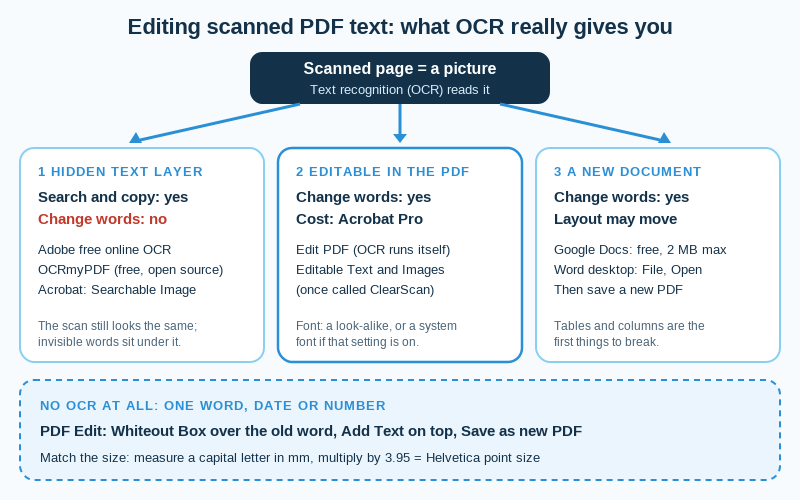
- Result 1, hidden text layer: search and copy, but no changing words. Adobe’s free online OCR, OCRmyPDF and Acrobat’s Searchable Image output work this way.
- Result 2, editable in the PDF: Acrobat Pro’s Edit PDF tool or its Editable Text and Images output. The font is a look-alike, or an installed font if you turn that setting on.
- Result 3, a new document: Google Docs (free, 2 MB or smaller) or Word desktop. You edit, then save a new PDF; layout may move.
- No OCR: PDF Edit’s Whiteout Box over the old word, Add Text on top, Save as new PDF.
| Tool | What you get | Can you change the words? | Cost or account |
|---|---|---|---|
| Adobe free online OCR | Searchable, copyable PDF | No; editing is in Acrobat Pro | Free Adobe account to download |
| OCRmyPDF | Text layer added to the original scan | No; text can be selected, searched and copied | Free, open source, runs on your computer |
| Acrobat Pro, Searchable Image | Invisible text under the page picture | No | Acrobat Pro |
| Acrobat Pro, Edit PDF | Editable text in the same PDF | Yes | Acrobat Pro (7-day free trial) |
| Google Docs | New Google Doc with the recognized text | Yes, then download a new PDF | Free Google account; upload to Drive |
| Word desktop | New Word document converted from the PDF | Yes, then save as PDF | Microsoft 365 or Word 2016 and later |
OCRmyPDF’s own introduction says it adds text “layers” to images in PDFs, making scanned image PDFs searchable
. Searchable is the key word: a text layer helps you find and copy words, not rewrite them.
How do you edit scanned PDF text in Adobe Acrobat?
In Acrobat Pro, open the scanned PDF and choose Edit PDF. Acrobat runs text recognition on its own and turns the page into editable text and images, per Adobe’s Edit scanned PDFs help.
- Open the scan in Acrobat Pro and choose All tools, then Edit a PDF.
- Keep Recognize text switched on in the panel; Acrobat reads the page.
- Open Settings to check the language and the Use available system font option.
- Click into a line, change the words, then save a copy with File, Save As.
Adobe’s free online editor can’t do step 4. Its FAQ says The free version of Adobe Acrobat’s online editor does not let you edit existing body text within a PDF
(Adobe online PDF editor).
Why does edited text look different from the scan in Acrobat?
Edited text looks different because Acrobat’s OCR, by default, builds a look-alike font from the scanned letters. That font holds only the characters already on the page, so any new letter falls back to another font.
An Adobe Community thread from September 30, 2024 shows the symptom. After Recognize Text, the font list showed names like Times Roman-13009, and changed words stood out.
A community expert there explained that Acrobat subsets the substitute font. What fixed it for that Acrobat Pro user: running Recognize Text again with the available system font option, so plain font names such as Times Roman came back and edits matched.
The other fix from the same thread: select the whole paragraph and switch it to an installed font that looks close, then edit. The paragraph then matches itself, even if it no longer matches the scan exactly.
Why is my text garbled after editing a scanned PDF in Acrobat?
Adobe says garbled or squeezed text after editing a scan comes from OCR looking for the nearest fonts on your computer. Its Windows fix is the opposite of the tip above: turn Use available system font off.
The steps in Adobe’s note Text becomes garbled when editing scanned PDFs: All tools, Edit a PDF, Settings in the left panel, More settings, clear Use available system font, then OK.
So which is right? Both, for different symptoms. Turn the setting on when new words come out in a mismatched font. Turn it off when letters overlap, squeeze or turn to gibberish.
How do you edit scanned PDF text for free?
Google Docs edits scanned PDF text for free. Upload the PDF to Google Drive, right-click it, choose Open with, then Google Docs, and Google turns the page picture into a document you can rewrite (Google Docs Editors Help).
Google is plain about the limits: The file should be 2 MB or smaller.
It also says Lists, tables, columns, footnotes, and endnotes are not likely to be detected.
When the text reads right, choose File, Download, PDF Document.
Word desktop is the other route if you already have Microsoft 365 or Word 2016 or later. Choose File, Open, pick the PDF, and Word converts it; Microsoft says The original PDF won’t be changed at all.
Microsoft’s page also sets expectations for scans: This works best with PDFs that are mostly text.
Pages that look like a copier manuscript won’t be formatted well in Word
(Microsoft Support).
Both free routes give you a new file built from the words, not the original scan. Our guide to editing a scanned PDF online for free walks through Google Docs on a scan, including a 10-pixel text-height check.
How do you change one word on a scanned PDF without OCR?
You change one word on a scanned PDF without OCR by covering it with a white box and typing the new word on top. PDF Edit does it in your browser in four steps, and the scan stays on your device.
Honestly, the idea that one capital letter and a ruler can tell you the exact font size still delights me.
- Open pdfedit.xyz/editor in Chrome, Edge, Safari or Firefox and choose the scanned PDF.
- Set Tool to Whiteout Box (cover old text) and drag over the wrong word.
- Switch to Add Text, set the size from the calculator below, type the word and click where it goes.
- Click Save as new PDF; your original stays untouched.
This is often faster than OCR for a date, a name or an amount. OCR rebuilds the whole page, while a cover-and-retype touches one spot and leaves every other line exactly as scanned.
What font size matches the text in a scanned PDF?
Measure the height of one capital letter on the printed page in millimetres and multiply by 3.95. The result is the Helvetica point size that matches, which is the font PDF Edit’s Add Text uses.
How the calculator works: 72 points make an inch, and a Helvetica capital is 718 thousandths of the font size tall, per Adobe’s Helvetica metrics file. Measure the paper, or a print made at 100% scale.
| Capital letter height | Matching Helvetica size | Typical source |
|---|---|---|
| 2.0 mm | 7.9 pt (type 8) | Fine print |
| 2.3 mm | 9.2 pt (type 9) | 10 pt Times-style type |
| 2.8 mm | 11.1 pt (type 11) | 12 pt Times-style type |
| 3.5 mm | 13.8 pt (type 14) | Large body text |
| 4.0 mm | 15.8 pt (type 16) | Small headings |
Read the table this way: a letter typed in 12 pt Times needs only about 11 pt in Helvetica to match. Times capitals are 662 thousandths of the size (Times-Roman metrics), so typing the same 12 looks too big.
How do you check OCR text for mistakes?
Check OCR text by reading every number, name and date against the original scan, because those are where a single misread letter changes the meaning. Spell check catches broken words but not a wrong digit.
- rn and m: “modern” can come out as “modem”.
- l, 1 and I: check every invoice number and year.
- O and 0, S and 5, B and 8: watch postcodes, amounts and reference numbers.
- cl and d: a smudged “cl” can read as “d”.
- Commas and full stops: 1,250 and 1.250 are very different amounts.
Better scans give fewer misreads. Tesseract, the open-source engine OCRmyPDF uses, says Tesseract works best on images which have a DPI of at least 300 dpi
(Tesseract docs).
The same Tesseract page warns about tilted lines and pages of uneven darkness
. So rescan straight, at 300 dpi, in a black-and-white or document mode before running OCR on a scan that came out with lots of errors.
Where do guides about editing scanned PDF text disagree?
Most guides say run OCR, then edit.
The makers’ own pages add three catches that change which tool you should pick.
OCR makes it editable.
Adobe’s free OCR and OCRmyPDF make a scan searchable and copyable; only Acrobat Pro’s Edit PDF, Google Docs and Word let you change the words.Turn on the system font.
The Adobe Community fix turns it on for matching fonts; Adobe’s Windows note turns it off for garbled text.- “Word opens scans.” Microsoft’s page never names scanned PDFs and says copier-style pages won’t format well.
The gap none of the top guides fill is the size of the retyped word. Matching by capital-letter height, rather than by guessing a point size, is what makes a corrected word blend in.
What should you check before you edit scanned PDF text?
One minute of checking picks the right way to edit scanned PDF text.
- Does one word select on its own? Then it’s real text, not a scan.
- One word or whole paragraphs? Cover and retype a word; use OCR for paragraphs.
- Have Acrobat Pro? Edit PDF keeps the page; Google Docs and Word make a new file.
- Retyping? Measure a capital letter and use the size calculator.
- After OCR? Proofread numbers, names and dates against the scan.
- Covered something private? Flatten before you send.
Most edits on a scan are small: a misspelled name, a wrong date, one amount. The free editor at the top fixes those in your browser, with nothing uploaded and the size matched to the page.
For a page that needs real rewriting, let Google Docs or Acrobat read it first, then proofread the numbers before the new PDF goes out.
How we researched this
- Adobe’s Edit scanned PDFs help and its Windows note on garbled scanned text refused our research tools, so their steps come from Adobe’s published text as shown in search results, read November 28, 2026.
- Read Adobe’s free OCR and online PDF editor pages, and one Adobe Community thread on OCR font names (September 30, 2024), November 28, 2026. Reddit returned no threads on this question for our search tools, so no Reddit posts are used.
- Read Google Docs Editors Help (Convert PDF and photo files to text), Microsoft Support (Edit a PDF), the OCRmyPDF introduction and Tesseract’s Improving the quality of the output page, November 28, 2026.
- Calculated the font-size table from the Adobe Helvetica (CapHeight 718) and Times-Roman (CapHeight 662) metrics files. Checked the PDF Edit editor’s source: Add Text uses Helvetica at 6 to 72 points; it has no text recognition.
- Criteria: whether each tool lets you change the words, keeps the page, and what it costs. We did not test every scanner, file or Acrobat version, and the OCR misread list names common look-alike shapes, not counted error rates.
Let it be read or cover it and retype it, proofread the numbers, and enjoy sending your scan off with every word right.
Sources and further reading
- Adobe Acrobat Help: Edit scanned PDFs
- Adobe Acrobat Help: Text becomes garbled when editing scanned PDFs (Windows)
- Adobe Community: Acrobat Pro OCR ends up with different fonts to system fonts (September 30, 2024)
- Adobe: OCR a PDF (free online tool and FAQ)
- Adobe: Free Online PDF Editor (FAQ)
- Google Docs Editors Help: Convert PDF and photo files to text
- Microsoft Support: Edit a PDF
- OCRmyPDF documentation: Introduction
- Tesseract documentation: Improving the quality of the output
- Adobe Helvetica font metrics (AFM), standard-fonts repository
- Adobe Times-Roman font metrics (AFM), standard-fonts repository
Questions and answers
Can I edit scanned PDF text for free?
Yes. Upload the scan to Google Drive and open it with Google Docs, which turns the page into text you can rewrite and download as a new PDF. For one word, cover it with a Whiteout Box in PDF Edit and type over it, free and with nothing uploaded.
Why can’t I edit the text in my scanned PDF?
A scanned PDF holds a picture of each page, not typed letters, so there is nothing to edit until text recognition (OCR) reads the page. Some OCR tools only add a hidden searchable layer, which still doesn’t let you change the words.
Why doesn’t my edited text match the font in a scanned PDF?
Acrobat’s OCR builds a look-alike font that holds only the letters already on the page, so new letters fall back to another font. Run Recognize Text with the available system font option, or switch the paragraph to a close installed font.
Does OCR make a PDF editable?
Only some OCR does. Adobe’s free online OCR and OCRmyPDF make a scan searchable and copyable. Acrobat Pro’s Edit PDF, Google Docs and Word turn the recognized words into text you can change.
What font size should I use to retype a word on a scan?
Measure a capital letter on the paper in millimetres and multiply by 3.95 for Helvetica, the font PDF Edit uses. A capital 2.8 mm tall, typical of 12 point Times, matches about 11 point Helvetica.