How to Add Text to a PDF Without Adobe Pro (Free on Windows, Mac, iPhone and in Your Browser)
Like clockwork, someone on an Adobe forum asks whether you really need Acrobat Pro just to type a few words onto a PDF.
You don’t, and you haven’t for years.
The free text box is already built into apps on most computers and phones.
Short answer: To add text to a PDF without Adobe Pro, open it in a free tool you already have: Fill & Sign, Add Text in Acrobat Reader, the Text tool in Preview on a Mac, Add Text Form Box in iPhone Markup, or Add text in Edge, Chrome or Firefox. Click, type, drag the box into place, then save a copy.
I spent an afternoon with the help pages of every app on that list and with the forum threads of people stuck between them. Three dates explain why the old “you need Pro” advice still circulates.
On September 15, 2021, Microsoft announced Add text for PDFs in Edge, with sizes from 9 to 48 and four colors.
On October 18, 2022, Firefox 106 shipped with one line in its notes: It is now possible to edit PDFs: including writing text, drawing, and adding signatures.
And on February 19, 2026, Google added PDF annotations to Chrome, calling them your most-requested feature
. Here is every free route, with the catches.
- Free in Adobe’s own app
- Acrobat Reader
is free to download and use without a subscription
and lets youtype text directly onto the page
, per Adobe. - What really needs a paid plan
- Changing the words already in the PDF: Adobe says that
requires an Adobe Acrobat Standard or Adobe Acrobat Pro subscription
. - Built in, no download
- Preview on a Mac, Markup on an iPhone, and Edge, Chrome (version 145 on) and Firefox (106 on) in a browser.
- Changing existing words free
- Cover the old words with a white box, then add new text on top.
- Checked
- .
How do you add text to a PDF without Adobe Pro?
To add text to a PDF without Adobe Pro, open the PDF in a free viewer that has a text tool, choose that tool, click where the words belong and type. Every free app on this page works the same four ways; only the button names change.
- Open the PDF in the free app: Acrobat Reader, Preview, the iPhone Files app, Edge, Chrome, Firefox or the PDF Edit editor.
- Choose the text tool: Add Text, Add text comment, Text, Add Text Form Box or Add text, depending on the app.
- Click on the page, type, then drag the box into line and set its size or color.
- Save a copy under a new name, so the original PDF stays as it was.
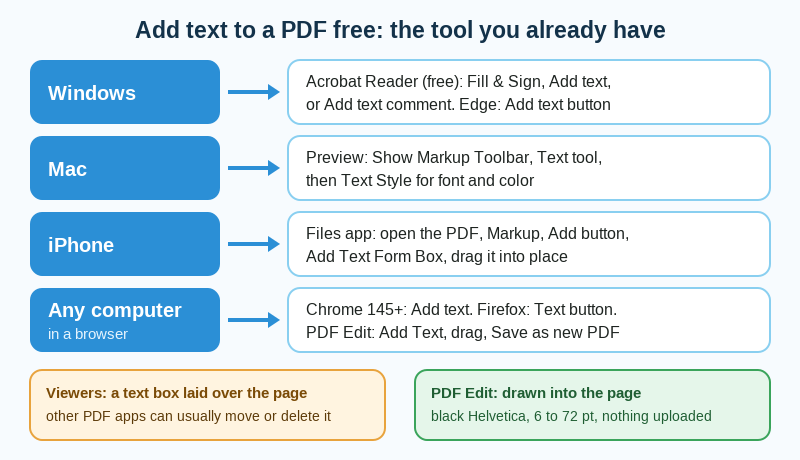
What the diagram shows, as text:
- Windows: Acrobat Reader (free), Fill & Sign, Add Text, or Add text comment; or the Add text button in Microsoft Edge.
- Mac: Preview, Show Markup Toolbar, Text tool, then Text Style for font and color.
- iPhone: Files app, open the PDF, Markup, the Add button, Add Text Form Box, then drag it into place.
- Any computer, in a browser: Add text in Chrome 145 or newer, the Text button in Firefox, or Add Text in PDF Edit, then Save as new PDF.
- Viewers lay a text box over the page, which other PDF apps can usually move or delete; PDF Edit draws black Helvetica text, 6 to 72 points, into the page itself.
Can you add text to a PDF in the free Adobe Acrobat Reader?
Yes. The free Acrobat Reader adds text with Fill & Sign’s Add Text tool or with Add text comment, and neither needs Acrobat Pro. Adobe’s Acrobat Reader page says Reader lets you add free-text annotations
and type on the page.
Fill & Sign, for forms and flat pages:
- Open the PDF in Acrobat Reader and choose Fill & Sign (in newer versions, under All tools or the Sign button).
- Click Add Text in the toolbar, click where the words go, and type.
- Use the small and large A buttons on the box to change the size, then save a copy with File, Save As.
Adobe’s Fill in forms help says the same tools work on a form with no fillable fields: you can add text anywhere on it.
Add text comment, for a note on top of the page: open the comment tools, open the drop-down next to Add a comment, choose Add text comment, click on the page and type. This is the tool that used to be called the Typewriter.
The Add text comment tip comes from an Adobe Community thread of March 2025. The person asking wanted a text box on top of the PDF, not Add Text that modifies the existing text
; a forum veteran answered to try the “Add text comment” under the comment tool
.
How do you add text to a PDF on Windows 11 or 10 for free?
On Windows, the free tools are Microsoft Edge, which opens PDFs by default on many PCs, and Acrobat Reader. In Edge, open the PDF, click Add text in the toolbar (or right-click the page and choose Add text), click where the words go, type, then save.
When Microsoft announced the feature on September 15, 2021, the text box defaulted to size 12 in blue, with black, green and red to pick from and sizes from 9 to 48. Size, color and spacing sit in the small menu attached to the box.
Here’s the catch in 2026: Edge’s Add text has a garbling bug. On Microsoft Q&A, January 22, 2026, a Windows 11 user wrote:
When I view a pdf in Edge and use the ‘add text’ button, the text looks fine as I type it but then when I finish the comment the text is garbled.
A Microsoft moderator’s workarounds, posted the next day:
- Zoom the PDF to 100% before you click Add text.
- Keep each text box short, on one line where possible.
- Don’t resize the box after typing, and keep Edge’s default text style and size.
- For longer text or exact placement, use another PDF app, or edit the original document and save a new PDF.
If Edge still scrambles your words, Acrobat Reader’s Fill & Sign or the PDF Edit editor in any browser does the same job.
How do you add text to a PDF on a Mac?
On a Mac, use Preview, which comes with macOS. Open the PDF, click the Show Markup Toolbar button, click the Text tool, type, and drag the box into place. Apple’s Annotate a PDF in Preview page puts it in one line: Type your text, then drag the text box where you want.
- Font and color: the Text Style button lets you
change the font or the font style and color
, per Apple. - Keep the original: Preview saves as you go, so choose File, Duplicate first. Apple notes that
Changes you make to a Preview document are saved automatically
(Apple: Add, delete or move PDF pages). - Existing words: Apple’s page opens with
you can’t edit the text of a PDF in Preview
, so Preview adds new text only.
More Mac tricks, such as signing with the trackpad and fixing pages, are in how to edit a PDF on Mac.
How do you add text to a PDF on an iPhone?
On an iPhone, open the PDF in the Files app, tap Markup, tap the Add button, then tap Add Text Form Box. Apple’s iPhone User Guide says to drag the text box where you want it on the form, then enter text using the onscreen keyboard
.
The formatting tools in Markup change the color and font. On a real form, the AutoFill button fills the blank fields one tap at a time instead.
The full iPhone walk-through, including signing and Preview on iOS, is in how to edit a PDF on iPhone.
Can you add text to a PDF in Chrome or Firefox?
Yes, both browsers add text to a PDF for free. Firefox has had a Text button since version 106 in October 2022, and Chrome added a text tool with its PDF annotations on February 19, 2026, in Chrome 145. Open the PDF in the browser, pick the text tool, click and type.
Firefox: Mozilla’s PDF editor page says: Click the Text button to choose a color and text size before selecting where on the document you wish to add text.
Then download the edited PDF to save your changes.
Chrome: click the squiggle (annotate) icon at the top of the PDF, choose the text or note tool, click the page and type. 9to5Google found Size and Color in the panel on the right, and said the tools should be widely available as of Chrome 145
. Save with the download button, or straight to Google Drive.
What is the best free way to add text to a PDF?
Use the tool already on your device: Preview on a Mac, Markup on an iPhone, Acrobat Reader or Edge on Windows. For a form with no boxes, Acrobat Reader’s Fill & Sign is built for it. For a date or line that should stay where you put it, PDF Edit draws it into the page.
Honestly, finding a free text box sitting in Edge, Chrome, Firefox and Preview all along made the “you need Pro” advice feel like a very old rumor to me.
| Free tool | Device | Button to click | Text options the maker documents | Source |
|---|---|---|---|---|
| Acrobat Reader, Fill & Sign | Windows, Mac, phones | Add Text | Type anywhere, also on forms with no fields | Adobe Help |
| Acrobat Reader, comments | Windows, Mac | Add text comment | free-text annotations | Adobe |
| Microsoft Edge | Windows, Mac | Add text | Size 9 to 48, blue, black, green or red, spacing (2021 launch) | Microsoft |
| Preview | Mac | Text | Font, font style and color | Apple |
| Files app, Markup | iPhone | Add Text Form Box | Color and font | Apple |
| Firefox | Any computer | Text | Color and text size | Mozilla |
| Chrome 145+ | Any computer | Squiggle icon, then text or note | Size and color (9to5Google) | |
| PDF Edit | Any browser | Add Text | Helvetica, black, 6 to 72 points, drawn into the page; nothing uploaded | PDF Edit editor |
In short: seven of these eight routes are viewers that lay a text box over the page and offer font or color choices; PDF Edit trades those choices for text that becomes part of the page.
Which tool fits your device and your job?
Pick your device and what the text is for. The answer names the free tool and the button; nothing is uploaded or saved.
How the chooser decides: it uses the button names from each maker’s page in the table above, and sends “stay put” and “replace” jobs to PDF Edit, because those need the text drawn into the page or a cover under it.
Will the text you add to a PDF stay where you put it?
Text added in a free viewer usually stays, but it is saved as an annotation: a text box laid over the page that the next person’s PDF app can often move, edit or delete. Text drawn into the page, as PDF Edit does, becomes part of the page like the printed words.
Adobe’s own wording shows the split. It calls Reader’s typed text free-text annotations
, and Apple, Mozilla and Google all describe their text tools as annotating or marking up a PDF. That is fine for notes, answers on a form and comments to a colleague.
It matters for a date on a contract, a reference number on an invoice or a line on a certificate. In those cases, draw the words into the page, or flatten the finished PDF, so they print and display everywhere the same way.
- Printing from Acrobat Reader: keep Comments & Forms set to Document and Markups in the print dialog, so added text prints.
- Locking everything: in PDF Edit, Flatten pages turns each page into an image, so nothing on it can be moved or selected afterwards.
How do you add text to a PDF online free, with no sign-up?
Open the free PDF Edit editor (no sign-up, no account), choose your PDF, pick Add Text, type the words, set the font size and click the page where they belong. Drag the text into line, then choose Save as new PDF. The file opens in your browser and isn’t uploaded.
- Choose your PDF; the pages show in the editor.
- Under Tool, pick Add Text, type in the Text box and set Font size (6 to 72).
- Click the page where the text goes, then drag it into position.
- Add more text, a Whiteout Box or a Signature Image the same way.
- Choose Save as new PDF. Your original file isn’t changed.
What PDF Edit’s text can and can’t do, from the editor’s own code: it is always black Helvetica, there is no font or color menu, and it suits letters, numbers and punctuation used in English and Western European languages. For several lines, place each line as its own text, so the spacing stays even.
How do you replace existing text in a PDF without Adobe Pro?
To replace words already printed in a PDF without Adobe Pro, cover them with a white box and add the new words on top. Free viewers only add text, and Adobe says changing existing text needs Acrobat Standard or Acrobat Pro, so covering and retyping is the free route.
- In PDF Edit, choose Whiteout Box (cover old text) and drag a box over the old word.
- Switch to Add Text, type the new word at a matching size, and drag it into line.
- If the old words are private, press Flatten pages (true redaction) before you save.
- Choose Save as new PDF.
For whole sentences that must match the PDF’s own font, LibreOffice Draw edits the real text for free; the steps and the font trick are in how to edit PDF text without Adobe.
Where do guides and forums disagree about adding text to a PDF?
Four mix-ups come up again and again, and the makers’ own pages settle each one.
Free Reader can’t add text.
An Adobe Community post of September 12, 2022 saidThe current version of Acrobat Reader (free version) does not allow adding text to a .pdf.
Adobe’s Reader page says the opposite: you cantype text directly onto the page
. The tool sits under Fill & Sign or the comment tools, not under Edit.- “Add Text” means two different things. In Acrobat Pro, Add Text sits inside Edit PDF and changes the page’s own text. In Reader, Add Text and Add text comment lay new words on top. The March 2025 thread above began with that exact confusion.
Chrome can’t add text to a PDF.
Older guides still say so. Google’s February 19, 2026 post added annotations, and guides since then name the tool differently (text, note), so look for the squiggle (annotate) icon at the top of the PDF.- Microsoft’s own advice points to Adobe. For longer text, the moderator answering the Edge bug suggested a dedicated PDF app, naming Adobe Acrobat Reader. The free Reader is the fallback even on Microsoft’s forum.
What none of the top guides we read mention: text from a free viewer is saved as an annotation that other apps can move or delete, which matters for contracts and invoices more than for notes.
What should you check before adding text to a PDF?
- Words already printed and wrong? Cover them with Whiteout, then Add Text.
- A form with no boxes? Fill & Sign in Acrobat Reader, or Preview’s Text tool.
- On a Mac? File, Duplicate first, because Preview saves as you go.
- Using Edge? Zoom to 100% and keep each box to one short line.
- No text tool in Chrome? Update to version 145 or later.
- Must the text never move? Draw it into the page or flatten the PDF.
- Done? Save a copy under a new name and open it once to check.
Adding text to a PDF never needed Adobe Pro: the free text box is in Acrobat Reader, Preview, iPhone Markup and three browsers. Pro only matters when the printed words themselves must change in their original font.
For a date, a name or a line that should stay put, the box at the top of this page adds it in your browser, with nothing uploaded.
How we researched this
- Read Adobe’s Acrobat Reader page and its Fill in forms help, Apple’s Annotate a PDF in Preview and Add, delete or move PDF pages guides, and Apple’s iPhone User Guide on filling forms, November 28, 2026.
- Read Microsoft’s September 15, 2021 Edge announcement, Google’s February 19, 2026 Chrome post with 9to5Google’s walkthrough, Mozilla’s Firefox PDF editor page and the Firefox 106 release notes (October 18, 2022), November 28, 2026.
- Read two Adobe Community threads (September 12, 2022; March 2 to 5, 2025) and one Microsoft Q&A thread on Edge’s garbled text (January 22 to 24, 2026). Reddit threads on this phrase didn’t come up in our searches, so none are quoted.
- Compared popular guides for the phrase with the makers’ pages to find the four mix-ups and the annotation gap.
- Checked the PDF Edit editor’s source: Add Text (black Helvetica, 6 to 72 points, drawn into the page), Whiteout, signatures and Flatten. It has no font or color menu. We did not test every app version or every device.
Pick the text tool you already have, save a copy under a new name, and enjoy sending your PDF off with every word in place.
Sources and further reading
- Adobe: Acrobat Reader
- Adobe Help: Fill in forms, Acrobat Reader
- Adobe Community: How do I add a text box to a PDF without modifying existing text? (2025)
- Adobe Community: Text in Acrobat Reader (2022)
- Apple: Annotate a PDF in Preview on Mac
- Apple: Add, delete or move PDF pages in Preview
- Apple iPhone User Guide: Fill in forms, sign documents and create signatures
- Microsoft Tech Community: Add Text to your PDF documents (Sept 15, 2021)
- Microsoft Q&A: Edge ‘add text’ feature when viewing a PDF is garbled (2026)
- Google: New features in Chrome (Feb 19, 2026)
- 9to5Google: Chrome adds Split View and PDF annotation (Feb 19, 2026)
- Mozilla: Edit PDFs in Firefox
- Firefox 106 release notes (Oct 18, 2022)
Questions and answers
Can I add text to a PDF for free?
Yes. The free Acrobat Reader (Fill & Sign, Add Text), Preview on a Mac, Markup on an iPhone and the Add text tools in Edge, Chrome 145 or later and Firefox all add text without paying. The free PDF Edit editor adds text in any browser without uploading the file.
How do I add text to a PDF in Adobe Reader without Pro?
Open the PDF in Acrobat Reader, choose Fill & Sign, click Add Text, click where the words go and type. For a note on top of the page, use Add text comment from the comment tools. Reader can’t change words already in the PDF; that needs Acrobat Standard or Pro.
How do I type on a PDF that has no fillable fields?
Use a free text tool that types anywhere on the page: Fill & Sign in Acrobat Reader, the Text tool in Mac Preview, Add Text Form Box in iPhone Markup, or Add Text in the PDF Edit editor. Click on the blank line, type, and drag the box into place.
Why can’t I add text to my PDF?
Usually the PDF opened in a viewer without a text tool, Chrome is older than version 145, or the file is password-protected against changes. In Edge, a 2026 bug can garble added text; zoom to 100% and keep it to one line, or use Acrobat Reader or PDF Edit.
How do I change the font or size of text I added to a PDF?
It depends on the tool. Preview’s Text Style button changes the font and color; Edge’s box menu changes size, color and spacing; Firefox and Chrome offer size and color; Acrobat Reader’s Fill & Sign has smaller and larger A buttons. PDF Edit uses black Helvetica, 6 to 72 points.