How to Edit a PDF on iPhone for Free: Preview, Markup, Word and a Safari Editor (iOS 27)
Hi there, and welcome to the guide for the PDF on your iPhone that needs a signature, a date or one page fixed before it goes back.
Picture a PDF on your iPhone that needs your signature, one corrected date or a page taken out before you send it back.
Since iOS 26, your iPhone has a free PDF editor built in, called Preview.
It adds text, signs, fills forms and moves pages, but it has no tool for changing the words already printed in the file.
For that part, the free editor in the box above runs right in Safari, and Word for iPhone can convert the whole document.
Short answer: To edit a PDF on an iPhone, open it in the Preview app, tap the Markup button, then the Add button, and choose Text or Signature. Use Form Filling for forms and the sidebar for pages. To change existing words, cover and retype them in a free Safari editor such as PDF Edit, or convert the PDF in Word.
- Built-in app
- Preview, included with iOS 26 and iOS 27 (Apple).
- Which iPhones
- iPhone 11, iPhone SE (2nd generation) and newer: 31 models, per Apple’s iOS 26 list.
- Free way to change words
- Whiteout Box plus Add Text in PDF Edit in Safari; nothing is uploaded.
- Catch to know
- A white box or shape only hides text; Flatten removes it for good.
What free apps can edit a PDF on an iPhone?
Five free tools edit a PDF on an iPhone: Preview, Markup in Mail and Files, the PDF Edit editor in Safari, Word for iPhone and Adobe Acrobat Reader. Only Word changes the original words for free; PDF Edit covers and retypes them, and the rest add text, signatures and page changes on top.
| Tool on an iPhone | Change existing words | Add text, fill, sign | Pages | Remove text for good |
|---|---|---|---|---|
| Preview (built in, iOS 26+) | No tool for it in Apple’s guide | Text, signature, shapes, Form Filling with AutoFill | Insert, scan, delete, move, rotate, crop | Not in Apple’s Preview chapter |
| Markup in Mail and Files | No | Text, signature, shapes, drawing | Files only: rotate, insert, delete | No |
| PDF Edit (Safari) | Cover and retype (whiteout + text) | Add Text, real form fields, signature image | Delete, rotate, reorder, blank page, extract, split, merge | Flatten pages |
| Word for iPhone | Yes, after Convert to Docx | As a Word document | As a Word document | Delete the words, export a PDF |
| Adobe Acrobat Reader (free tier) | No, editing text is in Acrobat Premium, per the App Store listing | Comments, Fill & Sign | Reordering is a Premium feature | No |
Adobe’s own listing draws the free line clearly: You can open, read, fill in and sign PDFs for free.
Fixing typos and adding paragraphs sits in the paid Acrobat Premium plan, which has a 7-day free trial.
Which iPhone app fits your change? Pick it here
Choose the change you need on your PDF. The answer names the free iPhone tool and its first taps; nothing is uploaded or saved.
How the chooser decides: each answer comes from the table above and from the maker’s help page linked in each section below. It picks the free iPhone tool with the fewest taps for that one change.
How do you add text to a PDF on an iPhone with Preview?
You add text to a PDF on an iPhone in Preview: open the PDF, tap the Markup button, tap the Add button and choose Text. Apple’s iPhone guide lists what the Add button holds:
You can also annotate a PDF or image with stickers, signatures, shapes, or text.
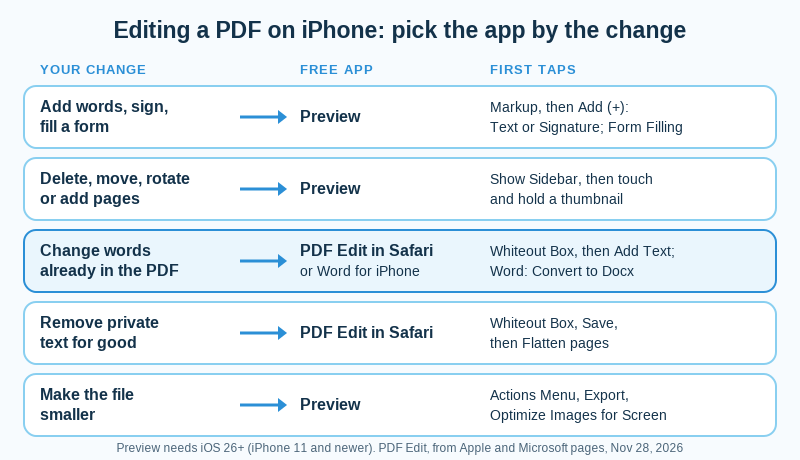
- Add words, sign, fill a form: Preview. Markup, then Add (+): Text or Signature; or the Form Filling button.
- Delete, move, rotate or add pages: Preview. Show Sidebar, then touch and hold a thumbnail.
- Change words already in the PDF: PDF Edit in Safari (Whiteout Box, then Add Text) or Word for iPhone (Convert to Docx).
- Remove private text for good: PDF Edit in Safari. Whiteout Box, Save, then Flatten pages.
- Make the file smaller: Preview. Actions Menu, Export, Optimize Images for Screen.
Preview’s text box takes its look from the Markup formatting button: Apple’s Use Markup page says it changes the font, size and alignment, and the color circle sets the color. Made a mistake? Tap the More button, then Undo.
Preview also copies, highlights, underlines and strikes through text you select in a PDF. A highlight and a typed note are all you need for most school or work PDFs.
Can you edit the existing text of a PDF on an iPhone?
Yes, but not in Preview or Markup, which add new marks on top of the page. To change the words already in a PDF on an iPhone for free, cover them and type new ones in a Safari editor such as PDF Edit, or convert the PDF in Word for iPhone.
Cover and retype in PDF Edit (best for a date, a name or a price):
- Open pdfedit.xyz/editor in Safari and tap the file button. Pick the PDF from Recents, iCloud Drive or On My iPhone. It stays on your phone; nothing is uploaded.
- Set Tool to Whiteout Box (cover old text) and drag your finger over the old word.
- Switch to Add Text, type the new word, pick the size, and tap where it goes.
- Tap Save as new PDF. Safari asks to download edited.pdf; it lands in the Downloads folder of the Files app.
Here’s the catch: the new word is set in Helvetica, not the PDF’s own font. On a date or a number nobody notices. Our guide to editing PDF text without Adobe explains why every editor swaps the font.
A scanned PDF is a different case. Its pages are photos of paper, so there are no words to select. Cover and retype still works on a scan, because the whiteout box covers pixels just as well as letters.
How do you fill out and sign a PDF on an iPhone?
To fill out a PDF form on an iPhone, open it in Preview, tap the Form Filling button, tap a field and type, or tap the AutoFill suggestion above the keyboard. To sign, tap the Add button, choose a signature and sign with your finger (Apple: Fill out and sign PDF forms).
- Form came by email? Apple’s tip: tap the attachment in Mail to open and complete the form in Preview.
- No fields to tap? Apple’s step covers it:
To add a signature or a text form box, tap the Add button.
- More room to sign: Apple’s signatures page suggests turning the iPhone sideways.
- AutoFill: names and addresses come from your card in Contacts.
Signing in PDF Edit instead? Its Signature Image tool places a PNG or JPG. An easy way to make one on an iPhone: sign on white paper, photograph it, crop it, or take a screenshot of a signature drawn in Notes (screenshots are PNG files).
How do you delete, move or rotate pages in a PDF on an iPhone?
Preview handles pages from its sidebar: tap Show Sidebar to see thumbnails, then touch and hold a thumbnail to insert, scan or delete a page, or drag it to move it. The steps come from Apple’s Add, delete, rotate, move, or crop PDF pages page.
| Job | Taps in Preview |
|---|---|
| Delete a page | Show Sidebar; touch and hold the thumbnail; Delete Page. |
| Add a blank page | Touch and hold a thumbnail; Insert Blank Page. |
| Add pages from another PDF | Touch and hold a thumbnail; Insert from File. |
| Add a paper page with the camera | Touch and hold a thumbnail; Scan Pages; Done. |
| Move a page | Touch and hold until the menu appears, then drag the thumbnail. |
| Rotate a page | Show Sidebar; More; Rotate Left or Rotate Right. |
| Crop a page | Crop button; drag the blue handles; Crop. |
The PDF Edit page tools do the same jobs in Safari, plus Merge, Split into single pages, Extract to new PDF, Add page numbers and Add watermark, which Apple’s Preview chapter does not list.
How do you remove private text from a PDF on an iPhone?
To remove private text from a PDF on an iPhone for good, cover it with a Whiteout Box in PDF Edit, tap Save as new PDF, then tap Flatten pages (true redaction). Flattening turns each page into an image, so the covered words are gone, not just hidden.
The trade-off of flattening is that the rest of the text is no longer selectable or searchable. Keep your unflattened copy for yourself and send the flattened one.
How do you edit a PDF on an iPhone in Word?
To rewrite whole paragraphs of a PDF on an iPhone, open it in Word and convert it. In the Files app, open the PDF, tap Share, tap Open in Word, then tap Convert to Docx, per Microsoft’s Word for iOS announcement.
Honestly, finding a whole PDF editor called Preview already sitting on the iPhone felt like discovering a spare key in my own pocket.
Microsoft first gave this to Microsoft 365 Insiders in Word for iOS version 2.86 in July 2024. When the text reads right, use the More menu to export the document as a PDF again.
Conversion rebuilds the page, so tables, columns and footnotes can shift. Microsoft’s desktop Edit a PDF page says the conversion works best with PDFs that are mostly text.
For one wrong word, cover and retype is faster.
How do you make a PDF smaller on an iPhone?
Preview shrinks a PDF on an iPhone through Export: tap the Actions Menu next to the filename, tap Export, choose PDF, and turn on Optimize Images for Screen and Save Images as JPEG. Apple says the first one creates a smaller file
(Apple: Export or compress).
Then choose where to save it, rename it in the Save As field, and tap Save. Our PDF Edit editor has no compression tool, so Preview’s export is the free way on an iPhone.
How do you edit a PDF on an iPhone without the Preview app?
On an iPhone that can’t run iOS 26, such as an iPhone XR or iPhone XS, use Markup in Mail or Files, or the PDF Edit editor in Safari. Markup adds text, signatures and shapes; Safari’s editor also changes words and pages.
- Mail: open the PDF attachment, tap Markup, tap the Add (+) button for Text or Signature, then Done, per Apple’s Use Markup page.
- Files (iOS 15 and later): MacRumors’ iOS 15 guide shows the thumbnail menu with Rotate, Insert Blank Page, Insert from File, Scan Pages and Delete.
- Books: open the PDF, tap the page, then the Markup button (Apple).
Not sure whether you have Preview? Swipe down on the Home Screen and search for it. Apple’s compatibility list starts at the iPhone 11 and iPhone SE (2nd generation).
Where do guides about editing PDFs on an iPhone disagree?
Most guides agree that the iPhone’s own tools add marks rather than change text; four popular claims go further than the makers’ own pages.
Use the Files app.
Most top guides still describe Files from iOS 15. Apple’s iOS 27 guide puts forms, pages, export and password locks in the Preview app.Acrobat Reader edits PDFs for free.
Adobe’s listing says reading, filling and signing are free; editing text and images is Acrobat Premium.Word for iPhone needs a subscription.
Microsoft’s announcement names no subscription. It names Insiders and version 2.86, and there’s no Microsoft help page for it yet.A white box redacts.
A Markup shape is a layer on top. Apple’s Preview chapter for iPhone has no redaction page; Flatten in PDF Edit removes the words.
What should you check before you edit a PDF on an iPhone?
One minute of checking picks the right free tool and keeps the original safe.
- Is your iPhone on iOS 26 or later? Then Preview is your built-in editor; if not, use Markup or Safari.
- Adding something or changing something? Preview adds; PDF Edit or Word change.
- Did you tap Actions Menu, Duplicate first? The original stays clean.
- Anything private covered up? Flatten in PDF Edit before you send it.
- Big scan to email? Export it from Preview with Optimize Images for Screen.
Most PDF jobs on an iPhone are small: a signature, a date, a page out of place. Preview and the free editor in the box at the top cover them without a subscription or an upload.
For a full rewrite, Word for iPhone converts the PDF for you; on a Mac, our guide to editing a PDF on Mac shows the same jobs in Preview’s desktop version.
How we researched this
- Read Apple’s iPhone User Guide for iOS 27, Preview chapter: Get started; Open and view PDFs; Annotate a PDF or image; Add, delete, rotate, move, or crop PDF pages; Fill out and sign PDF forms; Save, rename, or move; Export or compress; Lock PDFs, November 28, 2026.
- Read Apple’s Use Markup page (published March 25, 2026), Fill out forms and create signatures, Books PDFs, and the iOS 26 compatibility list, November 28, 2026.
- Read Microsoft’s Word for iOS PDF announcement (August 25, 2024), Microsoft’s Edit a PDF page, and Adobe Acrobat Reader’s App Store listing (version 26.10.51), November 28, 2026.
- Compared the makers’ pages with popular
edit PDF on iPhone
guides to find the four claims that disagree. Reddit threads did not load for our research tools, so no forum posts are quoted. - Checked the PDF Edit editor’s source: touch input, whiteout, Add Text, form fields, signature image, page tools, flatten; it has no compression or text recognition. We did not test every app on every iPhone.
Duplicate it, make your change, save a fresh copy, and enjoy sending your PDF off right from your phone.
Sources and further reading
- Apple: Get started with Preview on iPhone
- Apple: Annotate a PDF or image in Preview on iPhone
- Apple: Add, delete, rotate, move, or crop PDF pages in Preview on iPhone
- Apple: Fill out and sign PDF forms in Preview on iPhone
- Apple: Export or compress PDFs and images in Preview on iPhone
- Apple: Save, rename, or move PDFs and images in Preview on iPhone
- Apple: Lock PDFs in Preview on iPhone
- Apple: Fill out forms, sign documents, and create signatures on iPhone
- Apple: Use Markup on your iPhone
- Apple: iPhone models compatible with iOS 26
- Microsoft 365 Insider: Turn PDFs into editable documents in Word for iOS
- Microsoft Support: Edit a PDF
- App Store: Adobe Acrobat Reader: PDF Editor
- MacRumors: How to Edit PDF Documents in the Files App (iOS 15)
Questions and answers
Can I edit a PDF on my iPhone for free?
Yes. Preview, built into iOS 26 and later, adds text, fills forms, signs and moves pages for free. To change existing words for free, use Whiteout Box and Add Text in the PDF Edit editor in Safari, or convert the PDF in Word for iPhone.
Can I change the text in a PDF on my iPhone?
Not in Preview or Markup, which add text on top. Cover the old words with a Whiteout Box and type new ones in PDF Edit in Safari, or open the PDF in Word for iPhone and tap Convert to Docx to edit the real text.
Why can’t I type in a PDF form on my iPhone?
Some PDFs have no real form fields. In Preview, tap the Form Filling button first; if there is still nothing to tap, Apple’s fix is the Add button, which places a text form box or a signature anywhere on the page.
Where is the Preview app on my iPhone?
Preview comes with iOS 26 and later on the iPhone 11, iPhone SE (2nd generation) and newer. Swipe down on the Home Screen and search for Preview. An iPhone XR or XS can’t run iOS 26, so use Markup or Safari.
How do I save an edited PDF on my iPhone?
In Preview, tap the Actions Menu next to the filename: Duplicate keeps a copy, and Export lets you pick a folder and a new name. In PDF Edit, tap Save as new PDF; Safari downloads it to the Files app’s Downloads folder.