
How to Make a PDF Editable on Mac: Unlock It, Make It Fillable or Turn It Into Text (Free)
Hi there, and welcome to the guide for the PDF on your Mac that ignores every click you give it.
Picture a PDF open on your Mac that you need to change, and every click on it does nothing.
That PDF isn’t broken. Something is blocking it, and there are only five usual reasons.
Each one has a free fix, using Preview, Google Docs, LibreOffice or the editor in the box above.
Short answer: To make a PDF editable on a Mac, first find what blocks it. Unlock a password-protected PDF in Preview with File, Edit Permissions. Type on a flat form with Preview’s Text tool, or add real fields in LibreOffice. To rewrite the words, open the PDF with Google Docs (2 MB or smaller) or LibreOffice Draw.
- Built-in app
- Preview, on every Mac. It fills forms, signs and adds text, but it doesn’t create form fields.
- Free way to get real form fields
- LibreOffice, with the Create PDF form box ticked when you export, per the LibreOffice Writer Guide 26.2.
- Free way to turn a PDF into text
- Google Docs, for PDFs of 2 MB or smaller, per Google.
- Locked PDF
- Preview changes the permissions if you have the owner password (Apple).
Why can’t I edit a PDF on my Mac?
A PDF won’t edit on a Mac for one of five reasons: it’s locked by its owner, it’s a flat form with no fields, its text is fixed in place, it’s a scanned image, or it was flattened. Each reason shows a different sign, so you can tell which one you have in seconds.
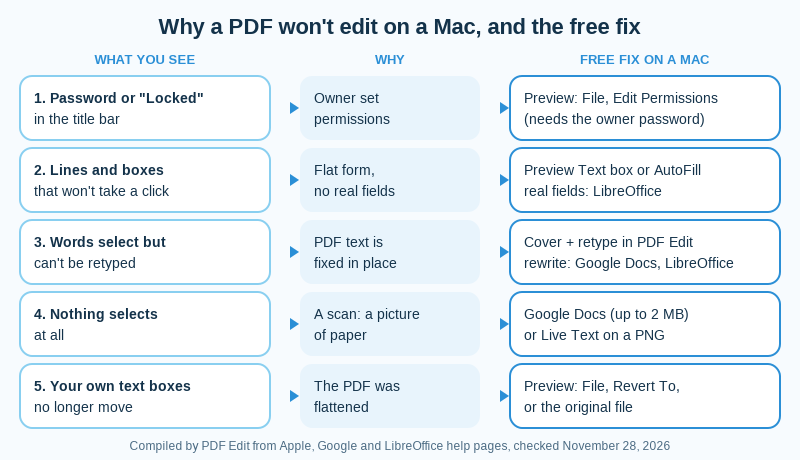
| What you see | Why | Free fix on a Mac |
|---|---|---|
| A password prompt, or “Locked” next to the file name | The owner set a password or permissions | Preview: File, Edit Permissions, with the owner password |
| Lines and boxes that won’t take a click | A flat form: it looks like a form but has no fields | Preview’s Text tool or AutoFill; real fields in LibreOffice |
| Words select and copy, but can’t be retyped | Normal PDF text is placed letter by letter, not as a flowing document | Cover and retype in PDF Edit; rewrite in Google Docs or LibreOffice Draw |
| Nothing selects at all | A scan: the page is a picture of paper | Google Docs text recognition (2 MB or smaller), or Live Text on a PNG |
| Your own text boxes no longer move | The PDF was flattened, for example by File, Print, Save as PDF | Preview: File, Revert To, or the original file |
What happens when you click your PDF? Pick it here
Choose what your PDF does when you try to change it. The answer names the cause and the free Mac fix; nothing is uploaded or saved.
How the checker decides: each answer comes from the table above and from the maker’s help page linked in each section below. It names the free fix with the fewest steps for that one sign.
How do you unlock a PDF on a Mac so you can edit it?
To unlock a PDF on a Mac, open it in Preview, choose File, Edit Permissions, and change what the owner locked. This needs the owner password; Preview doesn’t get around a password you don’t know. Apple describes the two kinds of protection on its Password-protect a PDF page.
- Open password: asked for before the PDF shows at all (Require Password To Open Document).
- Owner password: guards actions such as printing, copying text and adding annotations, even when the PDF opens freely.
- Open the PDF in Preview and choose File, Edit Permissions.
- Untick Require Password To Open Document if you want it to open without a password.
- Tick each action to allow; Apple says a ticked box allows it
without the owner password.
- Click Apply. Apple notes:
Changes take effect the next time the PDF is opened.
No owner password? Ask the person who sent the PDF for an unlocked copy, or for the Word or Pages file it came from. That’s often quicker than any workaround, and it keeps the layout perfect.
How do you make a PDF fillable on a Mac?
There are two ways to make a PDF fillable on a Mac. For yourself, type straight onto the flat form in Preview. For a form other people fill in, add real form fields in LibreOffice (free) or Adobe Acrobat (paid). Preview fills existing fields but has no tool that creates new ones.
That gap catches a lot of Mac owners. On the MacMost forum, someone with a long application, plus Pages, Word 2021 and Acrobat, asked for a free way. The answer: Pages can’t do it.
How do you type on a PDF that isn’t fillable on a Mac?
To type on a PDF form with no fields on a Mac, add text boxes in Preview. Apple’s Fill out and sign PDF forms page puts it plainly: If a PDF won’t allow you to type directly into the form, you can add a text box instead.
- Open the PDF in Preview and choose File, Duplicate, because Preview saves as you go.
- Click Show Markup Toolbar, then Text.
- Type the answer, drag the box onto the line, and repeat for each blank.
On macOS Sonoma 14.2 and later, try AutoFill first. Apple’s What’s new in macOS Sonoma page says Enhanced AutoFill identifies fields in PDFs and other forms
and fills them with names and addresses from your contact card. Apple adds that not all PDFs support it.
The free PDF Edit editor works the same way in Safari or Chrome. Its Add Text tool places words on any line, and its side panel fills a PDF’s real text fields if it has them. PDF Edit locks those answers into the page when it saves.
How do you add real form fields to a PDF for free on a Mac?
LibreOffice, a free download for Mac, adds real form fields to a PDF and exports them as a fillable PDF. Open the PDF in LibreOffice Draw, draw a Text Box form control over each blank, then export with Create PDF form ticked.
- Download LibreOffice from libreoffice.org (it needs macOS 11 or newer, per its system requirements).
- Open the PDF with File, Open; it opens in LibreOffice Draw.
- Choose View, Toolbars, Form Controls and turn on Design Mode.
- Pick Text Box (or Check Box) and drag one over each blank line.
- Choose File, Export as PDF, tick Create PDF form on the General tab, and save under a new name.
Does Adobe Acrobat make a PDF fillable on a Mac?
Yes, Adobe Acrobat’s Prepare a form tool turns a flat PDF into a fillable one on a Mac. Adobe sells it in paid Acrobat; the free Acrobat Reader fills and signs forms instead.
Adobe’s fillable PDF on Mac page gives four steps: click the Tools tab, and select Prepare Form,
upload the document, add fields, then save. Free Acrobat Reader still helps with a stubborn form: the MacMost asker filled theirs with Reader’s Fill & Sign tool after Preview wouldn’t.
How do you convert a PDF to an editable document on a Mac?
To convert a PDF into an editable document on a Mac for free, upload it to Google Drive and choose Open with, Google Docs, or open it in LibreOffice Draw. Both make a copy you can rewrite, and the original PDF stays as it was.
Google’s Drive Help sets the rules for Google Docs:
| Item | Google’s rule |
|---|---|
| File size | The file should be 2 MB or smaller. |
| Likely kept | Bold, italics, font size, font type and line breaks |
| Likely lost | Lists, tables, columns, footnotes and endnotes |
| Text height | At least 10 pixels high |
| Page direction | Right side up |
Check the size before you upload: select the PDF in the Finder and press Command-I. Over 2 MB? Split it into smaller parts with Split into single pages or Extract to new PDF in PDF Edit, then convert each part.
Need a Word file? In Google Docs choose File, Download, Microsoft Word (.docx). Apple’s Pages can’t help here; its own Pages User Guide says You can’t open PDFs in Pages.
Our guide to editing a PDF in Google Docs walks through the whole round trip, back to a fresh PDF.
How do you make a scanned PDF editable on a Mac?
A scanned PDF becomes editable on a Mac once its picture of text is turned into real text. The free way is Google Docs, which reads the words when it opens a PDF of 2 MB or smaller. For a few lines, Live Text in Preview copies the words off an image.
- Google Docs: in Google Drive, right-click the scan and choose Open with, Google Docs. Google says sharp images with even lighting work best.
- Live Text: in Preview, choose File, Export, set Format to PNG, and open the PNG. Apple’s Live Text page says:
Drag to select text, Control-click your selection, then choose Copy Text.
Apple adds that Live Text isn’t available in all regions or languages.
If one word on a scan is wrong, skip text recognition: cover it and retype it, as our guide to editing a scanned PDF online for free shows.
What’s the fastest way to change one word in a PDF on a Mac?
The fastest way to change one word in a PDF on a Mac is to cover it and type the new one, with no converting. In the free PDF Edit editor, it takes four steps in Safari or Chrome, and the file stays on your Mac.
Honestly, realizing that a stubborn PDF only ever has one of five problems turned the whole thing from a mystery into a checklist for me.
- Open pdfedit.xyz/editor and load your PDF.
- Set Tool to Whiteout Box (cover old text) and drag over the old word.
- Switch to Add Text, type the new word, and click where it goes.
- Press Save as new PDF.
A white box only hides the old word. If that word is private, press Flatten pages (true redaction) after saving: every page becomes an image and the covered text is gone for good.
Can you make a flattened PDF editable again on a Mac?
Not inside the flattened file itself: flattening merges text boxes, signatures and form answers into the page. The way back on a Mac is an earlier version: Preview’s File, Revert To, Browse All Versions, or the original Word, Pages or Docs file.
Apple’s Revert changes page explains the steps. Pick the version from before on the timeline and click Restore, or hold Option and click Restore a Copy to keep both.
No earlier version? Treat the flattened PDF like a scan: cover and retype the words that changed, or run it through Google Docs to get the text back.
Where do guides about making a PDF editable on a Mac disagree?
Most guides agree that Preview fills forms; three common claims go further than the makers’ own pages.
Preview can make a PDF fillable.
Apple’s Fill out and sign page covers filling fields, text boxes and AutoFill, and lists no tool that creates a field.Export it from Pages as a fillable form.
Pages can’t open a PDF at all, per Apple, and its PDF export has no form option in Apple’s guide.Word for Mac converts a PDF, says Microsoft.
Microsoft’s Edit a PDF page lists Word for Microsoft 365 and Word 2016 to 2024 but names no Mac edition, so Google Docs and LibreOffice are the sure free routes.
One gap none of the top guides fill: Google Docs converts only PDFs of 2 MB or smaller. Splitting a big PDF first is the step that makes a large conversion work.
What should you check before you make a PDF editable on a Mac?
One minute of checking picks the right free fix and keeps your original safe.
- Do you have the Word, Pages or Google Docs file the PDF came from? Edit that and export a fresh PDF.
- Does it ask for a password? Unlock it in Preview first, with the owner password.
- Do the words select? If not, it’s a scan: Google Docs or Live Text.
- Is the PDF over 2 MB? Split it before Google Docs.
- Did you choose File, Duplicate? Preview saves over the file as you work.
Most PDFs that won’t edit on a Mac just need the right key: a password, a text box, or a conversion.
Find your sign in the table, use the free fix next to it, and the box at the top handles the quick cover-and-retype jobs without an upload.
How we researched this
- Read Apple’s Preview User Guide (Fill out and sign PDF forms; Password-protect a PDF; Interact with text in a photo; Revert changes), Apple’s What’s new in macOS Sonoma page and Apple’s Pages User Guide, November 28, 2026.
- Read Google Drive Help (Convert PDF and photo files to text), the LibreOffice Writer Guide 26.2 (PDF export options), LibreOffice’s system requirements, Adobe’s fillable PDF on Mac page and Microsoft’s Edit a PDF page, November 28, 2026.
- Read the MacMost forum thread
How Do I Make a PDF Fillable?
(July 8, 2022) for the real problem people hit. Reddit threads on this phrase did not come up in our searches, so none are quoted. - Compared vendor guides that rank for the phrase with the makers’ pages to find the three claims that disagree and the 2 MB gap.
- Checked the PDF Edit editor’s source: it adds text, whiteout and signatures, fills existing text fields, and edits pages; it doesn’t create form fields, recognize text or open password-locked PDFs. We did not test every app on every Mac.
Find your sign, use the free fix next to it, and enjoy a PDF that finally does what you ask.
Sources and further reading
- Apple: Fill out and sign PDF forms in Preview on Mac
- Apple: Password-protect a PDF in Preview on Mac
- Apple: Interact with text in a photo in Preview on Mac
- Apple: Revert changes to PDFs and images in Preview on Mac
- Apple: What’s new in the updates for macOS Sonoma
- Apple: Open or close a document in Pages on Mac
- Google Drive Help: Convert PDF and photo files to text
- LibreOffice Writer Guide 26.2: Printing and Publishing
- LibreOffice: System requirements
- Adobe: How to create a fillable PDF on a Mac
- Microsoft Support: Edit a PDF
- MacMost forum: How Do I Make a PDF Fillable?
Questions and answers
Can I make a PDF editable on a Mac for free?
Yes. Preview, built into every Mac, unlocks a PDF with its owner password and types on flat forms. Google Docs turns PDFs of 2 MB or smaller into editable text, and LibreOffice adds real form fields for free.
Why can’t I type in a PDF on my Mac?
The PDF is probably a flat form with lines but no real fields, a scan, or locked by its owner. For a flat form, click Show Markup Toolbar in Preview, choose Text, and drag the box onto the line.
Can Preview make a PDF fillable?
No. Preview fills fields a PDF already has and adds text boxes, but Apple’s guide lists no tool that creates form fields. LibreOffice does it for free with Export as PDF and Create PDF form; Adobe Acrobat does it with Prepare a form.
How do I convert a PDF to Word on a Mac for free?
Upload the PDF to Google Drive, right-click it and choose Open with, Google Docs, then File, Download, Microsoft Word (.docx). Google says the PDF should be 2 MB or smaller, and tables and columns may not carry over.
How do I remove a password from a PDF on a Mac?
Open the PDF in Preview, choose File, Edit Permissions, untick Require Password To Open Document, tick the actions to allow, and click Apply. You need the owner password; without it, ask the sender for an unlocked copy.