
How to Make a PDF Editable in Word (Windows, Mac and Free Web), and Fix the Layout After
Every forum thread about opening a PDF in Word ends the same way: the words came in fine, and the tables fell apart.
That isn’t bad luck.
It comes from the way a PDF stores a page, and most of it can be fixed in a few minutes.
Short answer: To make a PDF editable in Word, open Word, choose File, Open, pick the PDF and click OK when Word says it will convert it. Word makes an editable copy and leaves your PDF unchanged. Click Enable Editing if asked, make your changes, then choose File, Save As and pick PDF or Word Document.
I spent an afternoon with Microsoft’s own help pages on this feature and with the forum threads of people stuck halfway through it. Three dates explain most of what goes wrong.
On August 9, 2012, Microsoft announced that Word 2013 would open PDFs, letting you convert PDFs into editable Word documents
. It was built as a converter, never as a PDF editor.
In September 2019, a Microsoft MVP confirmed on Microsoft Q&A that Word for Mac version 16.30 had learned the same trick, for Office 365 subscribers with connected experiences turned on.
And on July 21, 2025, someone on the Adobe Community forum wrote that with tables or multiple columns the formatting ends up completely off
. Thirteen years on, that is still the complaint. Here is the whole job, with the fixes.
- Where
- Word, File, Open, then pick the PDF. Microsoft’s Edit a PDF page lists Word for Microsoft 365, 2024, 2021, 2019 and 2016.
- What happens to your PDF
- Nothing. Microsoft says
The original PDF won’t be changed at all.
- Works best on
- PDFs that are mostly text, such as business, legal or scientific documents.
- Usually needs fixing
- Tables, columns, footnotes, page borders and pages full of charts.
- Free without Word installed
- Word for the web, Google Docs (PDFs of 2 MB or smaller) or LibreOffice.
How do you make a PDF editable in Word?
To make a PDF editable in Word, open the PDF from inside Word and let Word convert it. Word builds a new document from the PDF’s text and pictures, so you edit the copy and then save it as a new PDF. The same five steps work in Word for Microsoft 365, Word 2024, 2021, 2019 and 2016.
- Open Word and choose File, Open. Pick the PDF (choose Browse on Windows if it isn’t in the list).
- Word shows a message that it will make a copy of the PDF and convert it. Click OK.
- If a yellow bar says Protected View, click Enable Editing. Files from email and downloads open that way first.
- Edit the text like any Word document: retype, delete, add paragraphs.
- Choose File, Save As. Pick PDF for a new PDF, or Word Document (.docx) to keep editing later.
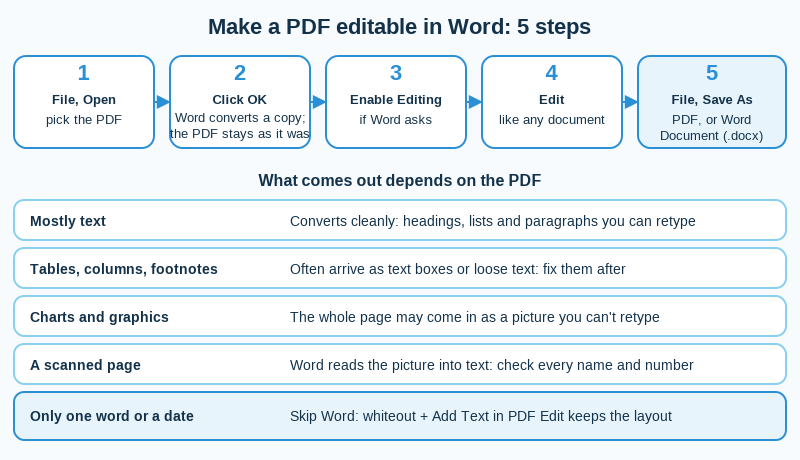
What the diagram shows, as text:
- Steps: 1 File, Open, pick the PDF; 2 click OK, Word converts a copy and the PDF stays as it was; 3 Enable Editing if Word asks; 4 edit; 5 File, Save As, PDF or Word Document.
- Mostly text: converts cleanly into headings, lists and paragraphs.
- Tables, columns, footnotes: often arrive as text boxes or loose text, so they need fixing.
- Charts and graphics: the whole page may come in as a picture.
- A scanned page: Word reads the picture into text, so check every name and number.
- One word or a date: skip Word and use whiteout plus Add Text in PDF Edit.
Microsoft’s Edit a PDF page adds one warning worth knowing before step 4: the converted document might not have a perfect page-to-page correspondence with the original
. Lines and pages can break in new places.
Which versions of Word can make a PDF editable?
Word for Windows has opened PDFs since Word 2013, and Microsoft’s current help pages list Word for Microsoft 365, 2024, 2021, 2019 and 2016. Word for the web converts PDFs too. Word for Mac does it through a Microsoft online service, which is why it needs connected experiences switched on.
| Word version | Opens a PDF for editing? | What it needs | Source |
|---|---|---|---|
| Word for Microsoft 365, 2024, 2021, 2019, 2016 (Windows) | Yes, File, Open | Nothing extra | Microsoft: Opening PDFs in Word |
| Word 2013 (Windows) | Yes, the first version that did | Nothing extra | Microsoft blog, Aug 9, 2012 |
| Word 2010 and older | No | Use Word for the web or Google Docs instead | The feature arrived in Word 2013 |
| Word for Mac | Yes, File, Open, from version 16.30 (2019) | Microsoft 365 subscription and Enable optional connected experiencesticked in Word’s Privacy settings | Microsoft MVP answer, Sept 2019 |
| Word for the web | Yes, the PDF is converted to a Word document | A Microsoft account; the PDF in OneDrive | Microsoft: Add a PDF to your Office file |
In short: any Word on Windows from 2013 on does it with File, Open; a Mac needs a current Microsoft 365 Word with connected experiences on; and anyone can use Word for the web in a browser.
Will Word convert my PDF cleanly? Tick what’s in it
Tick everything your PDF contains. The answer tells you what Word will likely do with each part and the quickest route; nothing is uploaded or saved.
How the checker decides: each line comes from Microsoft’s Opening PDFs in Word page and the fixes in the sections below. A one-word change is always listed first, because it is the case where Word isn’t needed.
Why does my PDF look wrong after Word converts it?
A PDF looks wrong in Word because a PDF stores where each letter sits on the page, not which letters form a table, a column or a footnote. Word has to guess the structure, and tables, columns and footnotes are where the guesses miss.
Microsoft’s own explanation, from Opening PDFs in Word:
PDF is a fixed file format, which means the file stores the location of text, pictures, and vector graphics on a page, but not necessarily the relationships among them.
The same page names the parts that are known to be problematic
. Here they are with what each one does to your document and the fix in Word.
| In your PDF | What can happen in Word | Fix after converting |
|---|---|---|
| Tables with cell spacing | Cells drift, merge or turn into tabbed text | Layout, AutoFit, AutoFit Contents; rebuild a badly broken table |
| Footnotes over more than one page, endnotes | Microsoft: an undetected footnote is treated as regular text | Cut the text, then References, Insert Footnote |
| Page colors and page borders | Lost or changed | Design, Page Color or Page Borders |
| Frames | Text stuck in boxes | Show formatting marks, then cut the text out and delete the frame |
| Font effects like Glow or Shadow | Microsoft: the effects are represented by graphics | Delete the graphic, retype the words, add the effect again |
| Tracked changes, PDF comments | Not carried over reliably | Read them in the PDF before you convert |
| PDF bookmarks and tags | Not carried over reliably | Apply Heading styles, so Save As PDF can build bookmarks again |
| Audio, video, PDF active elements | Not carried over reliably | Add the media again in Word, or link to it |
| Pages that are mostly charts or graphics | Microsoft: the whole page might show up as an image | Keep the picture, or change the PDF itself instead |
The pattern is simple: plain paragraphs survive, and anything laid out with care on the page is what Word has to rebuild by guesswork.
How do you fix text boxes and broken tables after converting?
Turn on formatting marks first, so you can see the hidden text boxes, frames and section breaks Word created. Then fix tables with AutoFit, move text out of boxes, and rebuild footnotes. A short, mostly-text PDF needs a few minutes of this; a heavily designed one can take longer than retyping.
- Show formatting marks: press Ctrl+Shift+8 on Windows or Command+8 on a Mac (the ¶ button on the Home tab). Boxes, frames and breaks become visible.
- Free text from boxes: click a box’s border, cut the text, delete the box, and paste the text into the page with Keep Text Only.
- Repair a table: click inside it, then Layout, AutoFit, AutoFit Contents. If the cells are scrambled, insert a fresh table and paste the values in.
- Rebuild footnotes: cut the stray footnote text, put the cursor after the word it belongs to, and choose References, Insert Footnote.
- Reset odd fonts: select everything with Ctrl+A and apply the Normal style, then re-apply Heading styles to the titles.
Converting with Adobe Acrobat instead? An Adobe Community Expert explained the trade-off on July 24, 2025: Acrobat’s Word export has two settings, and neither one is free of clean-up.
- Retain Page Layout:
generally better for documents with tables, multiple columns, or intricate graphics
, but it can leave many text boxes and frames. - Retain Flowing Text: better for documents with continuous text, but it can break complex layouts.
Can Word make a scanned PDF editable?
Yes. Microsoft’s Scan and edit a document page says to save the scan as a PDF and open it with File, Open, and a message says Word will convert the PDF file into an editable Word document
. Read the result closely, because a scan is a picture that Word has to read letter by letter.
- Check names, numbers and dates. A 5 read as an S, or a 1 read as an l, looks fine at a glance and wrong on an invoice.
- Scan straight and sharp. Google’s tips for its own reader apply here too: right-side up, evenly lit, and text
at least 10 pixels high
, per Google Drive Help. - Expect line breaks in new places. Microsoft says lines and pages may break at different locations than on paper.
For one wrong word on a scan, converting is the long way round. The guide on editing scanned PDF text shows how to cover it and retype it at the right size.
Can you make a PDF editable in Word for free?
Yes, three ways. Word for the web is free with a Microsoft account and converts a PDF you open from OneDrive. Google Docs converts PDFs of 2 MB or smaller and downloads the result as a Word file. LibreOffice, a free desktop suite, opens PDFs in its Draw app.
| Way | Cost | Scanned PDFs | What the maker says about layout | Best for |
|---|---|---|---|---|
| Word desktop (Windows, Mac) | Comes with Word | Yes, per Microsoft | Works best with mostly text; may not match page for page | Rewriting paragraphs |
| Word for the web | Free in a browser | Not stated on the page we read | may not look exactly like the original document | No Word installed |
| Google Docs, then Download, .docx | Free | Yes, 2 MB or smaller | Lists, tables, columns, footnotes, and endnotes are not likely to be detected. | Plain text, quick |
| Adobe Acrobat, Export to Word | Paid Acrobat plan | Yes, with text recognition | Two settings: Retain Flowing Text or Retain Page Layout | Complex layouts |
| PDF Edit (no conversion) | Free, no sign-up | Covers and retypes words on any page | Layout untouched, because nothing is converted | A word, a date, a signature, pages |
For a mostly-text PDF with no Word on the computer, Google Docs is the quickest free route; for tables, Word for the web keeps more structure, since Google says it won’t detect tables at all.
Steps for the Google route: open Google Drive, right-click the PDF, choose Open with, Google Docs, then File, Download, Microsoft Word (.docx). The full walk-through is in how to edit a PDF in Google Docs.
When should you skip Word and edit the PDF itself?
Skip Word when the change is small: a date, a name, a price, a signature, or a page to delete or rotate. Converting rebuilds the whole document by guesswork, while covering one word and typing over it leaves every other line exactly where it was.
Honestly, learning that a PDF only remembers where each letter sits, and not what a table is, made every broken layout make sense to me.
In the free PDF Edit editor, the PDF opens in your browser and isn’t uploaded:
- Open the PDF and choose Whiteout Box (cover old text). Draw it over the old word.
- Switch to Add Text, type the new word, and set the size (6 to 72 points).
- Click where the word goes and drag it into line.
- Choose Save as new PDF.
Here’s the catch: the new words are set in Helvetica, not the PDF’s own font. On a date or a number nobody notices; on a whole sentence in a fancy typeface, Word’s conversion may match better.
How do you save the Word document as a PDF again?
Choose File, Save As and pick PDF as the file type. Word writes a brand-new PDF, and the PDF you started from stays as it was, so give the new one a clear name such as “contract-v2.pdf”.
- Windows: File, Save As, Browse, then PDF in the Save as type list. Click Options to pick a page range or create bookmarks from headings.
- Mac: File, Save As, then PDF under File Format.
- Word for the web: open the File menu and choose Download as PDF.
Keep the .docx as well. The next round of changes then starts from a real Word document instead of another conversion.
How do you create an editable PDF from a Word document?
To create an editable, fillable PDF from a Word document, add the form fields in a PDF-aware app, because Word’s own check boxes, drop-downs and text controls stop working once the file is saved as a PDF. The free way is LibreOffice Writer, which opens your .docx and exports real PDF fields.
A user on Microsoft Q&A hit exactly this on October 7, 2024: the document that is saved is not functional as a fillable form
. Volunteer moderator Charles Kenyon answered:
Word can create good fillable forms, so long as they remain Word documents.
The free steps in LibreOffice Writer, using the export option described in the LibreOffice Writer Guide 26.2:
- Open your Word document (.docx) in LibreOffice Writer.
- From the Form menu, add a Text Box on each blank line, a Check Box for each tick box, and a List Box where you want a drop-down list.
- Choose File, Export As, Export as PDF, tick Create PDF form, and export.
The result opens in Adobe Acrobat Reader, Mac Preview and browsers with boxes people can type into. Paid route: Adobe Acrobat’s Prepare a form detects the fields in a saved PDF. The PDF Edit editor fills fields a PDF already has but doesn’t create new ones; more ways are in how to make a PDF editable on Mac.
Where do the guides disagree?
Three claims in popular guides don’t match the makers’ own pages.
- “Without losing formatting.” Many converter sites promise it. Microsoft promises the opposite: the result
might not have a perfect page-to-page correspondence with the original
. Adobe’s expert says even Retain Page Layout can leave text boxes and frames. - Word for the web. At least one popular guide says Word for the web can’t convert PDFs. Microsoft’s own page says a PDF opened there
is converted to a Word document
. Another guide reports the option doesn’t show for every account, so download the PDF and use File, Open if you can’t find it. - Word for Mac. Microsoft’s PDF help pages list only Windows versions, and some guides say a Mac can’t do it. A Microsoft MVP confirmed in 2019 that Word for Mac 16.30 opens PDFs, with a subscription and connected experiences turned on.
What none of the top guides we read mention: Google Docs, the most-suggested free route, says it is not likely
to detect tables, lists or footnotes. Word tries to rebuild them, so a table-heavy PDF fares better in Word, even Word for the web.
What should you check before converting a PDF to Word?
- Is it one word, a date or a signature? Skip Word: whiteout plus Add Text in PDF Edit.
- Can you get the original Word file? Edit that and save a fresh PDF.
- Is it mostly text? Word’s File, Open does it well.
- Tables or columns? Plan on AutoFit and text-box clean-up.
- Do the words select? If not, it’s a scan: check every number after converting.
- On a Mac? Turn on connected experiences in Word’s Privacy settings.
- Need a form people fill in? Add the fields in LibreOffice, not Word.
- Done? File, Save As, PDF, under a new name, and keep the .docx.
Word makes a PDF editable in five clicks, and the real work is knowing which PDFs it handles well: mostly text, yes; designed pages, with clean-up.
For anything smaller than a paragraph, the box at the top of this page changes the PDF directly, with no conversion and nothing uploaded.
How we researched this
- Read Microsoft Support’s Edit a PDF, Opening PDFs in Word, Scan and edit a document, and Add a PDF to your Office file pages, and Microsoft’s August 9, 2012 Word 2013 announcement, November 28, 2026.
- Read Google Drive Help (Convert PDF and photo files to text) and Microsoft’s free Microsoft 365 for the web page, November 28, 2026.
- Read two Microsoft Q&A threads (Word for Mac PDF conversion, September 2019; a Word form saved as PDF, October 7, 2024) and one Adobe Community thread (July 21 to 24, 2025). Reddit threads on this phrase didn’t come up in our searches, so none are quoted.
- Compared popular guides that rank for the phrase with the makers’ pages to find the three claims that disagree and the Google Docs table gap.
- Checked the PDF Edit editor’s source: whiteout, Add Text (Helvetica, 6 to 72 points), signatures, filling existing fields, page tools and Flatten. It doesn’t convert to Word or create form fields. We did not convert test files in every version of Word.
Open it, tidy the tables, save a fresh PDF under a new name, and enjoy a document that finally takes your edits.
Sources and further reading
- Microsoft Support: Edit a PDF
- Microsoft Support: Opening PDFs in Word
- Microsoft Support: Scan and edit a document
- Microsoft Support: Add a PDF to your Office file
- Microsoft 365 Blog: Unlock PDFs with Word 2013 (Aug 9, 2012)
- Microsoft: Free Microsoft 365 for the web
- Microsoft Q&A: PDF Conversion to Word for Mac (2019)
- Microsoft Q&A: How do I convert a Word document to a fillable PDF? (2024)
- LibreOffice Writer Guide 26.2: Printing and Publishing
- Google Drive Help: Convert PDF and photo files to text
- Adobe Community: Exported PDF to Word but layout is broken (2025)
Questions and answers
Can I make a PDF editable in Word for free?
Yes. Word for the web is free with a Microsoft account and converts a PDF you open from OneDrive. Google Docs converts PDFs of 2 MB or smaller and downloads them as Word files. For one word or a date, the free PDF Edit editor changes the PDF without converting it.
Why is my PDF not editable in Word?
Usually the PDF is a scan, a page made mostly of charts that Word brings in as an image, or Word is too old: Word 2010 and earlier can’t open PDFs. On a Mac, Word also needs connected experiences turned on in its Privacy settings.
How do I convert a PDF to Word without losing formatting?
No converter promises a perfect match; Microsoft says the result might not match page for page. Get the original Word file if you can. Otherwise use Word’s File, Open, then fix tables with AutoFit and show formatting marks to clear stray text boxes.
How do I make a Word document into an editable PDF?
Word’s own form controls stop working when you save as PDF. Open the .docx in free LibreOffice Writer, add Text Box, Check Box or List Box fields from the Form menu, then Export as PDF with Create PDF form ticked.
Can I open a PDF in Word on a Mac?
Yes, in current Microsoft 365 versions of Word for Mac, with File, Open. The conversion runs through a Microsoft online service, so tick Enable optional connected experiences in Word’s Privacy settings and keep Word updated.