
How to Add Text to a PDF on iPhone for Free: Preview, Markup and Safari (iOS 27)
Hi there, and welcome to the guide for the PDF on your iPhone that needs one date or one note typed onto it.
Every few months a form lands in my Mail that needs one date typed on it, and the first search is always the same: how to add text to a PDF on an iPhone.
I spent an afternoon with Apple’s iPhone User Guide, the Markup page and Adobe’s Acrobat Reader listing, then ran the same job through our own Safari editor.
Apple moved PDF handling into a Preview app in iOS 26. Before that, the Text button lived only inside Markup in Mail and Files.
Adobe’s free Acrobat Reader reads, fills and signs PDFs, but its listing puts editing text in Acrobat Premium.
Short answer: To add text to a PDF on an iPhone, open the PDF in Preview, tap the Markup button, tap the Add (+) button and choose Text. Type your words, drag the box into place and tap Done. On an older iPhone, Markup in Mail or Files works the same; the free PDF Edit editor in Safari is a third way.
- Fastest way
- Preview, Markup, Add (+), Text (Apple).
- Older iPhone
- Markup in Mail or Files (Apple: Use Markup).
- Third way
- Add Text in PDF Edit in Safari; nothing is uploaded.
- Cost
- $0 for all three.
How do you add text to a PDF on an iPhone with Preview?
Open the PDF in Preview, tap the Markup button, tap the Add (+) button and tap Text. A text box appears on the page; type your words, drag the box where you want it and tap Done. Preview is included with iOS 26 and later.
- Open the PDF. Tap it in Files or Mail so it opens in Preview.
- Tap Markup. The pen-tip button turns on the annotation tools.
- Tap Add (+), then Text. Apple’s page says the Add button holds
stickers, signatures, shapes, or text.
- Type, then drag the box onto the line, blank or margin where the words belong.
- Tap Done, then save. Tap the Actions Menu next to the filename for Duplicate or Export.
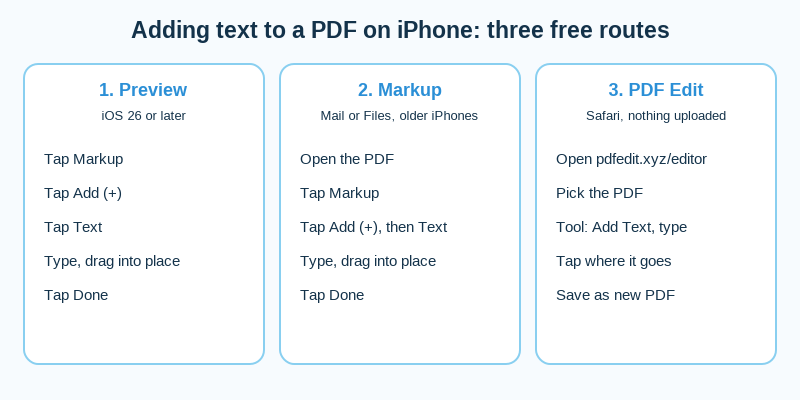
The steps for the three routes in one list:
- Preview (iOS 26+): Markup, Add (+), Text, type, drag, Done.
- Markup in Mail or Files: open the attachment, Markup, Add (+), Text, type, drag, Done.
- PDF Edit in Safari: Add Text, type, tap where it goes, Save as new PDF.
Which free way to add text to a PDF on an iPhone is best?
Preview is best for most people because it is already on an iPhone running iOS 26 or later and keeps your file in Files. Markup suits older iPhones. A Safari editor suits PDFs where you also need to cover old words or remove text for good.
| Route | Needs | Adds typed text | Cover old words | Remove text for good |
|---|---|---|---|---|
| Preview | iOS 26 or later | Yes: Markup, Add, Text | No tool for it in Apple’s guide | No |
| Markup in Mail or Files | Any iPhone with Markup | Yes: Add, Text | No | No |
| PDF Edit in Safari | A browser | Yes: Add Text | Yes: Whiteout Box | Yes: Flatten pages |
| Adobe Acrobat Reader (free) | An app install | Fill & Sign, comments | No | No |
In short: all three of the first routes type text for free; only the Safari editor also covers and removes words.
How do you add text to a PDF on an iPhone without Preview?
On an iPhone that cannot run iOS 26, open the PDF in Mail or Files, tap Markup, tap the Add (+) button and choose Text. Apple’s Use Markup page lists the same Text tool.
- In Mail: open the PDF attachment, tap the arrow, then Markup, then Add (+) and Text.
- In Files: open the PDF, tap the Markup button, then Add (+) and Text.
- Compatibility: Apple’s iOS 26 list starts at the iPhone 11 and iPhone SE (2nd generation), so an iPhone XR or XS keeps Markup.
How do you add text to a PDF on an iPhone without an app?
Open pdfedit.xyz/editor in Safari, load the PDF, set the tool to Add Text, type the words and tap where they go. Tap Save as new PDF. The file stays on your iPhone; nothing is uploaded.
- Tap the file button and pick the PDF from Recents, iCloud Drive or On My iPhone.
- Set Tool to Add Text, type, and pick the size.
- Tap the page where the text goes.
- Tap Save as new PDF. Safari downloads edited.pdf to the Downloads folder in Files.
Here’s the catch: text from this editor is set in Helvetica. For a date, a number or a name on a form, nobody notices; our guide to editing PDF text without Adobe explains why.
Why can’t I add text to a PDF on my iPhone?
The Text option is usually missing because of the app, not the PDF: the Add (+) button sits inside Markup, the PDF may be locked, or the app is Acrobat Reader, whose listing reserves text editing for Premium. Work through these in order.
- Tap Markup first. The Add (+) button only appears after the pen-tip Markup button is on.
- Try another app. In an Adobe Community thread from March 4, 2021, a community expert agreed that the text box feature is excluded from the Acrobat mobile app; that thread is old, so check the current app. The same replies point to Files and Markup.
- Check for a form. If the page has real form fields, Preview’s Form Filling button types into them directly.
- Check for a password lock. A PDF locked against changes may refuse marks; Apple’s guide covers locking, not removing it.
- Use Safari. The editor above adds text without any of those buttons.
How do you change the size or color of text added to a PDF on an iPhone?
Tap the formatting button in Markup to change the font, size and alignment, and tap the color circle to change the color. Apple’s Use Markup page describes both. To take back a slip, tap Undo; shaking the iPhone offers Redo.
Honestly, learning that the Add button hides until you tap Markup first saved me from hunting for a Text tool that was never missing.
- Too small to read? Raise the size in the formatting button before you drag the box.
- Box in the wrong place? Touch it and drag; it moves as one piece.
- Typed on the wrong page? Undo, scroll to the page and add it again.
- Keep the original: tap the Actions Menu, then Duplicate, before you start.
Should you type into a PDF form field instead of adding a text box?
Yes, when the PDF has real form fields: tap Form Filling in Preview, tap a field and type, or pick the AutoFill suggestion above the keyboard. A field keeps the text inside the box. Apple’s Fill out and sign PDF forms page says: To add a signature or a text form box, tap the Add button.
Use a plain text box for a flat PDF with no fields, such as a scanned form, an invoice or a letter. It sits on top of the page wherever you put it.
Can you edit or remove text you added to a PDF on an iPhone?
Usually yes, until you flatten the file. Text added in Markup is a mark on top of the page, so you can drag, restyle or delete it; once a flattened copy is saved, the words become part of the page image. Keep the unflattened copy for yourself.
The same layer idea explains one risk: a text box or white shape drawn over private text does not remove what is underneath. Cover and flatten in PDF Edit, as our guide to editing a PDF on iPhone shows.
Where do the guides about adding text to an iPhone PDF disagree?
Acrobat Reader adds text for free.
Adobe’s App Store listing says you can open, read, fill in and sign PDFs for free; editing text is a paid plan.Use the Files app.
That is the iOS 15 era answer; Apple’s iOS 27 guide puts annotation in the Preview app.Markup can fix a typo.
Markup adds new text on top. It does not change the words already in the file.
What should you check before you add text to a PDF on an iPhone?
- Is it iOS 26 or later? Then use Preview; if not, use Markup.
- Tapped Markup before looking for Add (+)?
- Duplicated the original first?
- Anything private under your text? Flatten before sending.
For adding text on a computer, see how to add text to a PDF without Adobe Pro.
How we researched this
- Read Apple’s iPhone User Guide pages on annotating a PDF in Preview and on filling out and signing PDF forms, November 28, 2026.
- Read Apple’s Use Markup page and the iOS 26 compatibility list, November 28, 2026.
- Read Adobe Acrobat Reader’s App Store listing and one Adobe Community thread dated March 4, 2021, November 28, 2026.
- A search for Reddit threads on this question returned no Reddit pages, so no forum posts are quoted.
- Checked the PDF Edit editor’s source for Add Text, Whiteout Box and Flatten. We did not test every app on every iPhone.
Tap Markup, add your words, save a fresh copy, and enjoy sending your PDF off typed and done.
Sources and further reading
Questions and answers
How do I add text to a PDF on my iPhone?
Open the PDF in Preview, tap Markup, tap the Add (+) button and choose Text. Type, drag the box into place and tap Done. On an older iPhone, Markup in Mail or Files works the same way.
Can I add text to a PDF on my iPhone for free?
Yes. Preview and Markup are free and built in, and the PDF Edit editor in Safari adds text for free too, with nothing uploaded and no sign-up.
Why is there no Text option when I mark up a PDF on my iPhone?
Tap Markup first, then the Add (+) button. If it is still missing, the PDF may be locked, or you may be in Acrobat Reader, which reserves text editing for Premium. Try Preview, Files or Safari.
How do I type on a PDF form on my iPhone?
Open it in Preview and tap Form Filling, then tap a field and type. If the form has no real fields, tap Add (+) and choose Text to place a text box anywhere.
How do I change the font size of text I added to a PDF on iPhone?
Tap the formatting button in Markup to change font, size and alignment, and tap the color circle for color. In PDF Edit, set the size before you tap the page.