How to Add Text to a PDF in Chrome (Free, No Extension, Chrome 145 and Newer)
For years, how do I type on a PDF in Chrome?
had the same flat answer: you can’t, unless it has boxes.
For most of Chrome’s life, the answer to can I type on this PDF?
was no, unless the PDF already had fill-in boxes.
On February 19, 2026, Google announced PDF annotations in Chrome, and a text tool came with them in Chrome 145.
I spent an afternoon with Google’s own Chrome Help page, the launch posts and a November 2026 write-up that opened the saved file, to see what the button really does. One detail about saving decides whether your text survives.
Short answer: To add text to a PDF in Chrome 145 or newer, open the PDF in Chrome, click the Add text icon, pick a font, style and color in the sidebar, click where the words go and type. Then choose Download, and pick “With your changes”. Closing the tab first loses the text.
- Where the tool is
- Chrome’s built-in PDF viewer on a computer, from Chrome 145 (February 2026). Google’s help page says you
may need to open your PDF in a new tab
. - What you choose
Choose your font, style and color from the sidebar
, thenClick where you want to add text.
- How you keep it
- Download, then “With your changes”, or Save to Drive.
- What it can’t do
- Change words already printed on the page.
- Checked
- .
How do you add text to a PDF in Chrome?
To add text to a PDF in Chrome, open the PDF in Chrome’s own viewer, click Add text, click on the page where the words belong and type. It takes four clicks, and you need nothing installed.
- Open the PDF in Chrome. Drag the file onto a Chrome window, or open it from a link. If the tools are not showing, Google’s help page says to open the PDF in a new tab.
- Click Add text. It is the T icon next to Draw. The sidebar on the right lets you choose font, style and color.
- Click the spot on the page and type. Each click starts a new text box, so you can fill several lines of a worksheet one after another.
- Save a copy. Select Download and choose With your changes, or use Save to Drive.
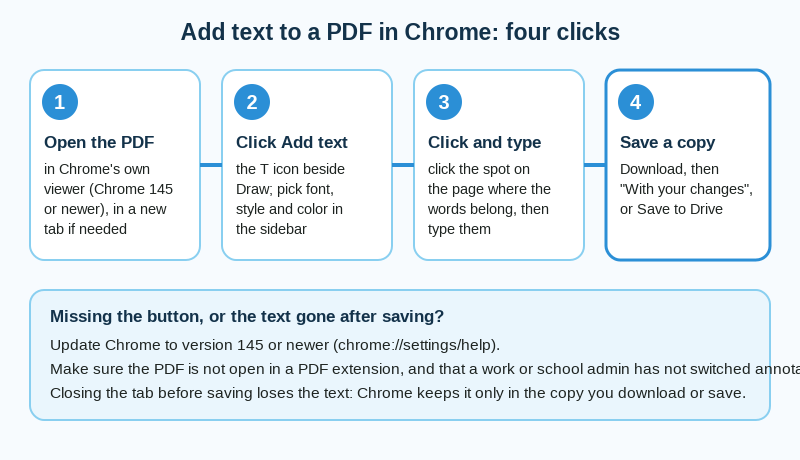
What the diagram shows, as text:
- Step 1: open the PDF in Chrome’s own viewer (Chrome 145 or newer), in a new tab if needed.
- Step 2: click Add text, then choose font, style and color in the sidebar.
- Step 3: click the spot on the page and type.
- Step 4: Download, then “With your changes”, or Save to Drive.
- If the button is missing: update Chrome to 145 or newer, check that no PDF extension opened the file, and check whether a work or school admin turned annotations off.
Prefer the same job on other devices? How to add text to a PDF without Adobe Pro covers Preview, iPhone, Edge and Firefox.
How do you save a PDF with the text you added in Chrome?
Select Download in the PDF viewer, then choose “With your changes”. Google’s help page offers that choice, plus “Without your changes” for a clean copy. Save to Drive, at the top right, stores it in a “Saved from Chrome” folder.
| What you click | What you get | Good to know |
|---|---|---|
| Download, With your changes | A PDF file with your text on it | The one most people want |
| Download, Without your changes | The original PDF, no added text | Pick it by mistake and your text is gone from the file |
| Save to Drive | A copy in Google Drive, folder “Saved from Chrome” | Not available in Incognito or Guest mode |
| Save (Chromebook) | Keeps your changes | Google’s page names it for Chromebook users only |
In short: choose “With your changes” every time, and open the saved file once to check your text is on it.
Why is there no Add text button for a PDF in Chrome?
Three things hide the Add text button: a Chrome older than version 145, a PDF opened by a PDF extension instead of Chrome’s own viewer, and a work or school administrator who turned annotations off. Check them in that order; the first takes ten seconds.
- Update Chrome. Open chrome://settings/help. The tools arrived with Chrome 145 on desktop, per 9to5Google.
- Use Chrome’s own viewer. If an extension such as another PDF reader opens your files, its toolbar replaces Chrome’s. Open the file in a new tab, or switch the extension off.
- Ask about the policy. Administrators control this with a Chrome Enterprise policy named
PdfAnnotationsEnabled, listed as “Enable PDF Annotations” in the Chrome 138 Enterprise release notes. On a managed laptop, the Draw and Add text buttons may be switched off on purpose.
A narrow window changes the layout too. Google’s page says that when the window is smaller, the right panel doesn’t show and a compact panel shows at the bottom
, so the options sit under the page instead.
Can you type into a PDF form in Chrome, and what about a flat page?
Yes. A form with fill-in boxes lets you click a box and type, and a flat page, such as a scan or a plain export, takes text with the Add text tool instead. The two are different jobs, and Chrome has handled the first for much longer.
| Your PDF is | Click | Result |
|---|---|---|
| A form with fill-in boxes | The box, then type | Text goes in that field |
| A flat page (scan, export, flyer) | Add text, then the page | A new text box where you click |
| A form with no boxes (a printed form saved as PDF) | Add text, then the blank line | Text placed on the line |
In short: if a box lights up when you hover, click it; if not, use Add text and nudge the text by eye. Chrome’s text options are font, style and color, so line each word up with the printed line.
Can you edit the words already printed on a PDF in Chrome?
No. Chrome’s Add text tool places new text and does not change the words that are already on the page. Google’s help page lists adding text, drawing, highlighting, erasing and signing, and nothing about editing existing words.
Honestly, finding a plain T icon sitting next to Draw since Chrome 145 made me wonder how many people still believe the old answer.
- To fix one wrong word: cover it with a white box and type the right word on top. PDF Edit’s Whiteout Box does that, and Flatten pages makes the cover permanent.
- To rewrite a paragraph: how to edit PDF text without Adobe compares the options that really change the words.
- Drawing is not covering: the Eraser removes your own pen or highlighter marks, according to Google’s page, not the printed text.
Will text added in Chrome show up in Acrobat, Preview and other apps?
It should look the same, because Chrome appears to draw the text into the page instead of storing it as an editable annotation. That means other apps see it as part of the page and cannot click it to change it afterwards.
The evidence is one test from a third party, not ours. Web Highlights saved an annotated sample in Chrome 157 and inspected the file: it contained zero PDF annotations
. The same post says the marks won’t appear as comments in Acrobat, and nobody can click one to change it
.
| Question | Answer |
|---|---|
| Is it visible in Acrobat Reader, Preview, Edge? | Yes, as part of the page |
| Does it show in Acrobat’s Comments list? | No |
| Can you move or retype it later in another app? | Not as a text box |
| Can you move it later in Chrome? | Google’s page covers undo and redo, and does not describe editing placed text |
In short: type the text last, after you have decided the wording, and keep the original file as a spare.
Why do guides name the Chrome button differently?
Guides name the button three ways because Chrome’s own wording differs by source: Google’s help page says Add text, an earlier launch report described a squiggle annotate icon with a text or note tool, and Google’s launch post says only highlights and notes. Treat the help page as the reference.
- Google’s help page:
Select the Add text icon.
The T next to Draw. - Google’s launch post (February 19, 2026): says you can
highlight text and add notes to a PDF
, and names no text tool. - Launch coverage: 9to5Google described the tools as
widely available as of Chrome 145
. - Saving: Google’s page says to Download “With your changes”; the third-party test says what that file then contains. Nobody official says either way, so check your own file.
If your Chrome shows a different icon, open the hover label and look for Add text, Draw or Eraser rather than a particular picture.
What if the text must stay put, or Chrome keeps losing it?
Use the free PDF Edit editor in the same Chrome tab: Add Text draws black Helvetica text from 6 to 72 points into the page, and nothing is uploaded. It suits a date on a contract or a number on an invoice.
- Open the PDF Edit editor in Chrome and choose your PDF.
- Click Add Text, click the page, type, and drag the text into line.
- Click Save as new PDF. Use Flatten pages if nothing should be movable afterwards.
Chrome gives you font, style and color choices; PDF Edit gives you one plain font and text that becomes part of the page, plus whiteout, signature and page tools. Pick by the job.
Want it done with the form at the top of this page? Enter your email and we’ll email you the link to the free tool, with the steps.
How we researched this
- Read Google’s Chrome Help page Manage PDFs in Chrome (desktop tab), November 28, 2026, for the Add text, Draw, Eraser, Undo, Download and Save to Drive steps.
- Read Google’s February 19, 2026 Chrome announcement and 9to5Google’s report of the same day for the launch date and Chrome 145.
- Read the Web Highlights post (published November 4, 2026), which says it saved a Chrome 157 copy and found zero PDF annotations; we report that as their finding, not ours.
- Checked Google’s Chrome 138 Enterprise release notes for the PdfAnnotationsEnabled policy name.
- Searched Adobe Community and how-to sites for Chrome and added-text problems; found no Chrome-specific forum thread, so the missing-button causes come from Google’s pages and the Web Highlights FAQ.
- We did not run Chrome’s saved files through a PDF inspector ourselves, and we did not test every Chrome version or operating system.
Click Add text, type, choose With your changes when you download, and enjoy a PDF that says what you meant.
Sources and further reading
- Google Chrome Help: Manage PDFs in Chrome (computer)
- Google: New features in Chrome (Feb 19, 2026)
- 9to5Google: Chrome adds Split View and PDF annotation (Feb 19, 2026)
- Web Highlights: Chrome Now Annotates PDFs (Nov 4, 2026)
- Google: Chrome 138 Enterprise and Education release notes
- Mozilla: Edit PDFs in Firefox
Questions and answers
Can I add text to a PDF in Chrome for free?
Yes. Chrome 145 and newer has a free Add text tool in its built-in PDF viewer. Open the PDF, click Add text, click the page and type, then Download with your changes. There is no extension to install and no account to make.
How do I add text to a PDF in Chrome if I don’t see the button?
Update Chrome to version 145 or newer at chrome://settings/help, open the PDF in a new tab in Chrome’s own viewer instead of an extension, and ask your administrator if the computer is a work or school one, since an admin policy can turn annotations off.
Why did the text disappear after I closed the PDF in Chrome?
Chrome keeps added text only in a copy you save. Choose Download, then With your changes, or Save to Drive, before you close the tab. A PDF opened from a website shows clean again when you reopen its link.
Can I edit the existing words of a PDF in Chrome?
No. Chrome’s Add text tool places new words and does not change printed ones. To fix a word, cover it with a white box and type the new word on top, for example with PDF Edit’s Whiteout Box and Add Text.
Does PDF Edit upload my PDF when I add text?
No. The PDF Edit editor runs in your browser, so your file stays on your computer. Add Text draws black Helvetica text, 6 to 72 points, into the page, and Save as new PDF gives you a fresh copy.