
How to Delete Pages From a PDF on Mac: Preview Steps and Fixes When Delete Is Greyed Out
Every Mac thread about deleting a PDF page ends in the same place: Preview has a Delete key, and sometimes it does nothing.
Every Mac thread about deleting a PDF page ends in the same place: Preview has a Delete key, and sometimes it simply does nothing.
I spent an afternoon with Apple’s Preview guide and the Apple Community threads that people link when Delete is greyed out, then matched each cause to a fix.
The pattern is short: select the thumbnail, not the page, and when that fails the file is usually locked.
Short answer: To delete pages from a PDF on a Mac, open it in Preview, choose View, Thumbnails, click the page in the sidebar and press Delete (or Edit, Delete). Apple says the page’s annotations go too. If Delete is greyed out, check the thumbnail selection, then Permissions, or use the free PDF Edit editor.
- Built in
- Preview: View, Thumbnails, select, Delete key.
- Free in a browser
- PDF Edit: select pages, Delete, download.
- Delete greyed out
- Select the sidebar thumbnail; check Tools, Show Inspector, Permissions.
- Catch
- Annotations on a deleted page are removed with it.
How do you delete pages from a PDF on a Mac with Preview?
Open the PDF in Preview, choose View, Thumbnails, select the page and press Delete. Apple’s Preview User Guide lists Edit, Delete as the menu alternative.
- Double-click the PDF in Finder; it opens in Preview by default.
- Choose View, Thumbnails (View, Contact Sheet also works, per Apple).
- Click the page’s thumbnail in the left sidebar so it is highlighted.
- Press Delete or choose Edit, Delete, then File, Save.
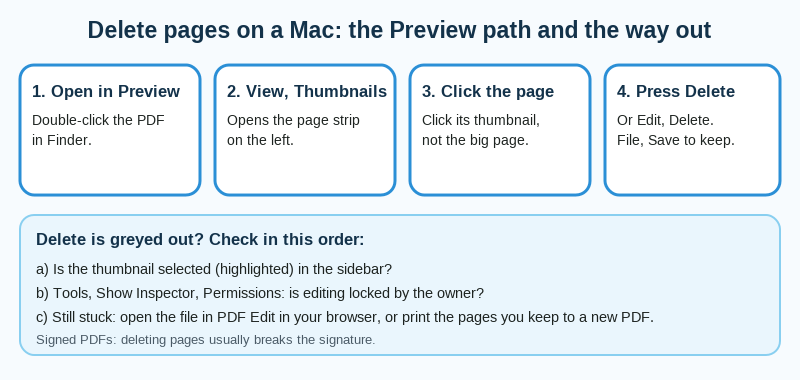
The four steps and the three checks in the picture are written out in the sections below. Apple adds one line you should know: all the annotations on the page are removed as well.
How do you delete several pages from a PDF on a Mac at once?
Select every page you want gone in the thumbnail sidebar, then press Delete once. Click the first thumbnail, hold Command and click the others for separate pages, or hold Shift and click the last one for a run of pages.
Apple’s page says select the page or pages
, so one Delete handles all of them. Count the pages before and after: a 12-page file with pages 3 to 5 removed should show 9.
Why is Delete greyed out in Preview on a Mac?
The most common cause in the Apple Community threads is that the page itself is selected instead of its thumbnail. Click the small page in the sidebar so it is highlighted, and the Delete command comes back.
Here is the catch: if the thumbnail is selected and Delete is still dead, the cause is usually the second one in the table below, a locked file.
| Cause | How you can tell | Fix |
|---|---|---|
| Page selected, not thumbnail | Sidebar has no highlighted page | Click the thumbnail, press Delete |
| Editing locked by the owner | Tools, Show Inspector, Permissions shows restrictions | Ask for the unlocked file or use another route |
| Signed document | A signature field or banner is present | Ask the sender for a new copy |
| Old Preview | Menu items missing | Update macOS |
In short: select the thumbnail first, then look at Permissions.
Can you delete pages from a locked or password-protected PDF on a Mac?
Only if the owner allows editing. Apple’s Preview guide lists topics called Lock PDFs and images
and “Password-protect a PDF”, and a PDF with editing restrictions keeps Delete greyed out until the restriction is lifted.
To check, choose Tools, Show Inspector and look at Permissions. If the file is yours, remove the restriction in the program that set it. If it is someone else’s, ask them for an unlocked copy.
How do you delete PDF pages on a Mac in Safari or Chrome?
Open the free PDF Edit editor in Safari or Chrome, add your PDF, select the pages, choose Delete and download the new file. Nothing to install, no sign-up, no watermark.
- Open the editor and add the PDF.
- Select the page thumbnails to remove.
- Choose Delete and check the page count.
- Download the new file; your original stays as it was.
This route is handy when Preview is busy with another file, when you are on a borrowed Mac, or when you also want to rotate, reorder or extract pages in the same visit.
Can you delete pages by printing the PDF to a new PDF on a Mac?
Yes. In Preview choose File, Print, set the page range you keep, open the PDF menu and choose Save as PDF. The Apple Community answers describe this as a workaround for stubborn files.
Honestly, learning that the thumbnail has to be highlighted, not the big page, cleared up most of those threads for me.
It rebuilds the file, so links, bookmarks and forms can be lost, and a digital signature will not survive. Treat it as the last route, and click a link or two in the new copy to check.
How do you undo a deleted page in Preview, and how do you save safely?
Choose Edit, Undo straight after deleting. Apple’s page does not mention Undo, so we cannot quote it, but Preview follows the standard Mac Edit menu.
- Duplicate first: in Finder, press Command+D on the PDF to make a backup.
- Use File, Export if you want a new name for the shorter file.
- Check the count in the thumbnail sidebar before you send it.
Which way to delete PDF pages on a Mac fits your file?
Preview fits an ordinary unlocked PDF; a browser editor fits when Preview stalls; printing fits last. Checked November 28, 2026.
| Route | Needs | Keeps links and forms? | Source |
|---|---|---|---|
| Preview, Delete key | Nothing, built into macOS | Yes; deleted page’s annotations go | Apple |
| PDF Edit in a browser | Safari or Chrome | Pages removed, rest kept | Our editor |
| Print, Save as PDF | Nothing, built in | Can lose links, forms; breaks signatures | Apple Community answers |
| Adobe Acrobat | Adobe account | See Adobe’s guide | Adobe |
In short: Preview first, PDF Edit if Preview refuses, printing only for plain documents.
Where do the sources differ?
- The cause of a greyed-out Delete: Apple Community answers point to selecting the thumbnail; others point to permissions. Both appear, so check both.
- Print to PDF: one answer calls it a clean workaround, but it recreates the pages and cannot keep a signature.
- Reddit: our search returned no useful Reddit thread for this phrase, so we cite none.
How we researched this
- Read Apple’s Preview User Guide page on adding, deleting or moving PDF pages, November 28, 2026.
- Read search-result summaries of Apple Community threads on a greyed-out Delete in Preview, and the title of Adobe’s Mac page-deleting guide, November 28, 2026. The Apple Community page redirected our reader, so we cite it as a summary.
- Compared four Mac routes by what they need and what they keep.
- We did not run Preview, Print to PDF or Acrobat ourselves and did not test every PDF.
Click the thumbnail, press Delete, check the page count, and enjoy a PDF that is exactly as long as it should be.
Sources and further reading
Questions and answers
How do I delete pages from a PDF on a Mac?
Open the PDF in Preview, choose View, Thumbnails, click the page in the sidebar and press Delete, or choose Edit, Delete. Save the file. Apple says the page’s annotations are removed too.
Can I delete pages from a PDF on a Mac for free?
Yes. Preview is built into macOS, and the free PDF Edit editor works in Safari or Chrome with no sign-up or watermark.
Why can’t I delete a page in Preview on my Mac?
Usually the page is selected instead of its thumbnail, or the PDF has editing locked. Click the sidebar thumbnail, then check Tools, Show Inspector, Permissions.
How do I delete several pages from a PDF on a Mac at once?
Select them in the thumbnail sidebar with Command-click for separate pages or Shift-click for a run, then press Delete once. Count the pages afterwards.
Will deleting pages break a signed PDF on a Mac?
Usually yes. Changing the document or printing a replacement normally invalidates an existing signature, so ask the sender for a fresh signed copy.